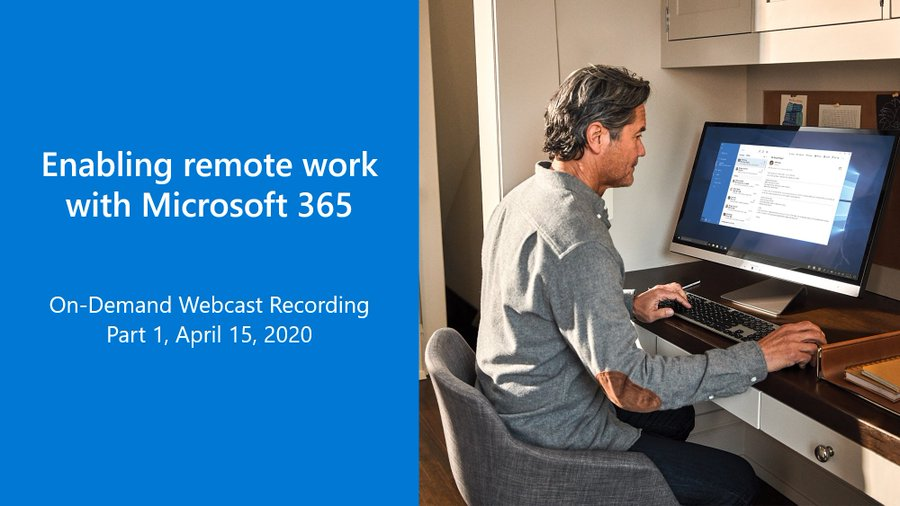
imageWatch on-demand: Part 1 of the Enabling remote work with Microsoft 365 webcast series.

Learn how Microsoft 365 can help your employees meet and collaborate remotely, as well as engage audiences through virtual events and communications.

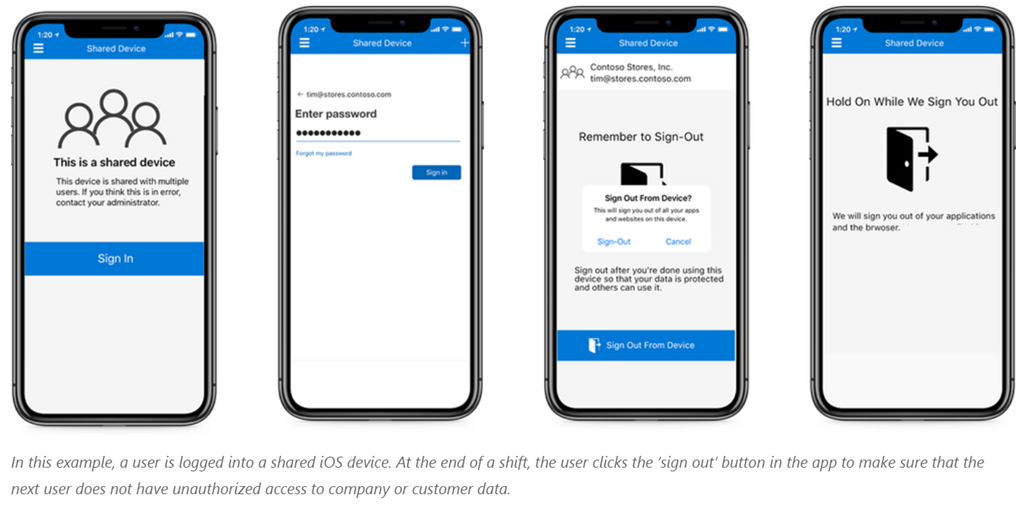
imageToday we’re announcing new Azure AD Public Preview features that enable critical Firstline Worker productivity.

For an overview, read the announcement post here:

Read the book on these features here:

For folks deciphering their children’s recent endeavors into the world of “Minecraft” (possibly a result of “remote learning” efforts), I thought I’d go into clarifying some of this:

WHICH MINECRAFT SHOULD WE USE?
Here is the workflow you should go through for understanding how your kids can play together in Minecraft.

  1. imageDoes your child have an Office 365 account at school?
    Are they using Office 365, i.e. OneDrive or PowerPoint or Teams or Outlook, etc?  If so, they should have a login ID that’s ususally something like “johnb24@schoolname.org”.
        1. If so, they have access to “Minecraft: Education Edition”.  This is a version of Minecraft that costs nothing to you or your child as your school already has purchased the rights to it. 
        2. Simply visit:
          https://education.minecraft.net/get-started/download/
          Be prepared to have your child type in their school username/password.
        3. Follow the instructions for verifying your account, downloading the software for Windows, Mac, iPad and everything else should be simple.
        4. A collaborative shared world can be played online in amongst classmates that is secure to only people in the school/class.
  2. imageWill your child be playing on:
    Mac and/or Windows
    …AND…
    Will your child want to play with others on these same platforms?
          1. Download & purchase “Minecraft: Java Edition”.  This is the version that works cross platform with all operating systems & devices – except Xbox.  It also requires creating a new user account & password to login to.
          2. Go to https://www.minecraft.net/store/minecraft-java-edition and download the Java release of Minecraft.
          3. Online play will require a subscription to:
            Minecraft Realms for Java:
            ($7.99/mo, 10 players) 
            https://www.minecraft.net/en-us/realms-for-java/
  3. imageWill your child be playing on:
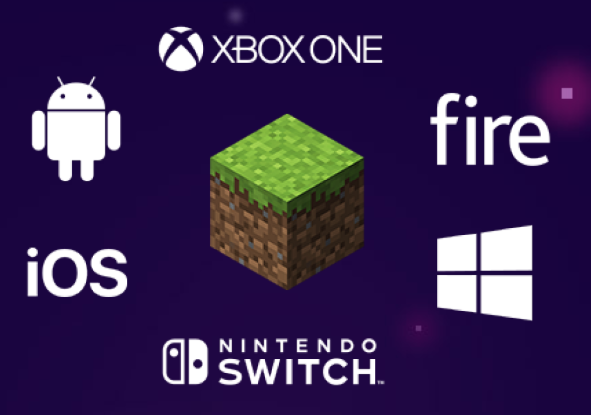
    Xbox, Windows 10, iOS, Android, Switch, Fire
    …and…
    Will your child want to play based on their Xbox Live Account?
          1. Download & purchase “Minecraft for Windows 10, Xbox or Mobile”.  These are the releases that works with existing Xbox Live Accounts.
                1. WINDOWS 10: Visit the following site on your Windows 10 system to download the Xbox Live aware version of Minecraft.
                  https://www.minecraft.net/store/minecraft-windows10
                2. XBOX: Visit the following site on your PC or from your Xbox
                  https://www.xbox.com/en-US/games/minecraft
                3. MOBILE: Download one of the following:
                  iOS: https://www.minecraft.net/store/minecraft-ios
                  Android: https://www.minecraft.net/store/minecraft-android
          2. imageOnline multiplayer gaming will require a subscription to:
            Minecraft Realms PLUS: ($7.99/mo, 10 players)
            https://www.minecraft.net/en-us/realms-plus

The "Minecraft for Mobile, Xbox, Win10" is called "Minecraft Realms Plus" and they need to have Xbox Live accounts.  If they want to use Xbox or mobile or Win10, players need to friend the Realms Plus subscription owner on Xbox Live and the owner can add them to the Minecraft Realms Plus membership.

More more details behind this, check out this help article from Minecraft.net:

imageRecently, with the onset of “remote learning” from many schools, I’ve encountered a whole lotta parents that are suddenly discovering the complexities behind the world of Minecraft.

For those not aware, let’s start from the beginning.  There are THREE different editions of Minecraft that you might download & install.

THREE MINECRAFTS & ONLINE ENVIRONMENTS
The 3 Minecrafts editions are:

  • One built in Java called:
    Minecraft: Java Edition
    It uses an online multiplayer environment called:
    Minecraft Realms for Java
  • One built for Xbox Live called:
    Minecraft: Windows 10 Edition
    It uses an online multiplayer environment called:
    Minecraft Realms PLUS
  • One built for schools called:
    Minecraft: Education Edition
    It has it’s own built in “Minecraft: Education Edition online multiplayer environment that comes with the installation – nothing needs to be done to use it.

WHY?
It has to do with the history of Minecraft, it’s acquisition by Microsoft, & the player’s evolving needs.

In the beginning, there was only “Minecraft”.  It was a Java-based application and it was distinguished by the fact that:

  • People could code their own custom modifications or “mods” for it such as their own objects, blocks, etc.
  • It ran on any platform that supported Java Runtimes.  Including Linux, Blackberries, etc.
  • It required setting up your own Minecraft server infrastructure to play online with friends.

It was later renamed to:

A safer Minecraft for Online Play   
When Microsoft acquired Minecraft, an effort was made to make safe & easy to create “online multiplayer" environments.  To do this, you had to do a few things:

  • set standards & limits on what people could do in the game
  • create a singular means of logging into an account

The choice was made to:

  • cut out “mods” and instead host a marketplace of “vetted” and “safe” mods for people to download or buy
  • use Xbox Live/Microsoft Accounts as a singular means for logging in to Minecraft

The end result were 4 releases of Minecraft that used Xbox Live/Microsoft Accounts to login & disallowed mods outside of the marketplace:

A Minecraft for School
Schools made heavy use of Minecraft but it was really hacked together to enable school curriculum & very unwieldy to manage, reset, assign to students, etc., with some teachers purchasing 20 licenses to install on PCs/Macs.

And since schools don’t have Xbox Live accounts – this made online play difficult without setting up complicated servers.  A decision was made at Minecraft/Microsoft to provide any school that has Office 365 Education deployed, low/no cost access to Minecraft for teachers and student and incorporate collaborative online environments at no extra cost.

This again required changes to Minecraft:

  • a means for logging into school accounts for Minecraft would leverage the students Office 365 account
  • the online environment needed to be built in, secured to just students & teachers

The result was the creation of a 3rd release of Minecraft called:

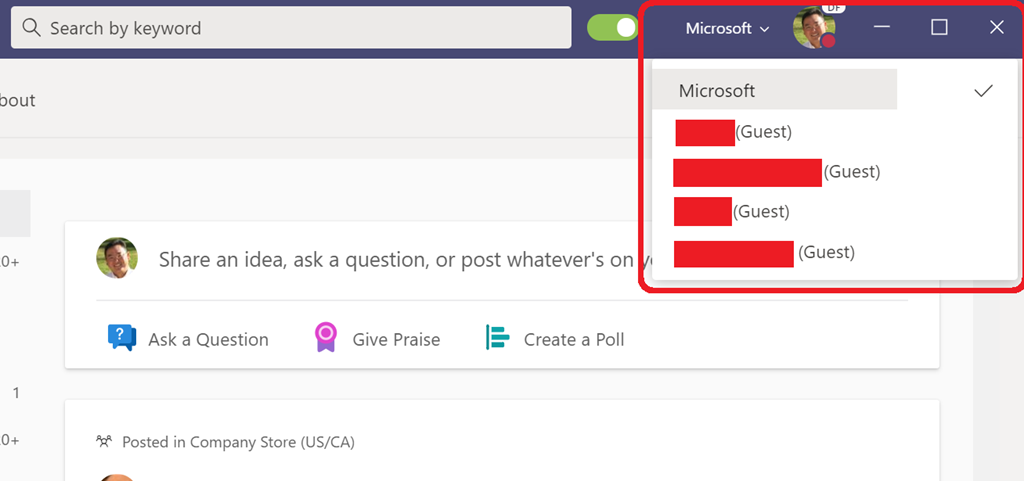
Have you ever belonged to another company’s Microsoft Team and then needed to remove yourself from that Team – and that organization entirely?

You can “Leave the Team” – and that process is pretty well documented.  But you’re still technically connected to that organization via Azure B2B and thus you’ll continue to see that organization listed within your “organizations” or tenants list within the Teams client.

image

What do I do with all these "XXXXXXXX(Guest)” organizations I still belong to?

How does one get rid of these entries?

LEAVE ORGANIZATION AS A GUEST USER
The answer is a little more convoluted than it should be.  You basically have to go into the Azure Portal using your company/org account and remove yourself as an Azure Active Directory B2B guest of these tenants/orgs.

  1. In the Azure portal, click your name in the upper right and select View account.
  2. Open your Access Panel, click your name in the upper right, and next to Organizations, select the settings icon (gear).
        1. Note: If you’re not already signed in to the organization you want to leave, under Organizations, click the Sign in to leave organization link next to the organization’s name. After you’re signed in, click your name again in the upper right and next to Organizations, select the settings icon (gear).
  3. Under Organizations, find the organization that you want to leave, and select Leave organization.
  4. When asked to confirm, select Leave.

More elaborate directions are available here:

Recently a podcast called “Masters of Scale” by Reid Hoffman featured an interview with Bill Gates back in November 2019 that highlighted a very interesting principle (and backstory) of Microsoft.

There’s a segment of the interview that really resonated with me about Microsoft’s long term vision.  To quote one of Microsoft’s deep thinkers, Tren Griffin:

“This has always been the core Microsoft strategy.”

imageOn software:

GATES: "Paul was totally critical to there being a Microsoft at all. Paul read about hardware. I didn’t like hardware. He drew me into that. Paul wanted us to actually build a personal computer. I said, ‘No, no. We’re just going to do software.’”

“​We’re going to do platforms – a computer on every desk…. We saw the importance of software when coupled with the miracle of the microprocessor and that there would be platforms initially – although it seems quite limited in today’s view."

"If our BASIC was on every machine – a library of BASIC programs – various applications, games to business applications, would be written in our BASIC, which had unique and proprietary aspects to it. Then anybody doing a new computer would want Microsoft BASIC."

"Then it became DOS, then it became Windows – but the economic model was the same [as BASIC]."

On Office:

GATES: ​We decided you had to do first-party applications. So that business model really gets its full proof in the late ’90s as Windows 95 ships and we do Office software around it.

​Excel leads 1-2-3 as Windows catches on; Word beats MultiMate, WordPerfect as Windows catches on. Microsoft Access beats Ashton-Tate, which ​PC Week ​ had this

column that said, "It was announced by Microsoft today that Ashton-Tate never existed." That was one of my favorite things and it was just funny. 

​There was this great panel where Mitch Kapor disagreed with me. He ran Lotus, a very important company. And I was promoting graphics interface, and at the end of the panel he said, "Bill is wrong. But he works so hard, he probably will succeed even though he’s wrong in this case." And I viewed that as quite a compliment, that my hardcore-ness could bend even the outcome of what was the right approach.

So we could do Word, and Excel, and Access, and a variety of products without slowing down. And because our strategy of building these Windows Office things that would integrate together required excellent execution. 

And in the end, the fact that we’ve bet on graphics interface, and the fact that our Excel worked better with PowerPoint, worked better with Word, which is this Office concept, the traditional competitors – Lotus, Ashton-Tate, WordPerfect – completely failed to achieve that kind of product. 

​And to this day that achievement of Office, which has now switched to online – that is Microsoft’s greatest asset.”
Taken from the transcript the interview in “Masters of Scale” with Reid Hoffman:

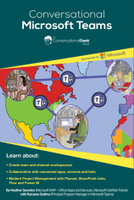
We are happy to announce the availability of two important books for expanding usage of Microsoft Teams.  In this digital age it’s important to remember that many people like to have a physical guide for their new experience!  Both books are affordable and our Conversational Geek book is short and the perfect leave behind at internal events for the launch of Microsoft Teams.  Use them both to deliver 100 & 200 level training content to your people.  And yes, both are available in digital format.

image image

Read more about these downloadable or purchasable books here:

imageThis video walks you through the updated process to request assistance from Microsoft FastTrack for organizations setting up remote work and learning, in response to the COVID-19 outbreak.

View the video here:

imagePrivate channels have been successfully rolled out to all Microsoft/Office 365 GCC customers. Please check your tenants to see their arrival. If you do not see them right away, please logout of Office 365 and Microsoft Teams, and sign back in.

If you are not familiar with Private Channels in Teams, please view the blog posts below to learn more.

(Thank you to Microsoft Customer Success Manager, Ambrosia Williams, for this information)

imageIf you’re looking at establishing Azure subscriptions & resources, a naming convention is crucial to keeping organized.

Here’s some references to consider:

It’s hopefully obvious how important doing this from day 1 is to your public cloud implementation.  This is documentation for yourself, your organization, and those supporting your institution in the years to come. (Not to mention, leaving your Azure subscription with the default name of “MICROSOFT AZURE ENTERPRISE” isn’t very indicative of having applied much thought or experience to your cloud to management or future administrators)

For example, a basic rule for Azure subscription naming conventions is highlighted in the first link:

  • AZURE SUBSCRIPTION NAME FORMAT:
    <Company>-<Department>-<Product Line(optional)>-sub-<Environment>

A simple example of this would be:

  • ENVIRONMENT:
    Company: Contoso
    Department: Finance
    Product Line: Internal Applications
    Environment: Production
  • AZURE SUBSCRIPTION NAME:
    Con-Fin-Int-Sub-Prd

« Newer Posts - Older Posts »

Categories