WHERE ARE TRANSCRIPTS STORED?
If a transcript is generated of a Teams Meeting by a user that organized a meeting or event, the transcript is usually stored in the meeting organizer’s OneDrive for Business storage as a specially created .MP4 file. The location is usually in something like “C:\Users\<username>\OneDrive – <customername>\Recordings\<meetingname>.mp4”. Details are available at Teams meeting recording and transcript storage and permissions in OneDrive and SharePoint – Microsoft Teams.
WHY ARE TRANSCRIPTS REQUIRED FOR TEAMS MEETING RECAPS?
A transcript must be created in order to generate Teams Meeting Recaps because Microsoft’s AI processes the transcript after the meeting has ended, which can take several minutes. In order to enable or disable the ability to generate a transcript, review the following documentation: Admins- Manage transcription and captions for Teams meetings – Microsoft Teams
WHAT OPTIONS ARE THERE FOR MINIMIZING TRANSCRIPT AVAILABILITY?
For organizations that want Copilot generated summaries of their Teams Meetings but concerned about transcript retention, there are 2 options:
- EXPIRATION POLICIES: Use Microsoft Purview retention policies to automatically delete Teams transcripts after a specified expiration period. Establishing expiration policies for transcripts and recordings is standard policy for many organizations. Review the following documentation for more information on this: Manage Teams recording expiration policy – Microsoft Teams | Microsoft Learn
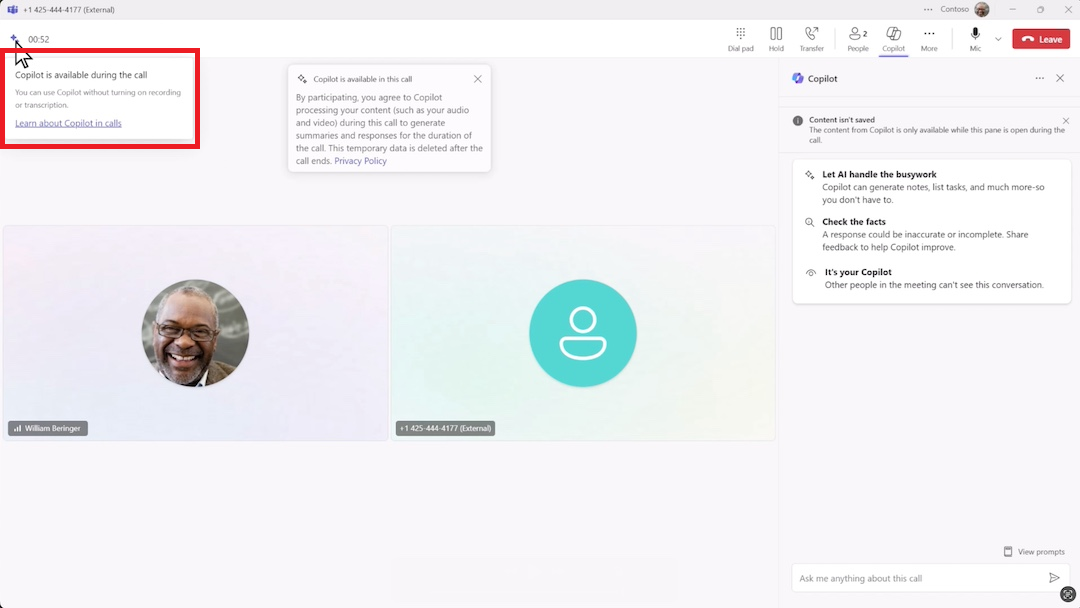
- COPILOT WITH NO TRANSCRIPT: Engage with Copilot during calls and meetings without recording or transcribing. By specifically preemptively setting a Teams Meeting beforehand as using “Copilot without a transcript”, Copilot can generate AI notes and tasks within a Copilot conversation “in-session” (i.e. *during* the meeting) without storing a transcription and recording. Note however that after the meeting, Copilot won’t be available in the meeting’s Recap tab & no Meeting Recap can be generated *after* the meeting – since a transcription was not stored. Review the docs for this here: https://aka.ms/copilotnotranscript
WHAT KIND OF TEAMS MEETING SUMMARIES ARE THERE?
For background, are only 2 scenarios where “summaries of a meeting” can be generated:
- TEAMS MEETING RECAP: The “Teams Meeting Recap” feature requires the initial creation & storage of a transcript so that the AI can generate the summary after the meeting has ended. All meeting summary solutions operate this way because this is a computationally intensive AI task that may require several minutes to complete – thus a summary cannot be generated until the end of the meeting when the transcript is complete. For more information about Teams Meeting Recaps, visit: Intelligent recap for Teams calls, meetings, and events – Microsoft Teams
- COPILOT IN-MEETING “CATCH UP” WITH NO TRANSCRIPT: During a meeting, Copilot can summarize key discussion points, including who spoke and what they said. It also suggests action items and answers any questions you have, in real time *during* the meeting. After the meeting, Copilot won’t be available in the meeting’s Recap tab & no part of the in-meeting summary will be available. For more on this, visit: Catch up on meetings with Microsoft Copilot in Teams
 kurtsh


You must be logged in to post a comment.