image The much anticipated WM 6.5 upgrade for Verizon HTC Touch Pro 2 (XV6875) users is now available for download.  The installation is called the “MR1 upgrade” and writes a new ROM image to your device, updating it to Windows Mobile 6.5.  The process takes approximately 5 minutes.

The new OS will provide a quicker, more stable experience for the TP2.

(Note:  PCD is a well known mobile support & engineering company and the official service provider for Verizon Wireless, in case you’re wondering why you’re getting the ROM image for Verizon’s device from a domain other than VZW.COM)

Posted by: kurtsh | December 22, 2009

HUMOR: Palette-Swap Ninja’s Songs about Video Games

This is great stuff.  A band called Palette-Swap Ninja wrote a series of song parodies that focus on Xbox video gaming.  If you’re a gamer, you really must listen to these… the “3 Red Lights” song will really make some of you laugh:

image Technet Magazine highlighted a feature in Windows 7’s interface that I didn’t even know was there.  Apparently, directly from the Explorer interface, you can remove personal metadata from documents without having to open the document itself.

Remove Personal metadata from Files to Protect Your Privacy
Metadata within a file can tell a lot about you. Cameras record data about when a picture was taken and what camera was used. Microsoft Office automatically adds author and company information to documents and spreadsheets. With user-created tags, you can add personal and business details that might be useful on a local copy but are unwise to disclose to the wider world.

To scrub a file of unwanted metadata in Windows 7:

  • Select one or more files in Windows Explorer.
  • Right-click and then click Properties.
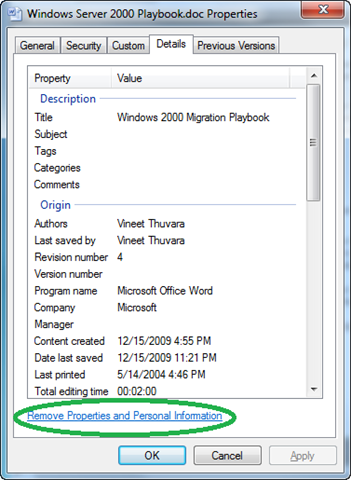
  • Go to the Details tab and click Remove Properties and Personal Information.

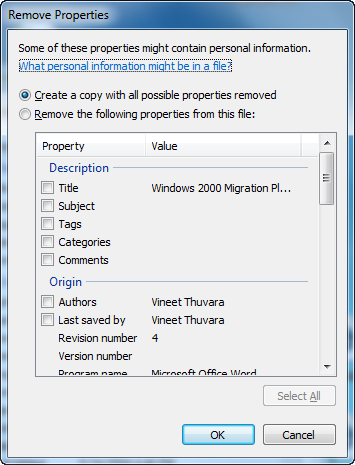
imageThis opens the Remove Properties dialog box. You now have two choices. The default option creates a copy of your file (using the original file name with the word Copy appended to it) and removes all properties it can change, based on the file type.

The second option, Remove The Following Properties From This File, allows you to select the check boxes next to individual properties and permanently remove those properties from the file when you click OK. (If no check box is visible, the property is not editable.)

Of course, common sense should prevail when it comes to issues of privacy. This option zeroes out metadata, but it does nothing with the contents of the file itself. You’ll need to be vigilant to ensure that digital photos and other documents don’t contain potentially sensitive data.

From the Microsoft Press book Windows 7 Inside Out by Ed Bott, Carl Siechert, and Craig Stinson.

Ed Bott posted an nice article on a replacement “network activity” indicator for Windows 7 that actually blinks when inbound or outbound data is coming or going.

imageOne question I hear often from Windows 7 upgraders (more often than I would have expected, in fact) is, "What happened to the old network activity indicator?" It’s true: the Windows 7 designers got rid of that little icon in the notification area that flashes to indicate that your network adapter is busy. One of the key design goals of Windows 7 was to make Windows "less noisy," and the Windows design team paid especially close attention to pop-up messages and other potential distractions in the lower right corner of the screen.

Personally, I don’t miss that flashing icon. But if you want it back, you can download a tiny utility written by Igor Tolmachev. It’s called, not surprisingly, Network Activity Indicator for Windows 7:

It uses a mere 1.3 MB of RAM and does exactly what it promises.

Update: In response to a question via Twitter, yes, this works with 64-bit Windows 7 editions as well as 32-bit (x86).

[Taken from Ed Bott’s blog]

image Earlier this year Microsoft introduced the technical preview program for Microsoft Office 2010, the next version of Microsoft Office and related products, which are designed to deliver the best productivity experience across the PC, phone and browser; help people work better together; and give them new capabilities to bring their ideas to life with text, video and images. Following the successful technical preview program, during the Microsoft Professional Developers Conference (PDC) Microsoft has unveiled public beta releases of Office 2010, SharePoint Server 2010, Project 2010, Visio 2010, Office Web Apps for businesses and Office Mobile 2010. For more information and to download the beta products see http://www.microsoft.com/2010. See also these related downloads:

Wow.  If you own licensing for the “System Center Server Management Suite” (either Enterprise or Datacenter) with Software Assurance, you will be receiving AT NO CHARGE the Opalis Technologies we acquired from Opalis Software.  Details are documented here –  http://www.microsoft.com/pathways/opalis/ – however this is the net of it:

image The Opalis subsidiary will grant licenses for Opalis technology to existing Microsoft customers licensed for System Center Server Management Suite Enterprise (SMSE) and Server Management Suite Datacenter (SMSD) with active Software Assurance. The grant will include use rights for the Opalis Integration Server, Integration Packs, and Process Catalogue software and the right to manage server devices licensed for SMSE or SMSD.

As of today, these grants will be made at no additional license cost to Microsoft customers. Microsoft reserves the right to make changes to this grant plan. Please see below as to how to provide customers with access to Opalis software.

Q:   How can an SMSE or SMSD customer access their Opalis license grant?
A:   An Opalis order can be initiated by emailing your account team for more information on how to proceed.  Upon order approval by Opalis, customers will receive an email with license keys, login instructions and link to the Opalis software download site. Additionally, existing SMSE and SMSD customers will be contacted directly, via Microsoft Connect, to inform them of how to access their Opalis grant

(We seem to be in a generous mood.  In an unrelated offer, we also decided earlier that we’d be giving all customers with Terminal Services CALs on Software Assurance licensing for App-V for Terminal Services again, AT NO CHARGE.)

image We are happy to announce the release of the Cross Platform Audit Collection Services for Operations Manager 2007 R2. This feature extends the existing Audit Collection Services and Cross Platform features in R2 to include UNIX and Linux Event auditing.

Cross Platform Audit Collection Services allows you to collect events from UNIX/Linux servers and have Operations Manager 2007 R2 ACS collect them in the same way the Windows events are collected. Reports can then be viewed to show the collected events (the reports are included with the Cross Platform Audit Collection Services installer) .

Three downloadable components are required for Cross Platform Audit Collection Services:

For Cross Platform ACS to function, the existing R2 Cross Platform Management Packs were updated. They are not required for normal Cross Platform operation, only for Cross Platform ACS. These Management Packs can be downloaded from within the Operations Manager 2007 R2 Console or directly from the link above.

Note: With these updated MPs, Language Packs have been introduced (versus full MPs containing all languages as was the case with the Release of R2). If you are using a localized version of Operations Manager, you will need to download and install the English Updated Management Pack and any Language Pack that you require.

The logic as to which events are to be collected for each of the UNIX/Linux Servers is included in the Cross Platform Audit Collection Services Management Packs. There is a UNIX ACS Management Pack that is required by all the platforms, as well as individual Management Packs for each supported Platform (for example, SUSE Linux Enterprise Server 11). These Management Packs can be downloaded from within the Operations Manager 2007 R2 Console or from the link above.

Note: The Cross Platform Audit Collection Services Management Packs are currently only available in English.

Finally, the Cross Platform Audit Collection Services Installer needs to be downloaded and installed. Cross Platform ACS should be installed only on Operations Manager Management Servers that actively monitor the UNIX/Linux Servers. Also, an ACS Collector needs to be configured and the ACS Forwarder on the Management Server needs to be enabled. The RMS should not act as an ACS Collector/Forwarder. For more information on best practices and how to install Cross Platform ACS, check out the Deployment Guide. The Cross Platform Audit Collections Services Installer can be downloaded from the link above.

Note: As with the Cross Platform ACS Management Packs, the Installer is currently only available in English.

For more information on installing and configuring the Cross Platform Audit Collections Services feature and installing the included report, refer to the Deployment Guide (available on the download page with the Installer).

The documentation can be access directly via the following links:

[taken from the blog]

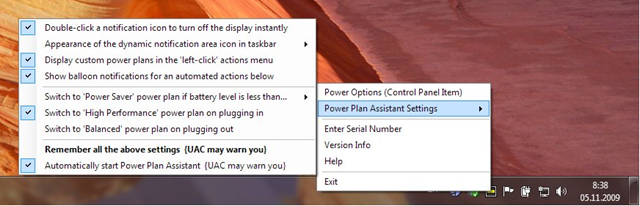
Ever wish Windows 7 just automatically throttled your power utilization by changing power plans depending on whether you were connected to A/C power?

Power Plan Assistant is a smart power plan management application, designed specifically for Microsoft® Windows® 7 operating system. All the editions of Windows® 7 are fully supported (when 64-bit operating system is detected, the native 64-bit binaries will be installed automatically). There are no installation prerequisites – everything is included in this compact package.

Power Plan Assistant allows a user to:

  1. Switch between the Windows built-in power plans (all power plans, including custom plans, not just 2 of them, as it is when operating via system Power icon);
  2. Easily observe which power plan is currently active (dynamic application icon in a taskbar notification area changes in accordance with an active power plan, does not matter where it has been changed – in a Control Panel, system Power icon or in the Power Plan Assistant itself);
  3. Instantly power off the display on user’s demand (why wait at least one minute for it to be powered off, wasting the energy?). The display can be waked up then by pressing any key or moving the cursor;
  4. Switch the power plans automatically:
    – to ‘Power Saver’ (to preventively save the energy if the battery level goes low);
    – to ‘High Performance’ (on plugging in);
    – to ‘Balanced’ (on plugging out).

Every Power Plan Assistant’s setting is user-configurable, i.e. user can enable or disable it, either permanently or for a current session only. Even the balloon messages and the notification icon appearance/behavior can be customized. When application is started, please refer to ‘left-click’ actions menu and ‘right-click’ settings menu, where you can view/modify all the available settings.

imageCelestix and Microsoft invite you to attend our Lunch-N-Learn network security briefings at Microsoft meeting centers.

While you enjoy a catered lunch, Celestix’ Richard Hicks, North America’s only Microsoft MVP for Forefront security will brief you about Microsoft’s new Threat Management Gateway for total web security and Unified Access Gateway (UAG ) for secure access and application publishing for remote users.

imageYou’ll also see a demo of Celestix’ new generation appliance platforms for TMG and UAG that Celestix has packed with industry-leading features for high performance and for saving you time and money.

DATE/TIME:
January 21, 2010
11 am to 1 PM

LOCATION:
Microsoft Irvine
3 Park Plaza
Suite 1600
Irvine California 92614

REGISTRATION:
http://www.celestix.com/corporate/events/lunchnlearn/
image

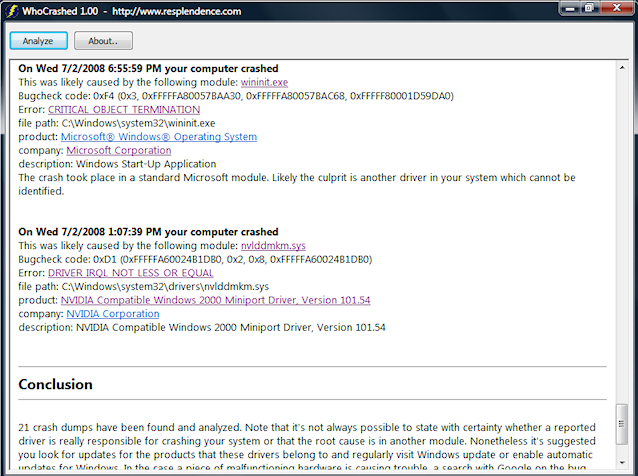
image Whenever a computer running Windows suddenly reboots without displaying any notice or blue screen of death, the first thing that is often though about is a hardware failure. In reality, most crashes are caused by malfunctioning device drivers and kernel modules. In case of a kernel error, most computers running Windows do not show a blue screen unless they are configured to do so. Instead these systems suddenly reboot without any notice.
WhoCrashed shows the drivers which have been crashing your computer with a single click. In most cases it can pinpoint the offending drivers which have been causing misery on your computer system in the past. It does post-mortem crashdump analysis and presents all gathered information in a comprehensible way.
Normally, debugging skills and a set of debugging tools are required to do post-mortem crash dump analysis. By using this utility you do not need any debugging skills to be able to find out what drivers are causing trouble to your computer.

Note
Note that WhoCrashed cannot be always 100% sure about the drivers which are responsible for crashing your computer. Because all kernel modules run in the same address space, a kernel module is able to corrupt another. Also, a driver may be able to cause problems to another driver which runs in the same device stack. So keep in mind this software is not guaranteed to identify the culprit in every case but most often it does.
WhoCrashed relies on the Windows Debugging Package (WinDbg) from Microsoft. If this is not installed, WhoCrashed will download and extract this package automatically for you.

DOWNLOAD:  WhoCrashed 2.00 (Windows 7 and below, x86 & x64)
http://www.resplendence.com/downloads

« Newer Posts - Older Posts »

Categories