image Today’s IT departments are challenged with enabling their users to collaborate and share information across boundaries.  Often the risk landscape of such systems is not fully understood. This results in inadequately deployed collaboration tools which provide an avenue for malicious activity and underachieving business productivity.

Generally, such collaboration projects are viewed as web development projects, and lose the necessary focus from a security and risk mitigation perspective; resulting in governance and compliance shortcomings, deployment delays, and higher administrative costs to meet objectives. 

A successful collaboration deployment can be achieved through the use of Microsoft’s Forefront suite of products.

Hear senior experts from Microsoft, CSS, Omada and Gigatrust highlight how collectively they bring together technologies that produce a Secure Collaboration framework, with the realization of governance and compliance.

  • Date:  March 25, 2010
  • LocationSeven Degrees, 891 Laguna Canyon Rd, Laguna Beach, CA

Agenda:

  • Registration and Welcome
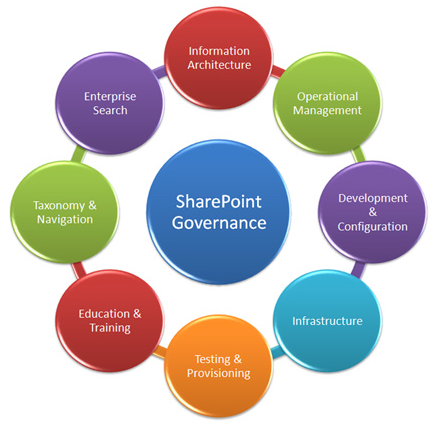
  • CSS discusses the threat landscape, risks, and challenges with providing secure collaboration systems, along with an overview of Microsoft Forefront solutions for SharePoint.
  • Omada shares how Omada SharePoint Governance Manager works with Microsoft’s Forefront Identity Manager to bring sophisticated compliance reporting, workflow management, and portal governance to SharePoint.
  • Gigatrust explains how to integrate Rights Management with SharePoint, extend RMS functionality to mobile devices and additional file-types, and improve compliance reporting.
  • Reception – Food, Drinks, Entertainment & Prizes

Registration:
This event is invite only.  If you’re a customer of mine and are interested in attending this event, please contact me for event start time & registration details.


image

image The Solution Accelerators team is pleased to announce the beta release of this updated version of the Microsoft Assessment and Planning (MAP) Toolkit 5.0. Use the MAP Toolkit 5.0 to plan your right-sized infrastructure, accelerate IT planning, and assess multiple products and scenarios from a single tool—helping you and your organization save valuable time and money.

MAP Toolkit 5.0 is an agentless tool designed to simplify and streamline the IT infrastructure planning process across multiple scenarios through network-wide automated discovery and assessments. This Solution Accelerator performs an inventory of heterogeneous server environments and provides you with usage information for servers in the Core CAL Suite, a data center infrastructure assessment survey, and a readiness assessment for the most widely used Microsoft technologies—now including Office 2010.

Is your organization spending valuable resources planning its IT infrastructure? Participate in the MAP Toolkit 5.0 Beta 1. Take an early look at this release, and provide timely feedback to help ensure that our development team best meets your needs.

Tell us what you think!
Please send us your constructive feedback. We value your input; this is the perfect opportunity to be heard. Send your comments to the development team: MAPfdbk@microsoft.com.

Availability
This program is now open. The beta 1 review period will run through mid-April, 2010. The release of this tool is scheduled for July, 2010.

Tell your friends
To join the beta review program for Microsoft Assessment and Planning (MAP) Toolkit 5.0, visit Microsoft Connect: https://connect.microsoft.com/InvitationUse.aspx?ProgramID=1668&InvitationID=M32B-GBGR-HHFG&SiteID=297.

Learn more

Posted by: kurtsh | March 13, 2010

INFO: “Visio Viewer has stopped working”

image If you’re using the Visio Viewer, there’s a good chance it no longer works right now.  Please take a look at this information and the link below for the potential resolution:

Some of you have recently noticed that your install of the Visio Viewer isn’t working – this is by design and can easily be fixed. Microsoft has recently released Security Bulletin MS09-55 through Windows Update which deactivates Visio Viewers 2002, 2003 and 2007 because of a security issue. With this fix we are retiring Visio Viewer 2002 as well as Visio Viewer 2003

LINK:  Updates regarding the Visio Viewer
http://blogs.msdn.com/visio/archive/2009/12/28/updates-regarding-the-visio-viewer.aspx

Posted by: kurtsh | March 12, 2010

TOOL: Microsoft DirectAccess Connectivity Assistant

image The Microsoft DirectAccess Connectivity Assistant (DCA) helps organizations reduce the cost of supporting DirectAccess users and significantly improve their connectivity experience.

DCA informs mobile users of their connectivity status at all times; provides tools to help them reconnect on their own if problems arise; and creates diagnostics to help mobile users provide IT staff with key information if necessary—all to help customers operate with more efficiency, and at a lower cost.

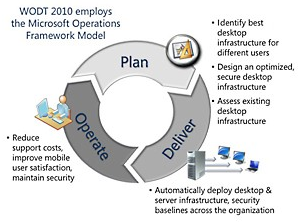
DCA is the newest addition to the Windows® Optimized Desktop Toolkit 2010, which is designed to help IT pros plan, deliver, and operate the right desktop technologies for users across their organization.

DOWNLOAD: Microsoft DirectAccess Connectivity Assistant
http://www.microsoft.com/downloads/details.aspx?displaylang=en&FamilyID=9a87efe8-e254-4473-8a26-678adea6d9e9

imageThe Windows Optimized Desktop Toolkit 2010 is an amalgam of several different packages we’ve put together that are organized in such a way to fit into the traditional “Plan, Deliver, and Manage” lifecycle model of IT.  It includes:
  • Windows Optimized Desktop Toolkit 2010 Guide
  • Infrastructure Planning & Design Guides for the Optimized Desktop
    • Guide for DirectAccess
    • Guide for App-V
    • Guide for MED-V
    • Guide for Forefront Unified Access Gateway
      (A highly recommended component of any DirectAccess implementation)
  • Microsoft Assessment & Planning Toolkit
  • Microsoft Deployment Toolkit 2010
  • Windows 7 Security Compliance Management Toolkit
  • Microsoft DirectAccess Connectivity Assistant

LINK:  Windows Optimized Desktop Toolkit 2010
http://technet.microsoft.com/en-us/solutionaccelerators/ff354312.aspx

Posted by: kurtsh | March 12, 2010

RELEASE: Microsoft App-V for RDS 4.6 w/ x64 support

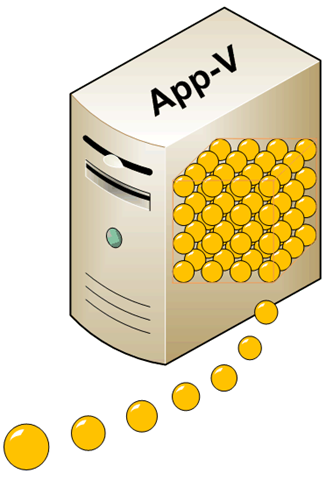
image_thumb[2]In Remote Desktop Services deployments, application conflicts can lead to silos of remote desktop session host servers. To avoid application conflicts, applications typically must undergo significant testing to determine which applications will collide and, therefore, must be separated and run on different session host silos—a time-consuming and costly process. Separating out multiple remote desktop session hosts to accommodate specific applications routinely results in servers being underutilized because each one is locked into a specific configuration, capable of serving only a limited set of non-conflicting applications. Often, 20 servers are required to support 1,000 users.
Microsoft Application Virtualization for Remote Desktop Services 4.6 helps consolidate remote desktop session host servers by offering the following features and benefits:

  • Reduce app-to-app and multi-user application conflicts and hence the need for regression testing
  • Accelerate application deployment by reducing the deployment risk
  • Simplify profile management
  • App-V for RDS 4.6 now supports 64-bit operating systems.

DOWNLOAD:  Microsoft App-V for RDS 4.6 with x64 support
http://www.microsoft.com/downloads/details.aspx?displaylang=en&FamilyID=e633164f-9729-43a8-9149-de651944a7fe

image You can use App-V SFT View to provide programs and automated tools with read-only access to .sft files. For example, you can install SFT View on App-V Management Servers to allow vulnerability scanners and file-based asset inventory tools to scan .sft files. You can also use App-V SFT View to interactively inspect .sft file contents by using any shell interface, for example, Windows Explorer or the command line. All valid .sft and .dsft file name extensions will be scanned by App-V SFT View and will be made available for inspection. For every valid .sft file, a corresponding .dir folder will be displayed. For example, if a file that is named Office.sft is located, a new folder will be displayed in a directory that is named Office.sft.dir.

SFT View runs in the background to automatically generate the .dir folder views of any .sft or .dsft files that are present in a directory; it does not require any user interaction. SFT View does not extract any .sft or .dsft file contents to disk; instead, it creates a view of the contents and represents them as .dir folders.
This application is not supported through the official Microsoft Support channels. Please use the Microsoft Application Virtualization TechNet forums to provide feedback or report any problems.

Note: SFT View should NOT be installed on App-V Lightweight (Streaming) Servers.

DOWNLOAD: MS App-V SFT View
http://www.microsoft.com/downloads/details.aspx?displaylang=en&FamilyID=26d8bfe3-02dd-4073-95f8-594bbb12933a

image

Good morning everyone, we wanted to get you this update, following from an earlier post this morning on the cloud. 

Today a blog post was made announcing the Planning and Design Guide for Dynamic Data Center beta.  The design process in the free Infrastructure Planning and Design Guide for Dynamic Data Center allows your organization to strategically plan a Dynamic Data Center infrastructure that is designed for ease of manageability.

Key benefits of the guide include:

  • The infrastructure is designed using best practices to reduce the administrative burden of managing the Dynamic Data Center.
  • A single set of requirements is tracked throughout the entire design process and then transferred to the appropriate supporting Infrastructure Planning and Design guides.
  • The infrastructure design of the virtualization hardware and the management software includes determining the scaling and architectural limits of each component.

Here is some more information:
Download the IPD Guide for Dynamic Data Center.
Learn more about IPD Guides for Virtualization and System Center
Download other best practices from the Infrastructure Planning and Design series

[gratuitously stolen from Jeff Wettlaufer’s post at http://blogs.technet.com/systemcenter/archive/2010/03/08/infrastructure-planning-and-design-guide-for-dynamic-data-center-join-the-beta-now.aspx]

image (courtesy of Paul Thurrott)
If you have a Windows 64-bit OS, have you ever noticed that:

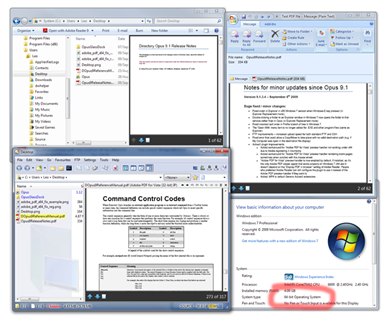
  • the icons for your PDF documents don’t display thumbnails of the actual document like Office document types? 
  • the preview handler doesn’t display previews of Acrobat documents correctly?

Adobe has a bug in the installer for 64-bit Windows that prevents the thumbnails/previews from displaying correctly.  The problem’s been around for more than 2 years and Adobe’s never fixed the issue.

Here’s the fixes for these issues:
http://pretentiousname.com/adobe_pdf_x64_fix/index.html

« Newer Posts - Older Posts »

Categories