imageVisual Studio Team Explorer Everywhere is now offered as a free download.
Visual Studio Team Explorer Everywhere helps .NET and Java development teams collaborate across platforms and may be used in conjunction with Visual Studio Team Foundation Server Express. Visual Studio Team Foundation Server Express provides small teams of up to five developers with source code control, work item tracking, and agile project tracking tools for their software projects so that they can deliver predictable results.

Visual Studio Team Explorer Everywhere 2010 product will be removed from Volume Licensing price lists in April 2012.  Customers may download the product at Microsoft.com/download.  It is also included with MSDN subscriptions.

WEB SITE: Visual Studio Team Explorer Everywhere 2010
http://www.microsoft.com/visualstudio/en-us/products/2010-editions/team-explorer-everywhere

DOWNLOAD:  Microsoft Visual Studio Team Explorer Everywhere 2010 with SP1
http://go.microsoft.com/?linkid=9802898

Posted by: kurtsh | March 11, 2012

INFO: Changes in Software Assurance for 2012

clip_image002

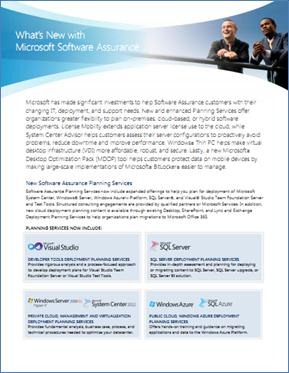
Microsoft has made significant investments to help Software Assurance customers with their changing IT, deployment, and support needs. New and enhanced Planning Services offer organizations greater flexibility to plan on-premises, cloud-based, or hybrid software deployments. License Mobility extends application server license use to the cloud, while System Center Advisor helps customers assess their server configurations to proactively avoid problems, reduce downtime and improve performance. Windows® Thin PC helps make virtual desktop infrastructure (VDI) more affordable, robust, and secure. Lastly, a new Microsoft® Desktop Optimization Pack (MDOP) tool helps customers protect data on mobile devices by making large-scale implementations of Microsoft® BitLocker® easier to manage.

  • New Software Assurance Planning Services
    Software Assurance Planning Services now include expanded offerings to help you plan for deployment of Microsoft System Center, Windows® Server, Windows AzureTM Platform, SQL Server®, and Visual® Studio Team Foundation Server and Test Tools. Structured consulting engagements are provided by qualified partners or Microsoft Services. In addition, new cloud deployment planning content is available through existing Desktop, SharePoint, and Lync and Exchange Deployment Planning Services to help organizations plan migrations to Microsoft Office 365.
    • PUBLIC CLOUD, WINDOWS AZURE DEPLOYMENT PLANNING SERVICES
      Offers hands-on training and guidance on migrating applications and data to the Windows Azure Platform.
    • PRIVATE CLOUD, MANAGEMENT AND VIRTUALIZATION DEPLOYMENT PLANNING SERVICES
      Provides fundamental analysis, business case, process, and technical procedures needed to optimize your datacenter.
    • SQL SERVER DEPLOYMENT PLANNING SERVICES
      Provides in-depth assessment and planning for deploying or migrating content to SQL Server, SQL Server upgrade, or SQL Server BI solution.
    • DEVELOPER TOOLS DEPLOYMENT PLANNING SERVICES
      Provides rigorous analysis and a process-focused approach to develop deployment plans for Visual Studio Team Foundation Server or Visual Studio Test Tools.
  • License Mobility through Software Assurance
    Organizations have a range of IT deployment options, including on-premises, Microsoft-delivered cloud services, and partner-delivered cloud services. License Mobility through Software Assurance gives you the ability to deploy certain server applications with active Software Assurance on-premises or in the cloud, without having to buy additional licenses. This benefit update provides additional hosting flexibility and affordability. Learn more at www.microsoft.com/licensing/software-assurance/license-mobility.aspx.
  • System Center Advisor
    System Center Advisor is a cloud service hosted on Windows Azure that regularly analyzes your servers’ configuration to help you proactively avoid problems, while enabling support staff to resolve issues faster by accessing current and historical configuration data; all with the security features that meet your needs. Additionally, System Center Advisor helps reduce downtime by providing suggestions for improvement, and notifying you of key updates specific to your configuration. Learn more at www.microsoft.com/licensing/software-assurance/system-center-advisor.aspx.
  • Windows Thin PC
    Windows Thin PC (WinTPC) provides a low footprint, locked down version of Windows 7 Enterprise that enables organizations to repurpose existing PCs as thin clients, thereby reducing the need for new thin client hardware. And since these PCs retain their existing Software Assurance coverage, they do not need any additional Windows Virtual Desktop Access (VDA) licensing for VDI. WinTPC offers an excellent thin client experience, while still providing users with a superior remote desktop experience. Learn more at www.microsoft.com/licensing/software-assurance/windows-thin-pc.aspx.
  • NEW tool added to Microsoft Desktop Optimization Pack –
    “BitLocker Administration and Monitoring (MBAM)”
    Microsoft Desktop Optimization Pack has long offered a suite of technologies to help improve compatibility and management, reduce support costs, improve asset management, and improve policy control. Now organizations using Windows 7 Enterprise BitLocker Drive Encryption and BitLocker To Go to protect data on Windows 7 PCs and portable storage devices can turn to Microsoft BitLocker Administration and Monitoring (MBAM), to help make large-scale implementations easier to manage while minimizing support costs. Learn more at www.microsoft.com/licensing/software-assurance/mdop.aspx.

imageOn a Windows AD-based network using Outlook connected into Exchange, most people expect that they won’t need to enter any credentials.  After all, your AD credentials used upon login should be enough to provide pass-through authentication.

However I’ve noticed that some folks have encountered a situation where once they start Outlook, it indeed requests (via a pop-up dialog box) that the user retype their AD username and password… much to the bother & annoyance of the user.

The issue may be that you have multiple cached credential entries for Outlook stored within Windows – which take precedence over Windows Authentication – and Outlook doesn’t know which to use.  Here’s how to delete them and get back to using seamless Windows Pass-through authentication for connecting into Exchange via Outlook:

Delete the personal credentials
===========================
If you are running Windows 7, remove the user’s stored credentials in Windows Credential Manager. To do this, follow these steps:

  1. Click Start, click Control Panel, and then click Credential Manager.
  2. Locate the set of credentials that is used to connect to Exchange. The credentials should be shown as MS.Outlook: username@…
  3. Expand the set of credentials, and then select Remove from Vault.

Now when you start Outlook it’ll use your cached corporate domain login without prompting.

Posted by: kurtsh | March 11, 2012

RELEASE: SQL Server 2012 now available

imageMicrosoft SQL Server 2012 enables a cloud-ready information platform that will help organizations unlock breakthrough insights across the organization as well as quickly build solutions and extend data across on-premises and public cloud backed by capabilities for mission critical confidence.

SQL Server 2012 enables a cloud-ready information platform that will help organizations unlock breakthrough insights across the organization as well as quickly build solutions and extend data across on-premises and public cloud backed by capabilities for mission critical confidence:

  • Deliver required uptime and data protection with AlwaysOn
  • Gain breakthrough & predictable performance with ColumnStore Index
  • Help enable security and compliance with new User-defined Roles and Default Schema for Groups
  • Enable rapid data discovery for deeper insights across the organization with ColumnStore Index
  • Ensure more credible, consistent data with SSIS improvements, a Master Data Services add-in for Excel, and new Data Quality Services
  • Optimize IT and developer productivity across server and cloud with Data-tier Application Component (DAC) parity with SQL Azure and SQL Server Data Tools for a unified dev experience across database, BI, and cloud functions

Microsoft SQL Server 2012 Documentation:

image

UPDATE 3/9/12 8:00AM:
Well, that was fast.  The offer expired around 12 midnight last night, I guess, as did the 50% off deal on William Stanek’s books.  So if you’re interested in the PowerShell 2.0 book, it’s $23 from O’Reilly.

——————-
ORIGINAL POST:
WOW.  There’s an insane amount of confusion going on about this free eBook we made available on the day of the launch of SQL Server 2012 so I’m going to post these instructions on how to get it… and as of March 8th 9:00PM PST it still works, even though I think it was supposed to be taken down.  It was supposed to be a one-day-only deal as far as I understand.  (Just know that if you needed these instructions to figure out how to get it, you fail and that’s all I’ll say about that.)

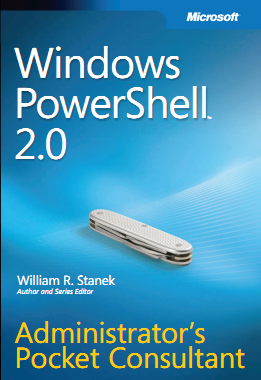
So here we go – here’s how to get the free copy of Microsoft Press’ “Windows PowerShell 2.0 Administrator’s Pocket Consultant” eBook. (445pgs)

  1. imageLogin to http://www.sqlserverlaunch.com /WW/Booth/MSL.  (Assuming you’ve registered)  You’ll be sent to the keynote page.  There will be a button called “Visit Expo Hall”.
  2. imageClick the red button called “Visit Expo Hall”.  You’ll see a biplane with a “Microsoft SQL Server 2012 Microsoft Pavilion” banner behind it.
  3. imageClick the “Microsoft SQL Server 2012 Microsoft Pavilion” banner.  This will take you to the Microsoft Pavilion.  You’ll see a blue sign that reads “Microsoft Learning – Be the Next Microsoft Employee”.
  4. imageClick the sign that reads .  You’ll see at “Menu” drop down.  When you click on the Menu, it will reveal several options including “Documents”.
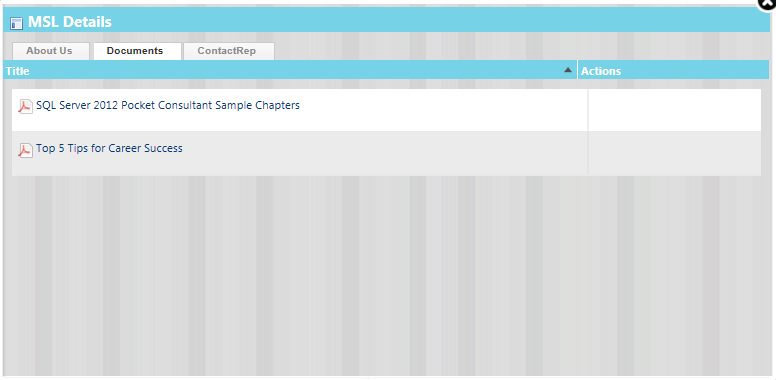
  5. imageClick on “Documents”.  This will reveal a dialog box called “MSL Details”.  Two items will be listed, including one called “Top 5 Tips for Career Success”. 
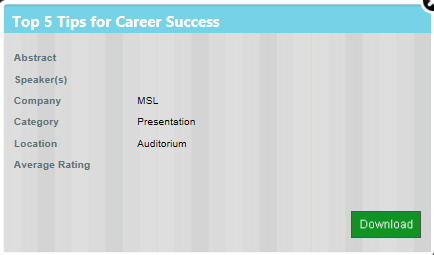
  6. imageClick on “Top 5 Tips for Career Success”.  It will reveal another dialog box that will have a “Download” button on it.
  7. imageClick on the “Download” button.  It will download an Acrobat PDF entitled “Top 5 Tips for Career Success”.  In the bottom left corner, you’ll see the words, “Free eBooks” and there’s a link below it that reads, “Get yours today.”

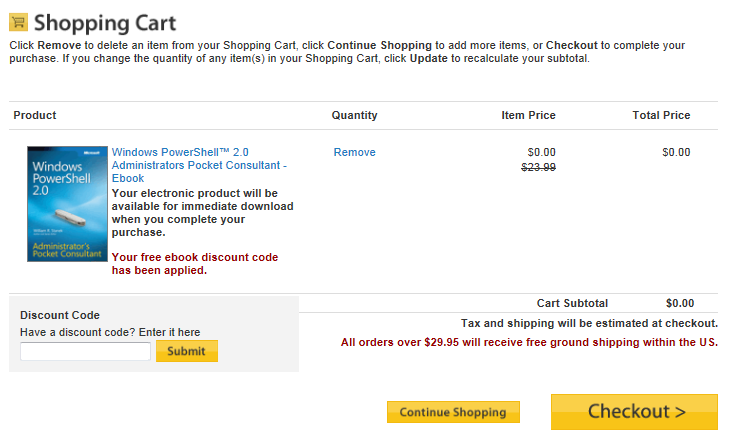
  8. imageClick on the link within the PDF called “Get yours today.”  You’ll need to have links enabled within your PDF reader for it to work.  This will send you to the O’Reilly store with a prepopulated discount coupon and the book in your online basket.  You’ll notice that the cost of the book is $0.00.
  9. imageCheck out.  The book will be available in your O’Reilly library account to download. 

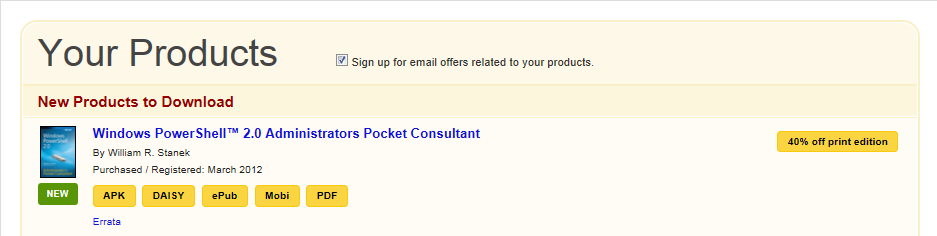
  10. imageClick on the words “Your Account” to go to the download area.  You’ll be able to download the book in a variety of formats including APK, DAISY, ePub, Mobi, and PDF.
  11. Click the button of the format you want.  Enjoy your new eBook.

image

Posted by: kurtsh | March 8, 2012

BETA: Microsoft Device Center for Windows 8

image

Microsoft Device Center is a new beta application that helps you make the most out of your Microsoft keyboard and mouse.  It allows you to customize devices from an easy-to-learn Windows 8 interface and create new shortcuts that make tedious tasks a breeze.

Device Center helps you personalize and customize how you work on your PC
  • Tailor your mouse and keyboard to meet your unique needs and work style.
  • Modify your mouse and keyboard settings to make it easier to use the unique features of most PC apps.
Effortlessly transition to Device Center from existing device management apps
  • Launch the app from the Windows 8 Start screen.
  • View and change basic and application-specific settings for all connected devices in one place.
  • Explore features with pop-up descriptive and “how-to” InfoTips.
  • Includes access to an online How-To/Troubleshooting library.
  • Includes access to an online Healthy Computing Guide for tips on how to work more comfortably on your computer.

BETA: Microsoft Device Center for Windows 8
http://www.microsoft.com/hardware/en-us/downloads/device-center

Note: This app is intended as a Beta release for the Windows 8 Consumer Preview and is currently available only in English.

Posted by: kurtsh | March 7, 2012

TRAINING: Microsoft IT Camp–Los Angeles, March 15

IT Camps are semi-structured, no-fluff events exclusively designed to serve IT professionals. They are a free, in-person learning event for anyone seeking professional development as it applies to IT Professionals.

The agenda is intended to deliver a technical overview and hands-on experience that is less formal or structured than traditional instructor-led training. Participants will have a chance to perform hands on activities / exercises individually or as a team. At the end of the day, we encourage everyone to share their thoughts and experiences with the rest of the group. Come prepared to have fun, be excited, and interact in a group.

Please visit Harold Wong’s and Chris Avis’ blog today to start making topic suggestions for the upcoming event in your city.

To participate in the afternoon session, you will need to bring your own computer (laptop preferred) with the following minimum configuration:

  • 4GB RAM (8 GB preferred)
  • At least 20GB of free disk space (75 GB preferred)
  • x64 compatible processor with Intel VT or AMD-V technology

Recommended downloads prior to IT camp:

Agenda and Abstracts of Sessions

8:00 – 8:30 AM Check-In and Welcome

8:30 – 9:30 AM Get out of Dodge: Migrating to Windows Server 2008 R2 SP1
Is your infrastructure still clinging to the 2003 x86 server architecture? But with every day that goes by, you worry more and more that the other shoe will drop. You know you have to bite the bullet and get these critical services over to more modern hardware paired with the current supported revisions of the server platform. These are the services that keep the lights on, the servers running and most importantly: the users happy! This demo-intensive session covers how to migrate essential services like DHCP, DNS, File/Print, Certificate Services and more.

9:30 – 10:30 AM Veeam Presentation
Discover how System Center 2012 can be leveraged to manage coexisting private cloud technologies from the metal to the app! This session will focus on the following System Center 2012 components: Virtual Machine Manager, Orchestrator and Operations Manager and how each technology can manage both Hyper-V and VMware Hypervisor platforms.

10:45 – 12:00 PM Open Topics

12:00 – 1:00 PM Lunch

1:00 – 2:30 PM Open Topics

2:45 – 4:00 PM Hands-On-Lab: Configure Windows Hyper-V Server 2008 R2 (Free version)
There are many IT Pros who have expressed interest in using the free version of Hyper-V Server. In this hands-on-session, we will demystify the configuration steps necessary to get Hyper-V Server 2008 R2 up and running so you can start using the free tool. As most folks know how to install an OS, we will not bore you with a 35 minute install; instead we will provide a VHD file with the product pre-installed, but not configured. We will help everyone configure their machines to boot to VHD and complete the configuration steps.
Following the configuration of Hyper-V Server 2008 R2, you will import the System Center 2012 RC VMs provided by Veeam so you can also get guided hands-on-experience with their management product.

————-

DATE/TIME:
Thursday, March 15, 2012 8:30 AM-4:30PM

LOCATION:
Microsoft Los Angeles Office
Room: MPR 1
333 S Grand Ave – Floor 33
Los Angeles California 90071

REGISTRATION:

PARKING:
Parking for this event will not be hosted, but is available at the World Trade Center, entrance located at 335 S. Flower Street. Rates are $8.00/day if you arrive before 10 AM, and $15/day after.

Product(s): Microsoft Hyper-V Server, Microsoft System Center and Microsoft technologies.

Audience(s): Architect, IT Decision Maker, IT Generalist, IT Implementer and IT Manager.

Posted by: kurtsh | March 6, 2012

INFO: Microsoft Support Quarterly Lifeline Newsletter

imageThe Support Quarterly Lifeline Newsletter enables our customers to better understand what they can do to keep their products supported, such as transitioning to new services packs or exploring existing alternatives to the end of support.  Subscription link for English version is below:

This past quarter’s newsletter covered the following:

  • End of Support for Windows XP and Office 2003: Top Three Questions Answered
      • Why is support ending for Windows XP SP3 and Office 2003?
      • What does the end of support mean?
      • What are customer options following April 8, 2014?
  • Clarification of the Microsoft Support Policy for Daylight Saving Time or Time Zone Changes
  • Support Lifecycle Policy for Microsoft Reader

imageDesigning software, creating code and then bringing a product to market is an incredibly complex affair — and it’s becoming more complex by the minute as software users demand greater integration between applications, across devices and among services.

To help integrate cross-functional teams and help developers accomplish goals more efficiently, Microsoft released code-named “Visual Studio 11” Beta and .NET Framework 4.5 Beta on Feb. 29.

“Visual Studio 11” is an integrated solution that helps individuals and development teams of any size to be productive and focused, to collaborate seamlessly with colleagues, and to turn their ideas into exceptional and compelling applications.

The .NET Framework 4.5 enables developers to productively build responsive, scalable and efficient client and server applications. Download ”Visual Studio 11” Beta and .NET Framework 4.5 Beta and learn more about the new features by visiting http://www.microsoft.com/visualstudio. To see screen shots of the new user interface, visit http://www.microsoft.com/presspass/presskits/developer.

See also:

Test Lab Guide: Base Test Lab Guide for Windows Server "8" Beta

imageThis Microsoft Test Lab Guide (TLG) provides you with step-by-step instructions to create the Windows Base Configuration test lab, using computers running Windows 8 Consumer Preview or Windows Server “8” Beta. With the resulting test lab environment, you can build test labs based on other Windows Server "8" Beta-based TLGs from Microsoft, TLG extensions in the TechNet Wiki, or a test lab of your own design that can include Microsoft or non-Microsoft products.

For a test lab based on physical computers, you can image the drives for future test labs. For a test lab based on virtual machines, you can create snapshots of the base configuration virtual machines. This enables you to easily return to the base configuration test lab, where most of the routine infrastructure and networking services have already been configured, so that you can focus on building a test lab for the product, technology, or solution of interest. See also the following new Guides for Windows Server 8 Beta:

« Newer Posts - Older Posts »

Categories