Posted by: kurtsh | March 6, 2012

BETA: Windows Server “8” beta released

imageFollowing on the release of the Windows 8 client, Microsoft Corp. on Thursday released the Windows Server “8” beta.

The new features in Windows Server “8” include significant improvements in virtualization for multi-tenant and self-service configurations, increased stability and performance, and a common identity and management framework for cross-premises connectivity, all driving toward a cloud-optimized server platform. Significant improvements in storage capabilities, management, and core infrastructure services make Windows Server “8” a compelling platform for both private and public cloud implementations.

Some key feature areas to consider in the Windows Server “8” beta include:

  • Server virtualization. Hyper-V has been enhanced and expanded to provide a powerful multitenant cloud computing platform. Key features include network virtualization to enable creation of virtual networks for multiple business units or customers on a shared physical network infrastructure, portability of network assignments for VMs, and improved administrative and self-service management.
  • Networking. Windows Server “8” simplifies network complexity and eases management in three key areas: connecting users, management, and cloud connectivity. User connectivity improvements include easy deployment of DirectAccess and VPN integration, and improved and streamlined BranchCache deployment for optimizing bandwidth over WAN connections. Some of the new management features include improved NIC teaming, improved DHCP service failover, support for DNSSEC, a new IP Address Management (IPAM) feature for managing IP addresses across the enterprise, and more. A range of new features provide better, more secure, and more reliable mechanisms for connecting private and public clouds.
  • Remote Access. Virtual Desktop Infrastructure (VDI) offers flexibility for simplified and cost-effective deployment of remote desktops, with simplified installation and configuration, centralized management, and other improvements, supporting a variety of mixed deployment scenarios.
  • Identity and Security. Windows Server “8” introduces significant improvements to Active Directory and a new feature called Dynamic Access Control that gives you the capability to apply tags to classify information on file servers based on its content, with rich auditing and forensic analysis capabilities. Dynamic Access Control integrates with Active Directory Rights Management Services to secure the data wherever it resides (or moves).
  • Storage and Availability. A host of new improvements in Windows Server “8” reduce storage complexity and cost and improve availability. Just some of the new features include the capability to build SAN-like storage pools from inexpensive, commodity storage; data de-duplication functionality; a new Resilient File System (ReFS) with automated corruption scanning and repair; feature-rich iSCSI-based block storage; improved and expanded management tools; and a variety of high-availability features.
  • Server Management. Three key areas in which Windows Server "8" improves multi-server management are the Server Manager tool, Windows PowerShell 3.0, and IP Address Management (IPAM). These features both extend and simplify administrative functions across the platform.
  • Web and Application Platform. Key improvements in Windows Server “8” as a Web and application platform include new features for integrating on-premise and cloud services; a common development model between on-premise and Windows Azure; broad development language support; new features targeted at building, provisioning, and managing multitenant environments; increased scalability through centralized SSL certificate support, IIS configuration optimization, and NUMA-aware scalability; and support for open standards including HTML 5 and WebSockets.

For more information on the new Windows Server “8” beta and its capabilities, or to download the beta, visit http://www.microsoft.com/en-us/server-cloud/windows-server/v8-default.aspx.

image

I posted this a while back when another customer was implementing this and I thought it was worth posting again since it’s been updated for February 2012.

This document describes the requirements and processes for provisioning public instant messaging (IM) connectivity for Microsoft® Lync™ Server 2010, Office Communications Server 2007 R2, Office Communications Server 2007, and Live Communications Server 2005 Service Pack 1 (SP1). This includes the following sections:

  • Before You Start. Describes the prerequisites you should take before requesting provisioning of public IM connectivity, as well as the information that you need to submit a provisioning request.
  • Provisioning Options. Describes available options, including the licensing qualification requirements for each.
  • Section 1: Starting the Provisioning Process. Describes the processes for requesting provisioning, as appropriate to each provisioning option.
  • Section 2: Important Information about the Provisioning Process. Describes what happens after a request for provisioning is received.

Important: Section 2 includes important considerations for you and users in your organization that can impact the availability and use of current IM accounts. You should review this information in this section prior to requesting provisioning.

WHITEPAPER: Public IM Connectivity Provisioning Guide for Microsoft Lync Server, Office Communications Server, and Live Communications Server
http://www.microsoft.com/download/en/details.aspx?id=14966

image

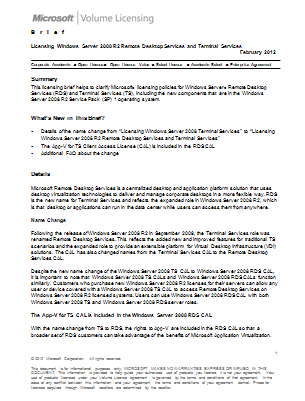
This licensing brief helps to clarify Microsoft® licensing policies for Windows Server® Remote Desktop Services (RDS) and Terminal Services (TS), including the new components that are in the Windows Server 2008 R2 Service Pack (SP) 1 operating system.

What’s New in This Brief?

  • Details of the name change from “Licensing Windows Server 2008 Terminal Services” to “Licensing Windows Server 2008 R2 Remote Desktop Services and Terminal Services”
  • The App-V for TS Client Access License (CAL) is included in the RDS CAL
  • Additional FAQ about the change

WHITEPAPER: Licensing Windows Server 2008 Terminal Services
http://www.microsoft.com/download/en/details.aspx?id=3032

Posted by: kurtsh | March 6, 2012

DOWNLOAD: Lync 2010 Bandwidth Calculator

Almost a year ago, they released this tool and apparently it’s been updated to the February 2012 edition.

With the Lync Server 2010 Bandwidth Calculator, you can enter information about your users and the Lync Server features that you want to deploy, and the calculator will determine bandwidth requirements for the WAN that connects sites in your deployment.

image

image

Calculating the bandwidth requirements of Lync Server 2010 can be a complex task. This tool provides a framework for architects, consultants, and administrators to estimate the additional network traffic that a Lync Server deployment will generate.

The tool can be used both by experienced consultants with expert product knowledge and by customers who don’t have specific product knowledge but would like to understand the possible network impacts of a Lync Server deployment.

With only the number of users on a particular site, and keeping all other parameters at their default setting, you can estimate the order of magnitude impact of Lync Server on your network. The defaults assume that your users use all communications modalities and have a medium usage profile. For a more detailed view, you will need to refine your user personas to accurately reflect the behavior of your users and the modalities available to them.

After you enter customer user personas and usage models into the bandwidth calculator, the output will show a detailed breakdown of the capacity requirement per modality. You can then determine whether you need to provide additional network capacity before you deploy Lync Server 2010. At a glance you’ll be able to see, for each site, whether the estimated bandwidth required is higher than the bandwidth that you have allocated for real time media.

The calculator breaks this information down for central sites and for branch sites. For easy reference, the calculator also produces a table with video bandwidth removed so you can see how video affects your bandwidth requirements at each site.

imageIt also comes with a nicely written User’s Guide so you’re not spinning in the wind.  It’s 17 pages long and goes over among other things, the changes that occurred between version .6 (the original version posted back in April 2011) and version 1.1 (the current version that is linked to below)

What changed?  Near as I can tell “Use G711 for PSTN Calls over WAN” has been adjusted in the calculator to reflect changes in the CU4 patch for Lync 2010.  (Page 10)  Outside of this, I have no idea what else.


imageMicrosoft Corp. today announced the availability of the Windows 8 Consumer Preview — the next milestone of the Windows operating system. This latest preview will be made available for download starting today at http://preview.windows.com The Windows 8 Consumer Preview offers a more robust experience for testing the world’s most popular operating system and is available to the widest range of people yet following the initial release of the Windows 8 Developer Preview late last year. Some of key new updates in Windows 8 Consumer Preview include the following:

  • Broad range of product changes and improvements. From completing the user experience for touch, keyboard and mouse to refining the development platform, the Consumer Preview improves performance, quality and reliability across all subsystems. With the added features, it represents a more complete view of the capabilities of Windows 8.
  • Windows Store with new apps. The Windows 8 Consumer Preview marks the beta opening of the Windows Store, which is filled with a variety of new Metro style apps from both third-party developers and Microsoft. During the Consumer Preview, these apps are available to try and experience at no cost to users.
  • Connecting to the cloud across Windows-based PCs and Windows Phone. An optional additional sign-on with a Microsoft account provides access to a host of features, including the ability to roam all settings, use cloud storage, communicate with email, calendar and contacts, and connect to a broad range of services.
  • Internet Explorer 10 Platform Preview 5. The browser has been re-imagined to create a new experience designed specifically for Windows 8 devices. It provides an edge-to-edge user interface that is all about less browser and more Web. Fast and fluid, Internet Explorer is hardware-accelerated to enable Web performance.
  • Preview of new hardware capabilities. At the release event, Microsoft showcased Windows 8 running on a wide range of new x86- and ARM-based reference hardware. This hardware will be available to select developers for trial and testing as previously announced.

The Windows 8 Consumer Preview will be available worldwide for download in English, French, German, Japanese and simplified Chinese languages. More information about Windows 8 and how to download the Consumer Preview is available at http://preview.windows.com or http://windowsteamblog.com. See also:

NEWS: Microsoft Announces Availability of Windows 8 Consumer Preview
http://www.microsoft.com/Presspass/press/2012/feb12/02-29Windows8CPPR.mspx

This question came in today from another customer:

Q: We want to use a specific feature of the SharePoint Server 2010 Enterprise CAL however while we are covered companywide for Standard CALs, we only have a limited number of Enterprise CALs?  How can we constrict the usage of Enterprise CAL features on our SharePoint Server to ensure that our Enterprise feature usage isn’t out of license compliance?

image

I researched this a while ago and the answer basically was, there is no facility to restrict Enterprise CAL functionality usage on a SharePoint Server 2010 with Enterprise CAL functionality “turned on”.  If Enterprise features are enabled on a SharePoint Server 2010 install, every SharePoint site on the server has access to the Enterprise features, such as Forms Services, Excel Services, etc.

This means the answer was:  Spawn a new SharePoint Server.

It turns out that the answer hasn’t changed that much today.  Brian Edwards from Microsoft Consulting Services wrote a blog post that to a marginal degree goes over some techniques on how to identify what sites are using Enterprise features & how to restrict or control those features.

This is not a panacea at all but it’s a start for some that are looking for this:

I also discovered a tool out there that does some reporting of Enterprise feature usage.  I haven’t tried it obviously but apparently it’s free so…:

ECAL Tracker
Are you paying EXACTLY what you should be for your corporate SharePoint implementation?

ECAL Tracker is the only product that allows you to monitor and report on Enterprise SharePoint Services usage. Use ECAL Tracker to verify that you are paying for the appropriate number of Enterprise Client Access Licenses (ECALs).

Features

  • Reveals who is using Enterprise Features and where the features are located within the Microsoft Office SharePoint Server (MOSS) farm.
  • Detailed reports showing every use of an Enterprise Feature by user or by Feature with detailed date and time stamp information.
    • Reports are available in HTML, Excel, and PDF formats.
    • Report parameters allow you to select the Web application and reporting timeframe.
  • Capable of analyzing all Web applications within a MOSS farm to determine where MOSS Enterprise Features have been implemented.

Advantages

  • Gain a detailed understanding of where Enterprise Features have been deployed and who is using them.
  • Validate your license agreement with Microsoft.
  • Track usage to support audit, compliance or governance of Enterprise Feature access.
  • Confirm that your staff is using Enterprise Features appropriately within the organization.

Benefits

  • Contains and controls costs
  • Provides auditable compliance and governance information
  • Reduces software maintenance costs by eliminating dead code
  • Eliminates erroneous usage of Enterprise Features and decisions based on inaccurate or old data
  • Report results can be integrated into your existing reporting systems and dashboards
Posted by: kurtsh | March 5, 2012

NEWS: “Microsoft Lync leads UC voice market”

Yup.  You read that right:  “Microsoft Lync leads UC voice market.”

OnWindows reports that the InfoTrack study recently run discovered several important things:

imageMore than 50 per cent of US enterprises have conducted or plan to conduct trials on Microsoft Lync, and a significant per cent plan to implement the unified communications solution as their voice application.

In addition, according to a recent InfoTrack study, 87 per cent of US enterprises found the quality of Microsoft Lync Enterprise Voice to be as good as or better than traditional PBX systems.

Most companies enter a new market and have to prove that they are as good as the market leaders, but even before the trials, most enterprises expected Microsoft Lync to perform at least as well. During the trials, Microsoft in fact exceeded their expectations,” said Susan Hobart, programme director for InfoTrack for unified communications and co-leader of this study.

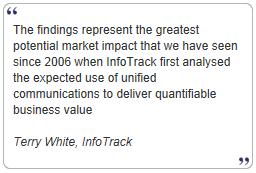
“One of the most important findings from this study is the high percentage of enterprises that expect to implement Lync Enterprise Voice companywide,” said Terry White, study co-leader and founder of the InfoTrack for unified communications programme.

Read more at:

This is not a new article – but it’s so important, I think it’s worth revisiting for folks just moving to Windows 7.

Are you still stuck in the caveman world of “I’ll just Ghost a template PC image for every hardware configuration I own and maintain these images for deployment everywhere”?  That went out with the 90’s folks.  The way desktops are deployed these days involve deploying a SINGLE basic OS image that’s as simple as possible for every desktop PC… then applying task sequences after the image is done to meet the needs of the target configuration.  Here are some of the task sequences that are implemented as part of the deployment process:

  1. Validate that the target hardware can install the operating system
  2. Capture user files and settings
  3. Invoke an installation environment like the Windows Preinstallation Environment (Windows PE)
  4. Customize the installation environment
  5. Apply the operating system image
  6. Apply drivers required by the hardware and connected devices
  7. Apply software updates
  8. Apply applications based on your selections
  9. Join the computer to a domain
  10. Reapply user files and settings
  11. Configure additional attributes such as BitLocker™ Drive Encryption or server roles

Read more about how to accomplish this here:

imageWow.  This kinda slipped under the radar.  We announced a bunch of new services and benefits as part of Software Assurance Planning Services.

Here’s a video on Software Assurance Planning Services for 2012:
http://www.microsoft.com/licensing/about-licensing/media/Software_Assurance_Planning_Services.asx

Here’s more information on the new Planning Services our Software Assurance web site:
http://www.microsoft.com/licensing/software-assurance/planning-services-overview.aspx

An overview of all new Software Assurance benefits for 2012 is available here:
http://download.microsoft.com/download/5/c/7/5c727885-ec15-4920-818b-4d140ec6c38a/What_is_New_with_SA_Benefits_FY12.pdf

imageThe Solution Accelerators team is pleased to announce Microsoft Deployment Toolkit (MDT) 2012 RC1 is available for download on Connect now.

Download the MDT 2012 RC1 release now

New features and enhancements make large-scale desktop and server deployments smoother than ever!

Support for Configuration Manager 2012 RC2: This update provides support for Configuration Manager 2012 RC2 releases. MDT 2012 fully leverages the capabilities provided by Configuration Manager 2012 for OS deployment. The latest version of MDT offers new User-Driven Installation components and extensibility for Configuration Manager 2007 and 2012. Users now also have the ability to migrate MDT 2012 task sequences from Configuration Manager 2007 to Configuration Manager 2012.

Customize deployment questions: For System Center Configuration Manager customers, MDT 2012 provides an improved, extensible wizard and designer for customizing deployment questions.

Ease Lite Touch installation: The Microsoft Diagnostics and Recovery Toolkit (DaRT) is now integrated with Lite Touch Installation, providing remote control and diagnostics. New monitoring capabilities are available to check on the status of currently running deployments. LTI now has an improved deployment wizard user experience. Enhanced partitioning support ensures that deployments work regardless of the current structure.

Secure Deployments: MDT 2012 offers integration with the Microsoft Security Compliance Manager (SCM) tool to ensure a secure Windows deployment from the start.

Reliability and flexibility: Existing MDT users will find more reliability and flexibility with the many small enhancements and bug fixes and a smooth and simple upgrade process.

Support for Windows 8: The RC1 release of MDT 2012 provides support for deploying Windows 8 Consumer Preview in a lab environment.

Key Benefits:

  • Full use of the capabilities provided by System Center Configuration Manager 2012 for OS deployment.
  • Improved Lite Touch user experience and functionality.
  • A smooth and simple upgrade process for all existing MDT users.

New Features:

For System Center Configuration Manager customers:

  • Support for Configuration Manager 2012 (while still supporting Configuration Manager 2007)
  • New User-Driven Installation components for Configuration Manager 2007 and Configuration Manager 2012
    • Extensible wizard and designer, additional integration with Configuration Manager to deliver a more customized OS experience, support for more imaging scenarios, and an enhanced end-user deployment experience
  • Ability to migrate MDT 2012 task sequences from Configuration Manager 2007 to Configuration Manager 2012

For Lite Touch Installation:

  • Integration with the Microsoft Diagnostics and Recovery Toolkit (DaRT) for remote control and diagnostics
  • New monitoring capabilities to see the progress of currently running deployments
  • Support for deploying Windows to computers using UEFIAbility to deploy Windows 7 so that the computer will start from a new VHD file, "Deploy to VHD"
  • Improved deployment wizard user experience

For all customers:

  • Integration with configuration templates from the Security Compliance Manager Solution Accelerator, ensuring Windows is secure from the start
  • A simple mechanism for running Windows PowerShell scripts during a deployment, with task sequence environment and logging integration
  • Better partitioning support, creating the recommended partitioning structures on new computers and ensuring deployments work regardless of the current structure
  • A smooth and simple upgrade process for all existing MDT users
  • Many small enhancements and bug fixes

« Newer Posts - Older Posts »

Categories