Posted by: kurtsh | March 8, 2012

BETA: Microsoft Device Center for Windows 8

image

Microsoft Device Center is a new beta application that helps you make the most out of your Microsoft keyboard and mouse.  It allows you to customize devices from an easy-to-learn Windows 8 interface and create new shortcuts that make tedious tasks a breeze.

Device Center helps you personalize and customize how you work on your PC
  • Tailor your mouse and keyboard to meet your unique needs and work style.
  • Modify your mouse and keyboard settings to make it easier to use the unique features of most PC apps.
Effortlessly transition to Device Center from existing device management apps
  • Launch the app from the Windows 8 Start screen.
  • View and change basic and application-specific settings for all connected devices in one place.
  • Explore features with pop-up descriptive and “how-to” InfoTips.
  • Includes access to an online How-To/Troubleshooting library.
  • Includes access to an online Healthy Computing Guide for tips on how to work more comfortably on your computer.

BETA: Microsoft Device Center for Windows 8
http://www.microsoft.com/hardware/en-us/downloads/device-center

Note: This app is intended as a Beta release for the Windows 8 Consumer Preview and is currently available only in English.

Posted by: kurtsh | March 7, 2012

TRAINING: Microsoft IT Camp–Los Angeles, March 15

IT Camps are semi-structured, no-fluff events exclusively designed to serve IT professionals. They are a free, in-person learning event for anyone seeking professional development as it applies to IT Professionals.

The agenda is intended to deliver a technical overview and hands-on experience that is less formal or structured than traditional instructor-led training. Participants will have a chance to perform hands on activities / exercises individually or as a team. At the end of the day, we encourage everyone to share their thoughts and experiences with the rest of the group. Come prepared to have fun, be excited, and interact in a group.

Please visit Harold Wong’s and Chris Avis’ blog today to start making topic suggestions for the upcoming event in your city.

To participate in the afternoon session, you will need to bring your own computer (laptop preferred) with the following minimum configuration:

  • 4GB RAM (8 GB preferred)
  • At least 20GB of free disk space (75 GB preferred)
  • x64 compatible processor with Intel VT or AMD-V technology

Recommended downloads prior to IT camp:

Agenda and Abstracts of Sessions

8:00 – 8:30 AM Check-In and Welcome

8:30 – 9:30 AM Get out of Dodge: Migrating to Windows Server 2008 R2 SP1
Is your infrastructure still clinging to the 2003 x86 server architecture? But with every day that goes by, you worry more and more that the other shoe will drop. You know you have to bite the bullet and get these critical services over to more modern hardware paired with the current supported revisions of the server platform. These are the services that keep the lights on, the servers running and most importantly: the users happy! This demo-intensive session covers how to migrate essential services like DHCP, DNS, File/Print, Certificate Services and more.

9:30 – 10:30 AM Veeam Presentation
Discover how System Center 2012 can be leveraged to manage coexisting private cloud technologies from the metal to the app! This session will focus on the following System Center 2012 components: Virtual Machine Manager, Orchestrator and Operations Manager and how each technology can manage both Hyper-V and VMware Hypervisor platforms.

10:45 – 12:00 PM Open Topics

12:00 – 1:00 PM Lunch

1:00 – 2:30 PM Open Topics

2:45 – 4:00 PM Hands-On-Lab: Configure Windows Hyper-V Server 2008 R2 (Free version)
There are many IT Pros who have expressed interest in using the free version of Hyper-V Server. In this hands-on-session, we will demystify the configuration steps necessary to get Hyper-V Server 2008 R2 up and running so you can start using the free tool. As most folks know how to install an OS, we will not bore you with a 35 minute install; instead we will provide a VHD file with the product pre-installed, but not configured. We will help everyone configure their machines to boot to VHD and complete the configuration steps.
Following the configuration of Hyper-V Server 2008 R2, you will import the System Center 2012 RC VMs provided by Veeam so you can also get guided hands-on-experience with their management product.

————-

DATE/TIME:
Thursday, March 15, 2012 8:30 AM-4:30PM

LOCATION:
Microsoft Los Angeles Office
Room: MPR 1
333 S Grand Ave – Floor 33
Los Angeles California 90071

REGISTRATION:

PARKING:
Parking for this event will not be hosted, but is available at the World Trade Center, entrance located at 335 S. Flower Street. Rates are $8.00/day if you arrive before 10 AM, and $15/day after.

Product(s): Microsoft Hyper-V Server, Microsoft System Center and Microsoft technologies.

Audience(s): Architect, IT Decision Maker, IT Generalist, IT Implementer and IT Manager.

Posted by: kurtsh | March 6, 2012

INFO: Microsoft Support Quarterly Lifeline Newsletter

imageThe Support Quarterly Lifeline Newsletter enables our customers to better understand what they can do to keep their products supported, such as transitioning to new services packs or exploring existing alternatives to the end of support.  Subscription link for English version is below:

This past quarter’s newsletter covered the following:

  • End of Support for Windows XP and Office 2003: Top Three Questions Answered
      • Why is support ending for Windows XP SP3 and Office 2003?
      • What does the end of support mean?
      • What are customer options following April 8, 2014?
  • Clarification of the Microsoft Support Policy for Daylight Saving Time or Time Zone Changes
  • Support Lifecycle Policy for Microsoft Reader

imageDesigning software, creating code and then bringing a product to market is an incredibly complex affair — and it’s becoming more complex by the minute as software users demand greater integration between applications, across devices and among services.

To help integrate cross-functional teams and help developers accomplish goals more efficiently, Microsoft released code-named “Visual Studio 11” Beta and .NET Framework 4.5 Beta on Feb. 29.

“Visual Studio 11” is an integrated solution that helps individuals and development teams of any size to be productive and focused, to collaborate seamlessly with colleagues, and to turn their ideas into exceptional and compelling applications.

The .NET Framework 4.5 enables developers to productively build responsive, scalable and efficient client and server applications. Download ”Visual Studio 11” Beta and .NET Framework 4.5 Beta and learn more about the new features by visiting http://www.microsoft.com/visualstudio. To see screen shots of the new user interface, visit http://www.microsoft.com/presspass/presskits/developer.

See also:

Test Lab Guide: Base Test Lab Guide for Windows Server "8" Beta

imageThis Microsoft Test Lab Guide (TLG) provides you with step-by-step instructions to create the Windows Base Configuration test lab, using computers running Windows 8 Consumer Preview or Windows Server “8” Beta. With the resulting test lab environment, you can build test labs based on other Windows Server "8" Beta-based TLGs from Microsoft, TLG extensions in the TechNet Wiki, or a test lab of your own design that can include Microsoft or non-Microsoft products.

For a test lab based on physical computers, you can image the drives for future test labs. For a test lab based on virtual machines, you can create snapshots of the base configuration virtual machines. This enables you to easily return to the base configuration test lab, where most of the routine infrastructure and networking services have already been configured, so that you can focus on building a test lab for the product, technology, or solution of interest. See also the following new Guides for Windows Server 8 Beta:

Posted by: kurtsh | March 6, 2012

DOWNLOADS: Dynamics AX/CRM Updates for February 2012

imageA bunch of upgrade information and paperwork was published this past month.

Oh cool.  500MB of Office for Mac 2011 training!

The Office for Mac 2011 training downloads include Portable Document Format (.pdf) and PowerPoint (.pptx) versions of all Office 2011 tutorials and videos, so you can customize them for group training or view them on your desktop. To access the same training online, visit the Office for Mac website.

imageimage

TRAINING: Office for Mac 2011: Training Tutorials and Videos (500MB)
http://www.microsoft.com/download/en/details.aspx?id=19790

Posted by: kurtsh | March 6, 2012

DOWNLOAD: Lync Server 2010 Capacity Calculator

Complimenting the Lync 2010 Client Bandwidth calculator…

imageA spreadsheet for calculating a user’s hardware requirements based on information that the admin supplies about number of users, types of communication, and expected traffic. Includes a Microsoft Word document explaining the tool and how to use it.

The spreadsheet was updated in April 2011 to modify some calculated cells.

The Lync Server 2010 Stress and Performance Tool is available for download at http://go.microsoft.com/fwlink/?LinkId=212599.

DOWNLOAD: Lync Server 2010 Capacity Calculator
http://www.microsoft.com/download/en/details.aspx?id=12295

This 130MB monstrosity is described as follows:

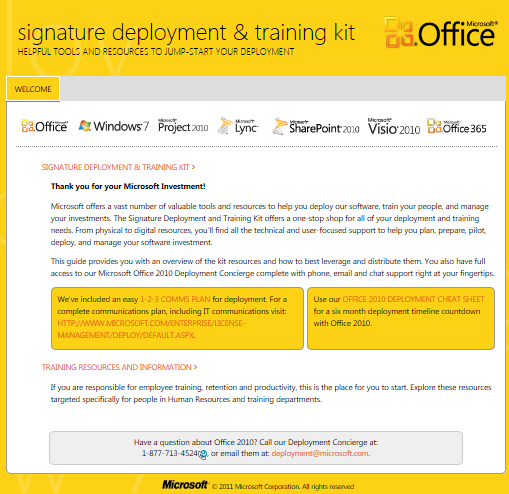
imageMicrosoft offers a vast number of valuable tools and resources to help you deploy our software, train your people, and manage your investments. The Signature Deployment Kit offers a one-stop shop for all of your deployment and training needs. From physical to digital resources, you’ll find all the technical and user-focused support to help you plan, prepare, pilot, deploy, and manage your software investment.

What this is, is a MASSIVE collection of stuff for deploying Windows 7, Office 2010, and other Office products… with a very poor title & description. 

Here’s some of the items that are in the Signature Deployment & Training Kit for the “Pilot & Deploy Office” area.  (Note:  There are EIGHT OTHER AREAS including “Adopt Office”, “Manage Office”, “Windows 7”, etc.

Systems Readiness

Application Compatibility Readiness

  • Office Environment Assessment Tool (OEAT) for Office 2010
    This user’s guide for the Office Environment Assessment Tool (OEAT) will help you work successfully with OEAT, a free, downloadable executable (.exe) file that scans client computers for add-ins and applications that interact with Microsoft Office 97, Microsoft Office 2000, Microsoft Office XP, Microsoft Office 2003, the 2007 Microsoft Office system, and Microsoft Office 2010. You use OEAT during the assessment phase of your application compatibility and remediation project, which is described in detail in the Office 2010 application compatibility guide.
  • Office 2010 Application Compatibility Guide
    The application compatibility testing and remediation process for Microsoft Office 2010 deployments identifies compatibility issues and helps you develop plans to fix them.
  • Office 2010 Code Compatibility Inspector (OCCI)
    The Microsoft Office Code Compatibility Inspector helps you troubleshoot compatibility issues in your Microsoft Visual Basic for Application (VBA) Macros and add-ins.

File Readiness

  • Microsoft Office Migration Planning Manager (OMPM) 2010
    The Office Migration Planning Manager (OMPM) is a collection of tools that helps you prepare an environment for migration to Microsoft Office 2010. OMPM can scan your environment in three ways: from an administrative computer, from a central share, and locally on the client computers. Because most users scan their environments from an administrative computer, that configuration is assumed. Other scanning scenarios are noted as needed.

Planning Resources

Deploy Resources

Training for the IT Department

DOWNLOAD: EA Signature “Office 2010 Deployment Kit”
http://www.microsoft.com/download/en/details.aspx?id=28794

This 17 page document was republished this February 2012 (originally published April 2011) to account for changes in the Lync 2010 product.

imageThis document describes the supported functionality, environments, tools, limitations, and outlines a series of best practice recommendations for running the Microsoft® Lync™ 2010 communications software client in a virtualized environment. For capabilities that are supported across different architectures, see the “Supported Functionality” section later in this document.

This document does not cover scale requirements and recommendations thereof. This is because scale requirements for a given enterprise depend on enterprise applications that must reside alongside Lync 2010 and would need to be identified on a case-by-case basis.

WHITEPAPER: Client Virtualization in Microsoft Lync 2010
http://www.microsoft.com/download/en/details.aspx?id=21129

« Newer Posts - Older Posts »

Categories