A couple years ago, I attended CES like I always do ever year, and as I was walking from the buses on the South Hall side of the Las Vegas Convention Center, I saw these advertising/marketing pole wrappers that some company bought & set up:

CIMG1160

It turns out it was one of those avant garde advertising campaigns that you so often see at large conventions.  Microsoft did one of the first of these crazy in memory back at COMDEX in 1988 with the release of Windows 3.0 (which I will write about in a separate post) so these sort of things bring back fond memories.
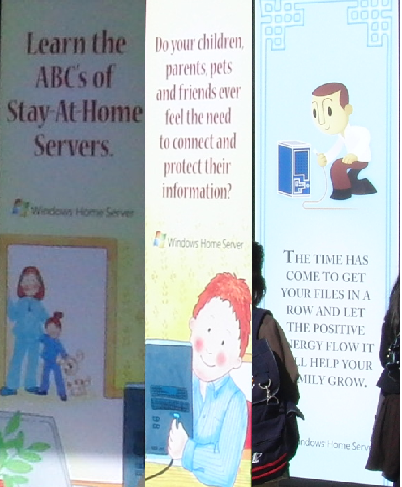
imageWHAT THE… THAT’S US!
But when I looked closer at the wrappers… it was us!

They were ads for Windows Home Server, a low-cost hardware+software solution for maintaining an on-premise network-based backup system for families with multiple computers.  It would automatically maintain the PCs in the house, automatically backup files, provide a means of remote controlling home workstations through remote proxy (from the Internet), and other capabilities.

Needless to say, it never caught on.  As stupid as it is, most consumers simply don’t think about backing up their data.  Why would they pay money to setup another computer to do that?  Also, OEMs didn’t exactly put their best foot forward in building innovative Windows Home Servers and the Best Buys of the world didn’t support them… so they were doomed to languish despite being extremely, extremely cool devices.

imageCELEBRATING THE LIFE OF WINDOWS HOME SERVER
Well this past week, it was announced that for a variety of reasons, that we were pulling the plug on Windows Home Server.  So in memory of our beloved Windows Home Server, I thought I would post the digital version of the chotchkie that we handed out at the CES booth that year.
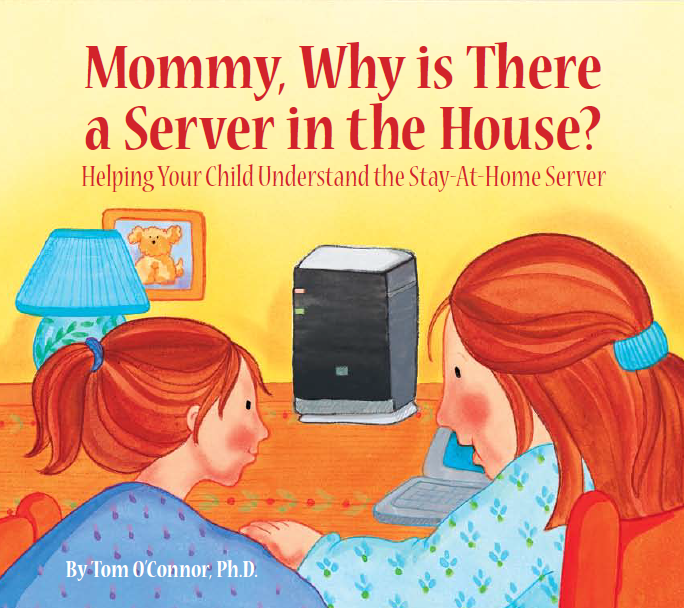
imageWe gave out these things called, “Stay-at-home Server” books.  They were real books, written as sort of a humorous  children’s literature.  To prove that they were “real” books, check out this entry on Amazon.com for the book.  Yes, you could actually buy this thing.  (Still can apparently as a used book)

Anyway, here’s the original .PDF of the book that used to be posted to the StayAtHomeServer.com web site. (as documented on the WHS blog here:
http://blogs.technet.com/b/homeserver/archive/2007/12/07/mommy-why-is-there-a-server-in-the-house.aspx 

Posted by: kurtsh | July 16, 2012

BETA: “The new Office” is announced

imageYes, you read that correctly.  We’re not referring to it as “Office 2013” however we are referring to the new applications as the “2013 Editions” of the products. 

The overall product is being aggregated into a set of subscription services that inherently incorporate Office 365, Microsoft’s cloud offering for home users, small business users, and professional/enterprise users. 

The solution includes Word, Excel, PowerPoint, OneNote, Outlook, Publisher and Access.

The highlighted capabilities are as follows:

    Office at Its Best on Windows 8

  • Touch everywhere. Office responds to touch as naturally as it does to keyboard and mouse. Swipe your finger across the screen or pinch and zoom to read your documents and presentations. Author new content and access features with the touch of a finger.

  • Inking. Use a stylus to create content, take notes and access features. Handwrite email responses and convert them automatically to text. Use your stylus as a laser pointer when presenting. Color your content and erase your mistakes with ease.

  • New Windows 8 applications. OneNote and Lync represent the first new Windows 8 style applications for Office. These applications are designed to deliver touch-first experiences on a tablet. A new radial menu in OneNote makes it easy to access features with your finger.

  • Included in Windows RT. Office Home and Student 2013 RT, which contains new versions of Word, Excel, PowerPoint and OneNote applications, will be included on ARM-based Windows 8 devices, including Microsoft Surface.

Office Is in the Cloud

  • SkyDrive. Office saves documents to SkyDrive by default, so your content is always available across your tablet, PC and phone. Your documents are also available offline and sync when you reconnect.

  • Roaming. Once signed in to Office, your personalized settings, including your most recently used files, templates and even your custom dictionary, roam with you across virtually all of your devices. Office even remembers where you last left off and brings you right back to that spot in a single click.

  • Office on Demand. With a subscription, you can access Office even when you are away from your PC by streaming full-featured applications to an Internet-connected Windows-based PC.

  • New subscription services. The new Office is available as a cloud-based subscription service. As subscribers, consumers automatically get future upgrades in addition to exciting cloud services including Skype world minutes and extra SkyDrive storage. Subscribers receive multiple installs for everyone in the family and across their devices.

Office Is Social

  • Yammer. Yammer delivers a secure, private social network for businesses. You can sign up for free and begin using social networking instantly. Yammer offers integration with SharePoint and Microsoft Dynamics.

  • Stay connected. Follow people, teams, documents and sites in SharePoint. View and embed pictures, videos and Office content in your activity feeds to stay current and update your colleagues.

  • People Card. Have an integrated view of your contacts everywhere in Office. The People Card includes presence information complete with pictures, status updates, contact information and activity feeds from Facebook and LinkedIn accounts.

  • Skype. The new Office comes with Skype. When you subscribe, you get 60 minutes of Skype world minutes every month. Integrate Skype contacts into Lync and call or instant message anyone on Skype.

Office Unlocks New Scenarios

  • Digital note-taking. Keep your notes handy in the cloud and across multiple devices with OneNote. Use what feels most natural to you — take notes with touch, pen or keyboard, or use them together and switch easily back and forth.

  • Reading and markup. The Read Mode in Word provides a modern and easy-to-navigate reading experience that automatically adjusts for large and small screens. Zoom in and out of content, stream videos within documents, view revision marks and use touch to turn pages.

  • Meetings. PowerPoint features a new Presenter View that privately shows your current and upcoming slides, presentation time, and speaker notes in a single glance. While presenting, you can zoom, mark up and navigate your slides with touch and stylus. Lync includes multiparty HD video with presentations, shared OneNote notebooks and a virtual whiteboard for collaborative brainstorming.

  • Eighty-two-inch touch-enabled displays. Conduct more engaging meetings, presentations and lessons, whether in person or virtually, with these multitouch and stylus-enabled displays from Perceptive Pixel.

imageDOWNLOADS: 

VIDEO: Video announcement of new Office availability
http://www.microsoft.com/presspass

NEWS: Press Announcement for “The New Office”
http://www.microsoft.com/en-us/news/Press/2012/Jul12/07-16OfficePR.aspx

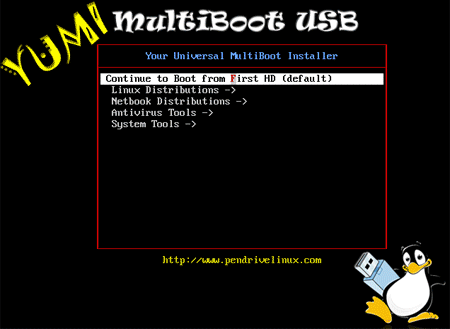
imageOne of the coolest things a IT person should have in their toolkit is a big-ol’ USB drive that has a bunch of .ISO files on it that will allow you to install the operating system of your choice on to any computer.  The trick is getting the computer to boot up on your USB flash drive… then giving you the option to select what .ISO image to start.

For example: 

I have a single 16GB USB flash drive that has the .ISO images for:

  1. Retail Windows 7 Ultimate + SP1 x86
  2. Retail Windows 7 Ultimate + SP1 x64
  3. Volume-licensed Windows 7 Enterprise + SP1 x86
  4. Volume-licensed Windows 7 Enterprise + SP1 x64
  5. Volume-licensed Windows XP Professional + SP3 x86

I’m able to boot up on this drive and I’m presented with the 8-bit menu similar to that which you see above that allows me to select what .ISO image to boot to.  The software then emulates a CD/DVD drive and mounts the .ISO for you automatically then boots the system up as if you were booting to a CD/DVD of the .ISO you selected.

Fortunately, this is actually really trivial to configure.  In order to produce such a drive that will allow you to select what .ISO file to mount and start up on at boot time, you need a tool called YUMI – aka “Your Universal MultiBoot Installer”.

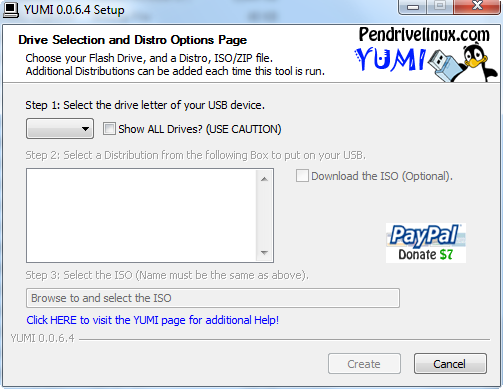
imageYUMI is a standalone Windows-based executable that doesn’t require any installation.  It can even be run off of your USB drive itself.  Simply follow these steps:

  1. Plug in your USB drive
  2. Download the YUMI executable and run it.  Acknowledge the Terms of Use to continue.
  3. Select the drive letter of the USB flash drive you plugged in earlier.
  4. In the List, scroll all the way down the dozens of OS distributions to the section at the bottom entitled, “Bootable ISOs”.
  5. Select “Try an Unlisted ISO”
  6. Click on the “Brows to and select the ISO” text field and select the .ISO file of your choosing on your system.
  7. Click the CREATE button.

If your USB drive is new, the YUMI setup program will:

  • Make the USB drive bootable
  • Install the YUMI boot/option software along with SYSLINUX and some other boot level emulation software necessary to allow you to boot to .ISO files
  • Create configuration/menu entries for the .ISO you selected
  • Copy the .ISO file to the USB flash drive
  • Provide you with the option to return to the YUMI setup program to select another .ISO to add to your USB flash drive.

Once completed, you’re done.  If you want to go back later and add additional .ISO files to your USB drive, simply plug your USB drive in, run YUMI again, and select another .ISO file to add.  YUMI will automatically recognize that it’s been previously installed and will simply copy the .ISO over and make the necessary menu configuration changes to allow you to boot to the new .ISO.

NOTE: YUMI is a little convoluted in that it has a ton of provisions in there for installing/booting to Linux distributions.  If you don’t care about any of that and just want to focus on .ISOs, there are other tools like XBOOT that exist that focus exclusively on .ISO booting:

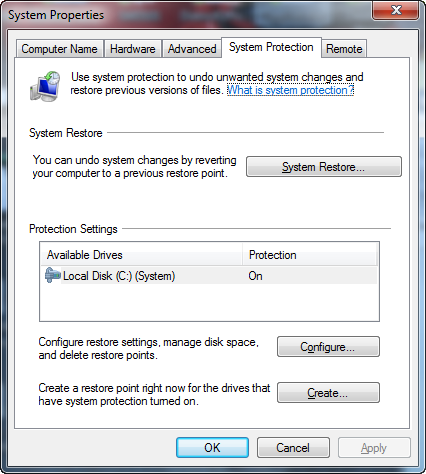
imageEveryone has been in a situation where they’re about to make a major change to their system like a driver upgrade or a software install.  The safeguard has always been to make sure you have a System Restore Point to come back to in the even things go bad.

Navigating through Control Panel just to create a System Restore point is laborious. 

  1. START—>CONTROL PANEL
  2. SYSTEM
  3. Click SYSTEM PROTECTION TAB
  4. Click CREATE button

There’s two ways to make a shortcut on your desktop that will shorten the path to accomplishing the same thing:

SHORTCUT TO THE SYSTEM PROTECTION TAB:
Create a shortcut that points to the following:

%SystemRoot%\System32\SystemPropertiesProtection.exe

(Note that this still requires that you click the “CREATE” button.)

SCRIPT THAT AUTOMATES EVERYTHING:
Create a text file called “Script System Restore Point.vbs” that has the following content in it:

‘——————————————————
‘Create an instant System Restore Point under Windows 7
‘——————————————————
If WScript.Arguments.Count = 0 Then
  Set oShell = CreateObject("Shell.Application")
  oShell.ShellExecute "wscript.exe", """" _
  & WScript.ScriptFullName & """ Run", , "runas", 1
Else
  Set oWshShell = WScript.CreateObject("WScript.Shell")
   oWshShell.Popup "Creating a SystemRestore point. Please wait.", _
    2, "System Restore", 0
  swinmgmts = "winmgmts:\\.\root\default:Systemrestore"
  GetObject(swinmgmts).CreateRestorePoint _
    "Manual Restore Point", 0, 100
  MsgBox "System Restore Point created", 0, "System Restore"
End If

This will automate the process end to end, requiring only a single click to create a System Restore Point.

imageOnce again, Adobe Flash has me baffled.

This time it’s with the LeapFrog Connect, the software that is required to configure & upload software to the “My Own Leaptop”, “LeapPad”, the “LeapFrog Explorer”, among other LeapFrog electronic products for young children.

THE ISSUE:  LEAPFROG CONNECT WON’T RECOGNIZE MY INSTALLATION OF ADOBE FLASH PLAYER
So the LeapFrog Connect software requires Flash.  Fine – during it’s installation it says that it needs to execute the installation.  The only problem is that once the software states that Flash Player is required, it opens up Internet Explorer & sends you to http://get.adobe.com/flashplayer and has you installing Adobe Flash Player 11 or whatever.  After verifying that the player works within the web page by displaying some sort of Flash animation, it returns you to the LeapFrog Connect software…

image…and the LeapFrog Connect software promptly says, “Adobe Flash failed to install properly.  LeapFrog Connect cannot continue.”

THE PROBLEM:  WRONG FLASH PLAYER INSTALLED
I went through and uninstalled, and reinstalled, and then did what Adobe calls a FULL uninstall through a special Adobe Flash Uninstaller program.  But ultimately, it turned out that:

  • I’m running Windows 7 64-bit Edition
  • Windows 7 64-bit Edition has TWO versions of Internet Explorer available.
        • Internet Explorer 9.0 32-bit (x86)
        • Internet Explorer 9.0 64-bit (x64)
  • LeapFrog Explorer uses Internet Explorer 9.0 64-bit & Adobe Flash Player x64
  • 99% of the world uses, by default, Internet Explorer 9.0 32-bit

When a browser opens up, it opens up a 32-bit version of Internet Explorer 9.0 and installs the 32-bit version of Adobe Flash Player.

When you return to LeapFrog Explorer, it is using the 64-bit version of Internet Explorer 9.0 and requires the 64-bit version of Adobe Flash Player.

So naturally, the software thinks the installation of Adobe Flash failed since it still can’t see Flash.  It’s not that Flash hasn’t been installed however… it’s just that the wrong EDITION has been installed.

THE SOLUTION:  MANUAL INSTALLATION OF ADOBE FLASH PLAYER x64
You basically have to manually pop out to the desktop and run Internet Explorer 9.0 64-bit Edition manually and do the installation of the Adobe Flash Player for x64 manually.

  1. Click START BUTTON –> All Programs –> Internet Explorer (64-bit)
  2. Type http://get.adobe.com/flashplayer into the Address Bar of Internet Explorer when it comes up.
  3. Follow the instructions during the installation. (But be sure to not install Chrome or you’ll take 4x as long to complete the installation all just to get browser you don’t really need for this exercise)
  4. You may need to close the Internet Explorer 9.0 64-bit window at some point during the Adobe Flash Player installation (it’ll tell you on the screen) to allow the Adobe Flash Player installer to finish.  This is normal.  Once completed, a browser window should open with an Adobe Flash animation that demonstrates that Flash is now working within IE 9.0 64-bit Edition.
  5. imageGo to the desktop and double click on “LeapFrog Connect”.  LeapFrog Connect should have put a shortcut on your desktop to allow you to run the software.  If it’s not there, go to START –> All Programs –> LeapFrog Connect –> LeapFrog Connect

The software should now run and no longer give you the message that Adobe Flash Player needs to be installed.

Posted by: kurtsh | July 13, 2012

NEWS: Halo 4: Forward Unto Dawn announced!

This is one of the most exciting things I’ve seen from Microsoft Game Studios in a long time.  Personally, I’ve been waiting for a Halo movie for an eternity and we’re finally going to be graced with a 90 min film in total.

Halo 4: Forward Unto Dawn Official Full-length Trailer


Additionally, Sark & Kovic from Machinima Prime interview the director, Stewart Hendler, to explain parts of the trailer, where they shot the film, etc.

Halo After Dawn With Sark and Kovic – Episode 1 – “Stewart Hendler”


… first episode coming Oct 5th, 2012!  Follow @HaloAfterDawn for more information!

Posted by: kurtsh | July 13, 2012

BETA: System Center 2012 Service Pack 1 CTP2

image

If you’re looking for a solution for migrating virtual machines from Windows Server 2008 R2 to Windows Server 2012, this is going to be it.  Among other technologies of course.

This Community Technology Preview (“CTP2”) enables System Center customers to jointly evaluate System Center 2012 and Windows Server 2012 Release Candidate. CTP2 is for evaluation purposes only and not to be used in production as described in the EULAs associated with the product. No license keys are required to do this evaluation. CTP2 includes updates and enhancements to the following System Center 2012 components:

  • Virtual Machine Manager
    • Improved Support for Network Virtualization
    • Extend the VMM console with Add-ins
    • Support for Windows Standards-Based Storage Management Service, thin provisioning of logical units and discovery of SAS storage
    • Ability to convert VHD to VHDX, use VHDX as base Operating System image
  • Configuration Manager
    • Support for Windows 8
    • Ability to deploy Windows 8 Apps
    • Real-time administrative actions for Endpoint Protection related tasks
  • Data Protection Manager
    • Improved backup performance of Hyper-V over CSV 2.0
    • Protection for Hyper-V over remote SMB share
    • Protection for Windows Server 2012 de-duplicated volumes
    • Uninterrupted protection for VM live migration
  • App Controller
    • Service Provider Foundation API to create and operate Virtual Machines
    • Support for Azure VM; migrate VHDs from VMM to Windows Azure, manage from on-premise System Center
  • Operations Manager
    • Support for IIS 8
    • Monitoring of WCF, MVC and .NET NT services
    • Azure SDK support
  • Orchestrator
    • Support for Integration Packs, including 3rd party
    • Manage VMM self-service User Roles
    • Manage multiple VMM ‘stamps’ (scale units), aggregate results from multiple stamps
    • Integration with App Controller to consume Hosted clouds
  • Service Manager
    • Apply price sheets to VMM clouds
    • Create chargeback reports
    • Pivot by cost center, VMM clouds, Pricesheets
  • Server App-V
    • Support for applications that create scheduled tasks during packaging
    • Create virtual application packages from applications installed remotely on native server

DOWNLOAD: System Center 2012 Service Pack 1 CTP2
http://www.microsoft.com/en-us/download/details.aspx?id=30133

Posted by: kurtsh | July 12, 2012

INFO: Where is that Windows Gadget data?

imageRecently we announced that we’re recommending people drop the usage of gadgets.  If you’re like me, you’re probably thinking:  FAT CHANCE.  Not until I find similar functionality on some other Sidebar technology.  Okay fair enough.

What I’m writing about though has nothing really to do with that but rather WHERE it is that your gadget configuration information is located on your system.  Recently I had a BAD system crash (requiring me to go to a completely new PC) but I was able to get the failed machine to SafeMode boot – which would work for only a few minutes mind you – but it was enough to get into the PC and do some quick copying of data.

FINDING THE STICKY NOTES DATA
The thing I was looking for was the data from my “Sticky Notes” Windows Gadget.  The whole reason I used “Sticky Notes” was that I needed certain information (like mileage, customer data, contract values, I/O codes, stuff like that… easily available. 

The problem is:  It doesn’t get backed up by things like cloud backup solutions like the one I use.  This of course means that the data in the sticky note (“Get notes; email” in the above note) isn’t located in My Documents or anything that obvious.

SO WHERE IS IT?
I set out to figure out where the Sticky Notes data was stored.  Lo-and-behold, I found it:

C:\Users\[username]\AppData\Local\Microsoft\Windows Sidebar\Settings.ini

When you open the .INI file you get a lot of .INI text like this:

[Section 9]
PrivateSetting_GadgetName="C:%5CUsers%5C[EDIT-USERNAMEGOESHERE]%5CAppData%5CLocal%5CMicrosoft%5CWindows%20Sidebar%5CGadgets%5Clongnotes.gadget"
PrivateSetting_GadgetDropLocationX="1223"
PrivateSetting_GadgetDropLocationY="428"
NoteCount="1"
SettingsExist="True"
NoteCount="10"
SettingsExist="True"
NoteState="0"
ColorSaved="yellow"
FontSaved="Arial"
SizeDockedSaved="12"
SizeUndockedSaved="12"
PrivateSetting_GadgetSize="large"
PrivateSetting_GadgetTopmost="false"
0="TODO%0D%0AThey%20are%20our%20friends,%20partners,%20protectors

Basically, what I had to do was get the .INI from the other machine onto a USB drive, (which the machine would stay alive – recall that it would die after a couple minutes) and then edit the .INI on the new machine and copy & paste the “Section 9” content from one .INI to the other.

THAT SOUNDS EASY, YES?
Well, not so fast.  What’s tricky of course is that the Windows Gadget is running in the context of the SIDEBAR.EXE service, which is keeping the .INI file open and won’t allow edits.

So what you have to do is:

  1. Make sure you have the “Sticky Notes” gadget installed and running on your new PC
  2. Kill the SIDEBAR.EXE service in Task Manager
  3. Edit the SETTINGS.INI file to copy the content into the file in the area designated for the “Sticky Notes” app (in my case the gadget is actually called “Longer Notes”) and save the changes
  4. Run SIDEBAR.EXE from the START menu

And there you go.  When you run SIDEBAR.EXE again, all your data will be displayed in the Sticky Notes gadget.  This would also apply to settings you might copy over from other gadgets into the SETTINGS.INI file.

imageThis IDC white paper discusses the benefits associated with a move from Windows XP to Windows 7 and presents a case for the many reasons why remaining with Windows XP is no longer a good business decision. Costs tend to soar when older products are used beyond their intended lifecycle, and IDC research has clearly confirmed that trend.

Posted by: kurtsh | July 10, 2012

RELEASE: Microsoft Assessment & Planning Toolkit 7.0

imageWe are pleased to announce that Microsoft Assessment and Planning (MAP) Toolkit 7.0 is now available for download.

Get ready for Windows Server 2012 with the Microsoft Assessment and Planning (MAP) Toolkit 7.0. The latest version of the MAP Toolkit adds several new planning scenarios that help you build for the future with agility and focus while lowering the cost of delivering IT. Download MAP 7.0 and begin planning your server deployments today!

New capabilities allow you to:

  • Understand your readiness to deploy Windows Server 2012 in your environment
  • Determine Windows 8 readiness
  • Investigate how Windows Server and System Center can manage your heterogeneous environment through VMware migration and Linux server virtualization assessments
  • Size your desktop virtualization needs for both Virtual Desktop Infrastructure (VDI) and session-based virtualization using Remote Desktop Services
  • Ready your information platform for the cloud with the SQL Server 2012 discovery and migration assessment
  • Evaluate your licensing needs with usage tracking for Lync 2010, active users and devices, SQL Server 2012, and Windows Server 2012

Download MAP 7.0 on the Microsoft Download Center: http://www.microsoft.com/download/en/details.aspx?&id=7826

Learn more
Visit the MAP home page: www.microsoft.com/map
Get the latest news straight from the MAP team: http://blogs.technet.com/mapblog 

MAP works with the Microsoft Deployment Toolkit and Security Compliance Manager to help you plan, securely deploy, and manage new Microsoft technologies—easier, faster, and at less cost. Learn more atwww.microsoft.com/solutionaccelerators.

Follow Solution Accelerators on Twitter to get the latest tips and updates: @MSSolutionAccel

« Newer Posts - Older Posts »

Categories