Posted by: kurtsh | August 7, 2012

DOWNLOAD: SysInternals Suite (Updated August 3, 2012)

image

Initially, the Sysinternals web site was created in 1996 by Mark Russinovich and Bryce Cogswell to host their advanced system utilities and technical information. Whether you’re an IT Pro or a developer, you’ll find Sysinternals utilities to help you manage, troubleshoot and diagnose your Windows systems and applications.

The Sysinternals Troubleshooting Utilities have been rolled up into a single Suite of tools. This file contains the individual troubleshooting tools and help files. It does not contain non-troubleshooting tools like the BSOD Screen Saver or NotMyFault.

What’s new in this release: (Updated: August 3, 2012)

  • AccessChk v5.1: This update to AccessChk, a command-line utility that shows the security settings and effective access on many object types, including registry keys and files, now reports Windows 8 claims and capabilities, shows the token of processes running as local system, lists security descriptor flags, and checks for remote interactive logon rights.
  • Autoruns v11.33: This fixes a bug that caused the run as administrator elevation to fail if Autoruns was started from a path with spaces.
  • Coreinfo v3.05: Coreinfo, a tool that shows CPU features, cache sizes, and topology, now correctly shows hyperthreading support on AMD multicore systems and lists processor features on Windows XP.
  • Whois v1.1: Whois is a command-line utility that looks up domain name registration information. This release fixes a bug that could cause an infinite loop and a command-line option, -v, that prints verbose information about domain registration referrals.

http://technet.microsoft.com/en-us/sysinternals/bb842062

http://technet.microsoft.com/en-us/sysinternals/bb545021

imageThere’s an entire article that a coworker pointed out to me on “Running Domain Controllers in Hyper-V”.  There’s planning, deployment, operational guidelines, backup & restore directions, etc.  Here’s the table of contents:

Deployment Considerations for Virtualized Domain Controllers

Read more at:

imageHi! Just thought I’d let you know that Windows 8 was officially completed today & is being handed off to our OEM PC manufacturers for integrating with current & next-generation PCs, laptops, and tablets.

This is obviously something you may have already read about on Twitter, RSS, etc. However, for your reference, here’s the release schedule for the release software for Windows 8

  • MSDN and TechNet subscribers:  August 15
    (Developers will be able to download the final version of Windows 8 via your MSDN subscriptions.  IT professionals testing Windows 8 in organizations will be able to access the final version of Windows 8 through your TechNet subscriptions.)
  • Volume Licensing/VLSC for customers with SA (Enterprise):  August 16
    (Customers with existing Microsoft Software Assurance for Windows will be able to download Windows 8 Enterprise edition through the Volume License Service Center (VLSC), allowing you to test, pilot and begin adopting Windows 8 Enterprise within your organization.)
  • Volume Licensing/VLSC without SA (Professional):  September 1
  • Online/Retail availability: October 26

Our announcement blog post for the release of Windows 8 is here:
http://blogs.msdn.com/b/b8/archive/2012/08/01/releasing-windows-8-august-1-2012.aspx

clip_image002[4]

I would like to invite you to an exclusive free, one-day launch event designed to demonstrate new ways for your team to become an efficient, well-oiled machine

You and I know that leaders never stop learning. Your organization looks to you to provide the latest and greatest, and it’s your job to always be one step ahead.

So join me at The Cloud OS Signature Event Series, and check out the launch of the newest, most exciting products from Microsoft. You’ll find out how Windows Server 2012, Windows Azure, and Microsoft System Center 2012 can help alleviate day-to-day tasks so your team can focus on what’s really important and get back to work.

Here’s what you can expect at this free, in-person launch event:

  • An in-depth discussion on taking your virtualization infrastructure to the next level with Windows Server 2012, Hyper-V, and Windows Azure
  • An engaging talk on enabling the modern work style your users are demanding with Windows Server 2012
  • A presentation on management made simple with Windows Server 2012 and System Center 2012

Plus, at the event, you’ll be able to participate in a raffle for a chance to win an Xbox 360 + Kinect Bundle.*

I highly recommend this event. It’s a great opportunity to engage with qualified experts and learn all the ways you can boost your team to the next level. I hope to see you there.

clip_image006[7]

Attend The Cloud OS Signature Event Series, coming to a city near you.

  • September 5  New York City
  • September 14  Atlanta area
  • September 18  Dallas
  • September 19  Minneapolis
  • September 19  Houston
  • September 20  Irvine
  • September 20  Boston area
  • September 20  Chicago
  • September 25  D.C. area
  • September 25  Columbus
  • September 26  Detroit
  • September 27  Seattle
  • September 27  Charlotte
  • October 10  Denver
  • October 11  San Francisco
  • October 11  Philadelphia area
Posted by: kurtsh | July 29, 2012

HOWTO: Can I delete my Skype account?

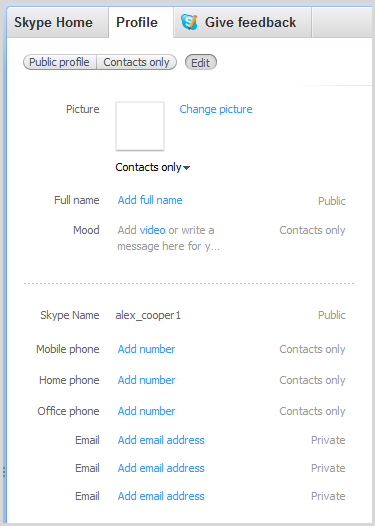
imageFor some reason, Skype has made it basically impossible to actually remove an account from their database.  Once it’s been created… it’s there forever.  So if you type in the wrong Skype name or misspell the name (as I accidentally did for a relative)… well, that’s tough.

The only resolution is to strip the account of any personal information by using the “Edit my Profile” menu of the Skype client software installed on your computer (not via the web page – this won’t work), ABANDON the account, and create a new one with the right name. 

Here’s what their support article says:

Can I delete my Skype account?

It’s not possible to delete a Skype account or change a Skype Name after it has been created. However, you can remove all the personal information contained in your profile. This will ensure that other people cannot search for you in Skype by using personal information such as your full name, email or phone number (although they will still be able to search for your Skype Name).

https://support.skype.com/en-us/faq/FA142/can-i-delete-my-skype-account

Additionally, there is a section on their support site that talks about ‘removing your old Skype name from the sign in menu.

How can I remove my Skype Name from the sign-in screen?

When you sign in to Skype, your Skype Name is added to the dropdown list on the sign-in screen.  To remove your Skype Name from the Skype sign-in screen:

  1. Quit Skype and make sure that Skype is no longer running.
  2. Click Start, type "run" and press Enter. (On Windows XP: Click Start and then Run.)
  3. Type “%appdata%\Skype” and click OK.
  4. Delete the folder with your Skype name.

If you cannot see the folder with your Skype name, press CTRL + H to display hidden folders.

When you restart Skype, your Skype Name will no longer be displayed.

https://support.skype.com/en-us/faq/FA11070/how-can-i-remove-my-skype-name-from-the-sign-in-screen

Posted by: kurtsh | July 26, 2012

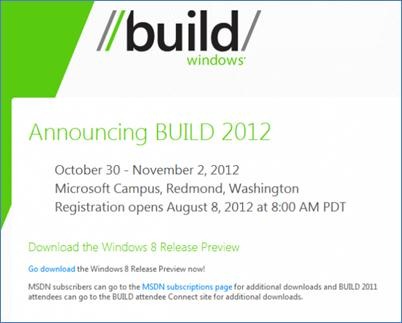
CONFERENCE: BUILD 2012 Registration begins Aug 8th

clip_image002[Time sensitive]

BUILD 2012 – Redmond, WA
Oct 30-Nov 2nd
http://www.buildwindows.com

REGISTRATION BEGINS AUGUST 8th.

BUILD 2012 is Microsoft’s developer conference specifically for the Windows platform. Topic include development information for Windows 8, Windows Server 2012, Windows Azure, Windows Phone, Visual Studio 2012 and more.

The 2012 event was announced yesterday on the Microsoft blog. Registration starts August 8th & we know this will sellout very quickly. For reference, the last BUILD event sold out in 1 week. This year, Windows 8 / Windows Server 2012 / Windows Phone 8 will all be releasing making this event all the more crucial – and likely much higher attended.

CUSTOMERS: I’m posting this now because I will have no avenue to get you in if you miss this registration; if you intend on joining us for this event, please get your budgeting & approvals to attend done ASAP so that you can register immediately on the 8th. – ks

Posted by: kurtsh | July 19, 2012

INFO: Hints on using Windows 8 as a Desktop OS

imageContrary to what some evaluators have written, I believe it’s a great desktop OS.  It’s just that many folks haven’t figured out how to use it yet.  And that’s probably our fault.  Then again, that could be part of Microsoft Corporate’s master plan.  Notice that they don’t reveal much about anything with regard to Windows 8 until the very last minute.

Whatever.  Here’s a few points about using Windows 8 as a desktop OS that you might find interesting:

imageSTART BUTTON = ‘THE ATTIC’
There was an explanation made similar to  this as to “why we got rid of the START button”.  The answer was that in our usability testing, people just don’t really use it.  I personally know that that’s true for me:  I rarely use it. 

I actually have Shortcuts to applications in my Taskbar (or on the desktop) that allow me to run the shortlist of apps/tools that I use frequently… but rarely do I ever click on the START button for anything other than to go to Control Panel or Shutdown my PC.

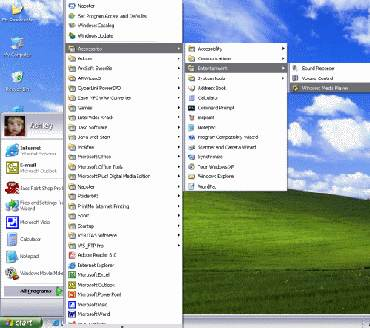
The START button has ultimately become nothing more than ‘the attic’ for Windows apps.  It’s all the stuff you never use except once in a blue moon.  The programs in there are needed, no question, but they’re the digital equivalent of the “Christmas lights”, “High School memorabilia”, and ‘tools you rarely use’.

MOUSE = SLOW; KEYBOARD = FAST
This is a weird one so stay with me.  It has to do with the fact that people complaining about the disappearance of the START button are the very experts that are probably the most proficient & productive users of the Explorer interface and should probably be cheering the removal of the START button – not jeering it.

When you’re typing on your computer & have to navigate to another app, most people:

  1. move their hand over to the mouse
  2. discover where the mouse pointer is on the screen
  3. navigate to the icon for that app & click it
  4. move their hand back to the keyboard

What’s the alternative?  Instead of moving your hand over to the mouse:

  1. try hitting the “WinKey”  (a.k.a. the Windows key on your keyboard)
  2. type the 1st couple letters of the app you want & hit ENTER

Done.  Your eyes never lost focus on the screen or had to look for the mouse pointer, you kept your fingers on the keyboard & never had to relocate you hands to the mouse & back, and you got where you wanted to go.

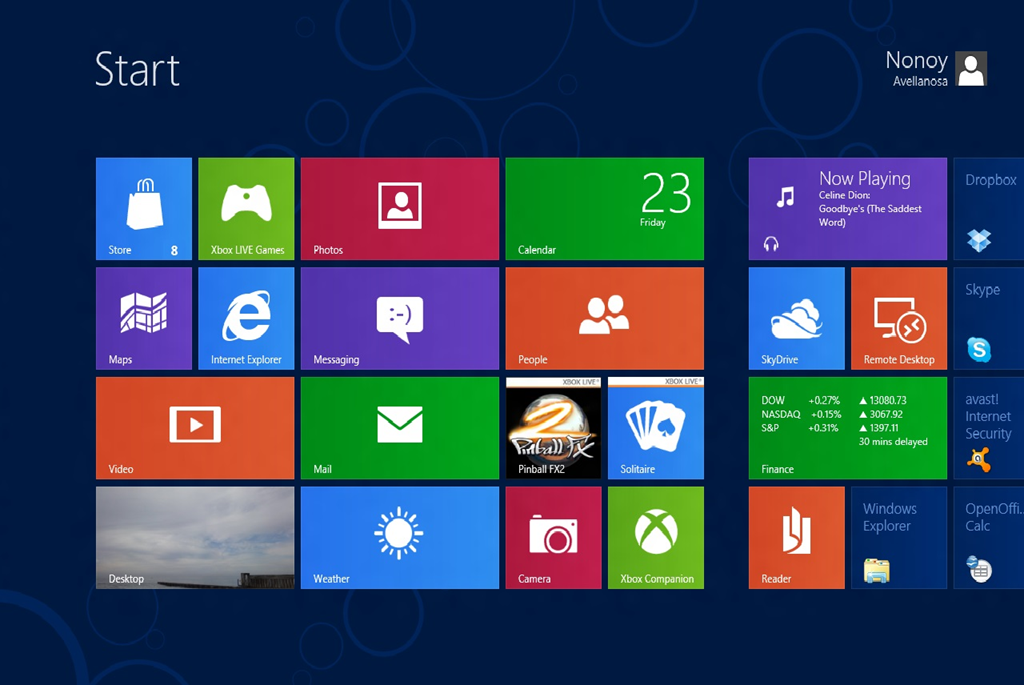
And what about those that prefer the slower, more deliberate, point-and-click, using-the-mouse, UI metaphor of the START button?  These folks will appreciate the tiled, colorized, look & feel of the new START page.  Applications are represented by more than just icons, but ‘Live Tiles’ that provide information about the apps.  These folks will like the new START page – even though you might not.  How do we know this works?  Because it sure as heck didn’t slow down the iPad, did it?

TO BE CONTINUED…
There’s one more thing I’d like to point out about using Windows 8 that I think goes unnoticed in all this hubbub about the START button and the new START page.  I’ll post that in a separate post cuz it’s kinda long.

Join the SQL Server Security Baseline POC Review Lync Meeting and Share Your Feedback

The Security & Compliance team at Microsoft builds security baselines for Microsoft products, including Windows operating systems and Office applications. In response to your demand for SQL Server security baselines, we are developing them in a Proof of Concept (POC) that works in the  Microsoft Security Compliance Manager.

We will demonstrate this exciting new POC during an online meeting on Thursday, July 19, 2012. If you are looking to add SQL Server security baselines to your environment, this is a good opportunity to preview the SQL Server security baseline POC and provide your feedback.

If you have not used your computer to participate in a Microsoft Lync Meeting before, click the following link before the meeting to check your computer to ensure that you have all the required software installed in order to join the meeting and watch the POC demonstration.

  • Date/Time:
    Thursday July 19, 2012, 11 A.M.–12 P.M. Pacific Time
    (2 P.M.–3 P.M. Eastern Time)
  • Location:
    To access the online meeting, click the following link or join the meeting by phone using the conference ID.
    Join online meeting at  https://join.microsoft.com/meet/xtan/KW8DC8DC 
    Listen by phone at +14257063500 or +18883203585
    Or find a local number at  https://join.microsoft.com/dialin 
    Conference ID: 640645674
Posted by: kurtsh | July 18, 2012

INFO: USB 3.0 Cabling/Connector Types

I’ve had this 1GB portable USB 3.0 Hard Drive for a while now.  I’ve always used it for backups and whatnot and never really paid attention to the connectors it used.

One day, I decided that along with my new Sony VAIO S laptop, I would buy a USB 3.0 hub so that I could have a USB 3.0 speed backup drive attached all the time when I got home and backup stuff at 5Gbps. (Wheeee!)  That’s when I noticed the cable connectors were… well… sort alien to me.

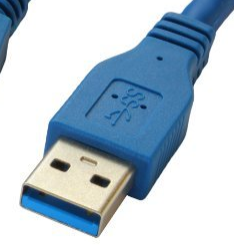
imageUSB 3.0 Type-A
Here’s the connector & port that everyone knows:  The “blue” colored USB 3.0 connector.  It looks identical to USB 2.0 ports/connectors except the inside connector plate is the tell-tale SuperSpeed ‘blue’ color and the cable is labeled with an ‘SS’. 

USB 3.0 Type-A connectors are compatible with USB 2.0 ports, and vice versa, but anytime you’ve got the USB 2.0 connected to USB 3.0 peripherals, you’ll see the slower 2.0 data rates.  That’s easy enough to understand.

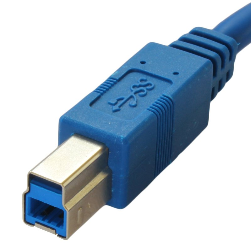
imageUSB 3.0 Type-B
Here’s the more foreign port/connector that folks that have had stationary periperals like desktop drives, CD/DVD external chassis’, etc. may recognize a bit.  It’s the larger, more sturdier port connector that looks more square-ish and fits the back of larger devices like printers and such. 

Interestingly enough, USB 2.0 Type-B cables are compatible with USB 3.0 ports, (shuttling down their speed accordingly of course) but not vice versa.

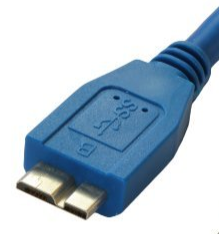
imageUSB 3.0 Micro-B
Now this is where it gets funky.  The Micro B connector is labeled with a “B”, has the tell tale ‘SS’ on it, and it has a very thin, short connector.  This has to be the single WORST connector every created and I can tell you from personal experience that if you can, you’ll want to avoid this connector.  Why?  Because it’s VERY easy to break/snap off into the drive/hub it’s plugged into, or worst, break the female port that it’s plugged into.  This is exactly what’s happened to me several times with this connector on hubs, drives, and peripherals.  If you have to use, it be very careful as it can be delicate.

So why’d they design it like this?  Well, it turns out for the same reason as I’ve mentioned above:  Compatibility with USB 2.0 Micro-B connectors.  A USB 3.0 cable can obviously (due to size) not be plugged into a USB 2.0 port, but a 2.0 cable can be used in a 3.0 port – and it’ll work, but at the slower data rate of USB 2.0.

Posted by: kurtsh | July 18, 2012

BETA: Exchange Server 2013 Preview available

Exchange Server 2013 Preview is now available for download along with it’s tech docs.  They describe the 2013’s release as focusing on the following:

  • Remain in control, online and on-premises.
    Exchange Server 2013 enables you to tailor your solution based on your unique needs and ensures your communications are always available while you remain in control, on your own terms – online, on-premises, or a hybrid of the two.
  • Do more, on any device.
    Exchange Server 2013 helps your users be more productive by helping them manage increasing volumes of communications across multiple devices and work together more effectively as teams.
  • Keep your organization safe.
    Exchange Server 2013 keeps your organization safe by enabling you to protect business communications and sensitive information to meet internal and regulatory compliance requirements.

A WORD ABOUT EXCHANGE 2013 “DATA LOSS PREVENTION”
One capability that is not specifically mentioned by alluded to by the final bullet above is Exchange Server 2013’s new “Data Loss Prevention” functionality, an enhanced set of capabilities that enables an organization to effectively place a “filter” on all communications to avoid having the wrong data leave the company. 

It essentially is a set of services & administrative features that apply specific pattern matching & transport rules to email communications and allows administrators to templatize these “conditions” and “actions” sort of like Group Policy… but for email.  This allows to testing, packaging of policies, application to specific targets but not others, etc.

One thing to know is that this new DLP feature appears from what I’ve been able to gather to require Exchange Server 2013 Enterprise CAL, so a stock Exchange Server 2013 Standard CAL license won’t be enough.  You’ll need both Std & Ent CALs licensed to use this feature.

More on this capability is written about in the TechNet docs for Exchange Server 2013:  http://technet.microsoft.com/en-us/library/jj150527(v=exchg.150)

If you’re looking to try Exchange Server 2013 in your lab, the following is recommended:

  1. Download the Exchange Server 2013 Preview installation bits
  2. Review the System Requirements
  3. Prepare your lab Active Directory environment
  4. Install Exchange Server 2013 Preview in your Lab
  5. Configure Exchange Server 2013 Preview in your Lab

« Newer Posts - Older Posts »

Categories