Posted by: kurtsh | September 2, 2012

HOWTO: Get Windows Gadgets working on Windows 8

clip_image002I’m not going to lie:  I LOVE WINDOWS GADGETS.  Being informed about my system status (CPU / RAM / bandwidth / storage usage, running processes, etc.) has become a critical element of my daily routine.  I’m a data junkie and it makes me feel more empowered.

So you can imagine the quiet dismay I had when as a company, we chose to ‘remove all Windows Gadget functionality’ out of Windows 8’s desktop.  I mean, seriously.  I thought this was one of the most glorious functions we got with Windows Vista and now it was going down the tubes.

NOT SO.

imageENTER “8GADGETPACK”
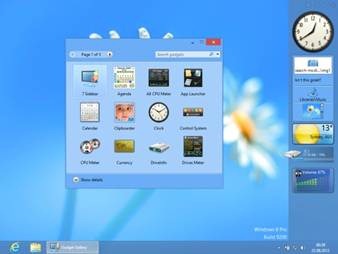
Turns out that the nice people at BPlaced, makers of the free 7Sidebar (a 3rd party sidebar we got rid of when Windows 7 was released) have struck again, this time by providing a FREE tool that essentially ADDS WINDOWS GADGET FUNCTIONALITY BACK INTO WINDOWS 8.  They’ve released a gadget hosting sidebar similar to 7Sidebar and it works gloriously.  And it’s, again, completely free.

Even cooler:  It comes with a set of 31 tested, reliable gadgets.  All in one downloadable package.  So go grab it.  Do it now.

imageWAIT – DIDN’T MICROSOFT GET RID OF GADGETS BECAUSE OF A SECURITY RISK?
Yes, this is true.  Illicit gadgets could supposedly bypass some of the security protections within Windows 8 making untrusted gadgets a point of risk.  So instead of changing the development framework of Windows Gadgets – which had been shutdown more than a year ago, with the development team scattered to the four winds – Microsoft chose to simply eliminate the technology for Windows 8.

Again, this may sound unreasonable however remember that there was no new development occurring for Windows Gadgets, and as much as it pains me to say it, there’s technically no real future in the gadget framework.  Windows Gadget functionality appears to be getting replaced by Windows 8 Live Tiles, with the tiles providing similar functionality as we transition to Modern-style applications in Windows 8.

That being said, I still LOVE Windows Gadgets & the risk around Windows Gadgets (as I understand it) revolves around new, unknown gadgets – not existing ones with good reputations as being safe and reliable.  So what’s the harm is keeping them around if you find them useful?  Right?
imageWHERE DO I GET GADGETS FROM THESE DAYS?
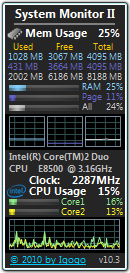
If you’re looking for a place to get some top quality gadgets from, a good place to start is at Dr. Igor Bushin’s site which has some of my personal favorites, including a CPU monitor, Memory monitor, Bandwidth monitor, GPU monitor, Drive monitor, Process monitor, Battery monitor, etc.

  • DOWNLOAD:  My Favorite Gadgets – Dr. Igor Bushin’s site
    Most Wanted and Popular Windows 7, Windows 8, Windows Vista and Windows Server 2008 Gadgets. Real gadgets for real Geeks.
    http://www.myfavoritegadgets.info/
Posted by: kurtsh | September 2, 2012

INFO: IT Professional questions regarding Windows 8?

imageIf you have IT Professional-level questions about Windows 8, don’t forget that you can submit them to our TechNet Managed forums to be answered by other knowledgeable IT professionals, our MVPs, or our own support personnel. 

We have specific forums (see below) for each area of interest around Windows 8.

ATTENTION CORPORATE USERS WITH SOFTWARE ASSURANCE:
And if your company has Software Assurance, remember that you can have your Microsoft/Windows Live account flagged as a ‘priority’ user account (TechNet Subscriber privileges for Managed Forums) so that your questions & submissions rise to the top of the heap in terms of order answered by MVPs & support engineers within our Managed Forums. 

For priority forum users under Software Assurance, the stated SLA for getting technical questions answered is two business days with review by Microsoft support professionals. (For details on this benefit of Software Assurance, please visit:  http://www.microsoft.com/licensing/software-assurance/technet-benefits.aspx)

TECHNET:  Windows 8 IT Professional Forum
http://social.technet.microsoft.com/Forums/en/category/w8itpro

imageFolks – a kind suggestion to those of you using Lync to do broadcast presentations: 

  • Please upload your PowerPoint into Lync when delivering webcasts.  Conversely, never “share your screen” to do a PowerPoint presentation.

All you have to do is click the “SHARE” button within Lync and select “PowerPoint Presentation”.  This will allow you to upload the deck into the Lync session & automatically convert it into an HTML5 presentation, complete with full animations, transitions, etc.

Please note that this process may take a few minutesto complete depending on the size of the presentation but the results are excellent and a little forethought/preparation before presenting should not be a big deal.

WHY AM I POSTING THIS?
I ask because ‘sharing’ one’s desktop to deliver a PowerPoint presentation is considered bad form with customers & attendees.  The reason for this is, while it may look okay to you as a presenter, from the stand point of an attendee (especially those with highly questionable bandwidth or weak QoS at their Internet gateway) pixel-level desktop sharing takes forever to do screen updates when using POWERPNT.EXE, especially at typical 1280×1024 resolutions & 24-bit color depth.

In a phrase, it can be downright PAINFUL & it’s inconsiderate to your audience.

WHAT ARE THE BENEFITS OF UPLOADING THE .PPTX FILE?
When you load the presentation into Lync, there are 5 major benefits for attendees viewing the PowerPoint in this manner, instead of ‘screensharing’ POWERPNT.EXE:

  1. IMMEDIATE SLIDE CHANGES
    All slide changes are immediate, eliminating the annoying pauses & frame rate issues that occur during screensharing while the screen refreshes on a pixel-by-pixel level.  For attendees with crappy bandwidth, a single 1280x1024x64k slide change can take close to a minute.  Meanwhile, the presenter is likely yammering away, while the slide hasn’t even appeared on his attendees screens & has no idea how bad the experience is on their end.
  2. SMOOTH TRANSITIONS & ANIMATIONS
    All animation & transitions are supported and appear smoothly, whereas pixel-sharing can make animations at 1280x1024x64k run at less than a frame per second when delivered over a 64kbps connection, which can happen when the attendee is viewing the presentation with bad Internet access.  When the file is uploaded to the Lync session, the presentation is automatically scaled to the attendee’s local desktop resolution, so the presenter’s desktop resolution isn’t relevant.  (During desktop sharing for things like application demos, smart presenters normally shuttle down their resolution/color depth beforehand to minimize network I/O to the attendees)
  3. CLIENT-SIDE SLIDE CACHING
    The attendee’s Lync client will pre-cache the entire PowerPoint presentation on the attendee’s machine locally and display the first presentable slide immediately, making bandwidth usage irrelevant after the initial slides of the deck are cached.  This allows presenter slide changes to occur immediately on the attendee’s screens & also provide…
  4. SLIDE LOOKAHEAD/LOOKBACK
    If an attendee wants to look back at a previous slide, they have the ability to do so unless the presenter specifically restricts them from doing so.  This gives them freedom to review the content on their own.
  5. POWERPOINT DECK DOWNLOAD
    Once uploaded to Lync, the attendee has the ability (unless again you’ve restricted them) to download the .PPTX for their offline use, which is a common request from attendees.
Posted by: kurtsh | September 1, 2012

COMMENTARY: A brief graphic about Windows 8

I hope Robert doesn’t mind my repost but this graphic he made perfectly expresses my thoughts on the Windows 8 Start button ‘matter’.

  1. Much like the Office ‘Ribbon’/Fluent, all it takes is an earnest attempt on the new user’s part to try to use the Start page to discover why we’re making the change.  And when someone won’t even try it to see if it’s truly better, it really betrays an individual’s inability to adapt to change.
  2. Meanwhile, every time I read a story about some OEM ‘potentially adding’ a crapware Start menu to their Windows 8 PCs, I’m reminded of why it is we’re building Surface.

image

If you’re looking to investigate Windows Server 2012’s Hyper-V Virtualization technology & compare it with VMware’s latest technology:

imageCompetitive Advantages of Windows Server 2012 Hyper-V over VMware vSphere 5.0
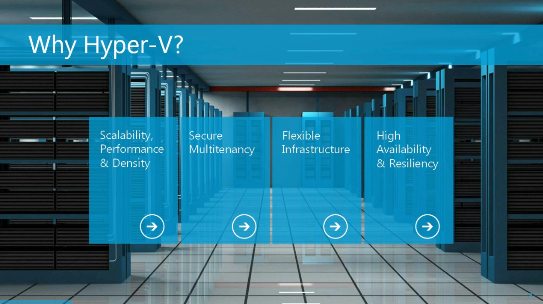
There is an excellent whitepaper called “Why Hyper-V:  Competitive Advantages of Windows Server 2012 Hyper-V over VMware vSphere 5.0” that provides a more narrative comparisons between Windows Server 2012 Hyper-V and VMware’s 5 technology.

It is a 656MB, 24-page document that goes over: The benefits of today’s Windows Server 2008 R2 Hyper-V product, and the advancements made in todays 2012 product.

VIDEO TRAINING:
Now if you’re more of a ‘video’/show me’ kind of person, not to worry.  We’ve produced numerous videos that help people understand the competitive advantages of Windows Server 2012.

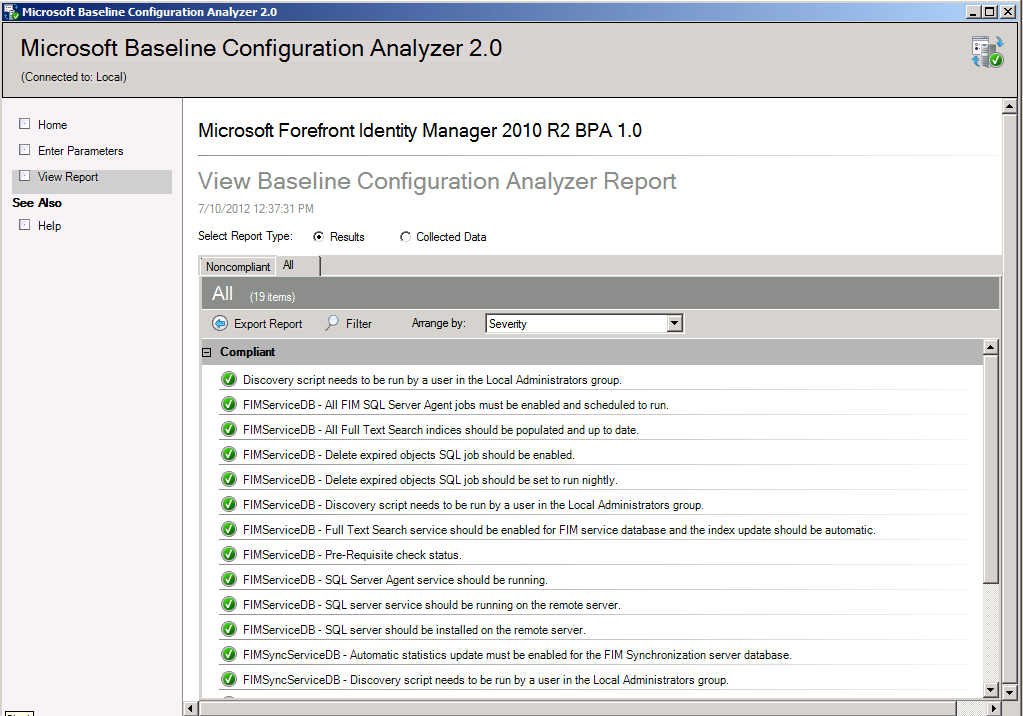
imageWe’ve released the Microsoft® Forefront™ Identity Manager 2010 R2 Best Practices Analyzer (4.1.2515.0). 

The FIM2010 R2 Best Practices Analyzer is a tool that lets you verify the implementation of Best Practices. These best practices typically relate to the usage and administration aspects of your FIM 2010 R2 deployment, to ensure they are managed and operated well.

Here’s a list of some of the best practices that the new FIM2010R2 BPA detects and helps correct:

DOWNLOAD: Microsoft® Forefront™ Identity Manager 2010 R2 Best Practices Analyzer 4.1.2515.0
http://www.microsoft.com/en-us/download/details.aspx?id=30419

Posted by: kurtsh | August 24, 2012

HUMOR: Old to New Microsoft?

MicrosoftOLDtoNEW

Click it to see the morph I put together in about 60 seconds.
(FYI: I used FotoMorph, a free morphing tool for Windows that’s quite excellent!)

imageIf you’re in IT or you’re at all a Windows geek, you need to check Windows-to-Go out. 

Windows-to-Go allows you to boot your complete Windows 8 Enterprise Edition environment off of a USB 3.0 flash drive (Windows-to-Go certified hardware) from basically any Intel computer.  (I understand that this even works on MacBooks even though it’s not supported)  The performance, because of the hardware requirements, is outstanding.  You really can’t tell that it’s just a USB stick you’re booting off of.

WHAT YOU NEED:

  • Windows 8 Enterprise (installed on a PC)
  • Windows 8 Enterprise .ISO image (via TechNet/MSDN or Volume Licensing downloads)
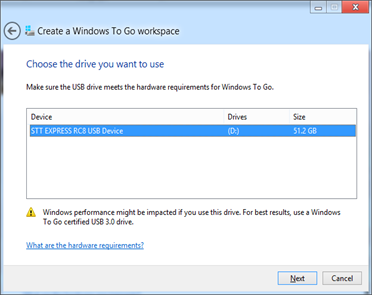
  • A Windows-to-Go certified USB 3.0 flash drive
    (Technically, any USB drive – even 2.0 drives – might work however they are not guaranteed to either work nor perform well.  If you’re going to do this, be prepared to just BUY a certified USB flash drive.  It’ll be about $80.  Trust me on this.)

Here’s some quick and dirty steps on how to build your first Windows-to-Go flash drive:

  1. Run “Windows-to-Go” from the Control Panel on a Windows 8 Enterprise PC.  (Remember that Windows-to-Go is only available to Enterprise Edition users)  WinKey-X will allow you to bring up the Control Panel easily.

    image

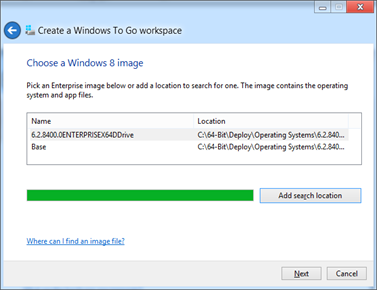
  2. Select an .WIM image.  If you have the Windows 8 Enterprise media in .ISO format, simply double click on the .ISO to mount it as a virtual DVD drive beforehand and navigate to \sources\install.wim for a base image.  The tool should automatically find this .WIM file if you had mounted the virtual DVD beforehand.

    image

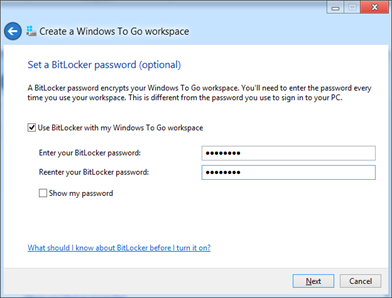
  3. Enable BitLocker if desired.  This will encrypt all data on the drive and require that you enter a BitLocker password before every boot.

    image

That’s it.  The process of building the Windows-to-Go drive will commence.

WAIT… THAT’S EXPENSIVE!  WHY USB 3.0 CERTIFIED FLASH DRIVES ONLY?
Please refer to this post I wrote about the specifications required for Windows-to-Go but basically, there’s no guarantee that Windows-to-Go will work correctly with lesser flash drives. 

We have several expectations of latency & performance as well as long-term reliability & durability that we tuned the Windows 8 operating system for in the Windows-to-Go scenario and those expectations are only met by Windows-to-Go certified flash drives.

SO, WHAT SHOULD I NOTICE ONCE I BOOT TO IT?
Here’s a few key features of Windows-to-Go that’s sure to amaze & delight.

  1. Pre-OS Password Unlock
    If you install Windows-to-Go with BitLocker – an option during the installation procedure – you will need to type a PIN in order to decrypt & use the BitLocker-encrypted Windows-to-Go flash drive.  This ensures that if the device is ever lost, there’s no concern of data leakage:  BitLocker uses a phenomenal level of volume encryption for the data on the drive.
  2. imageInaccessible Local Hard Drive
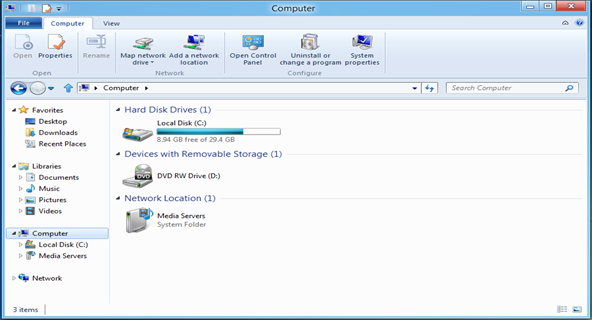
    Notice that if you go to My Computer from the Desktop, the local hard drive of the host PC is not listed and is otherwise inaccessible.  This is to prevent data leakage from the WTG “Work” environment and also protect that environment from malware that may reside on the local storage.
  3. Accidental Drive Removal Resilient
    Try pulling out the drive:  You’ll find that the entire OS pauses.  This was a major innovation in Windows that was introduced in Windows 8 Windows-to-Go.  It freezes all system processing until the drive is returned to the USB port.  The user has 60 seconds to accomplish this and if they do plug it back in, they get a "don’t do that again" dialog on the screen.  If they DON’T return the USB drive to the port in 60 seconds, a hard shutdown takes place in order to ensure that the data on the desktop display doesn’t fall into the wrong hands.
  4. VPN out
    VPN is fully available from the Windows-to-Go environment if a network’s available.
  5. Windows Store is disabled by default
    By design the Windows Store is not available to ensure that the WTG environment is not modified unnecessarily.  This can be overridden by Group Policy if necessary.

And exception FAQ on Windows-to-Go is available below:

Posted by: kurtsh | August 21, 2012

DOWNLOAD: “QuickHelp Starter” for Office 2013

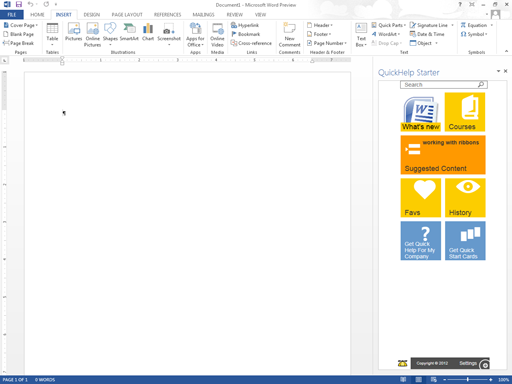
Brainstorm produced a neat FREE add-in for Office 2013 called “QuickHelp Starter” that shows within the frame of the Office application, how to use certain key functions of the application – either Word 2013 or Excel 2013.

imageOFFICE.COM DESCRIPTION
QuickHelp Starter is a collection of short videos that display in Word 2013 and Excel 2013 so you can work with features as you learn about them. Watch the videos that QuickHelp Starter recommends specifically for you, or search for the information you need within the collection. If there’s a particular video that you want to view later, bookmark it. Not sure which videos you already watched? QuickHelp Starter saves your viewing history.

PROVIDER DESCRIPTION
QuickHelp Starter is a collection of short videos that help users understand the ‘how’ and ‘why’ of features in Word 2013 and Excel 2013. Users increase productivity by increasing their ability to effectively utilize their productivity software. Features include:

  • Suggested Content: QuickHelp Starter will recommend videos specific to each user.
  • In-application Content: Videos are displayed directly within Word 2013 and Excel 2013 allowing users to follow along.
  • Search: All content is completely indexed and searchable, allowing users to quickly find content for their specific needs.
  • Favorites: Users can bookmark favorites so they can refer back to helpful videos at a future date.
  • History: Complete history is tracked allowing users to find previously watched videos.

DOWNLOAD: “QuickHelp Starter” for Office 2013 (v1.2)
http://office.microsoft.com/en-us/store/quickhelp-starter-WA102927044.aspx?redir=0

Have you been enjoying Click-to-Run functionality from the new Office Customer Preview?

image

So you have an App-V infrastructure in the lab and wish you could deploy the new Office in test for a side-by-side experience?

Lucky you!  We have the Office 2013 Preview available pre-sequenced for you to deploy via App-V 5.0!

(NOTE:  App-V 5.0 beta is needed.  If your customer hasn’t already they need to sign up for the beta here: https://connect.microsoft.com/MDOPTAP/Survey/NominationSurvey.aspx?SurveyID=14058&ProgramID=7604)

« Newer Posts - Older Posts »

Categories