Posted by: kurtsh | November 2, 2012

RELEASE: Introducing the Lync Pilot Success Kit

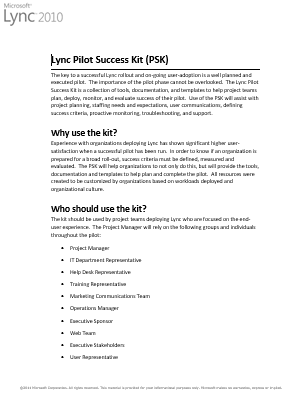
imageNeed something to help you with Planning, Operations, Communications, & Training/Readiness around your upcoming Microsoft Lync rollout?

Introducing the the Lync Pilot Success Kit.

The key to a successful Lync rollout and on-going user-adoption is a well planned and executed pilot. The importance of the pilot phase cannot be overlooked. The Lync Pilot Success Kit is a collection of tools, documentation, and templates that helps project teams plan, deploy, monitor, and evaluate the success of their pilot. The Lync Pilot Success Kit assists with project planning, staffing needs and expectations, user communications, defining success criteria, and proactive monitoring, troubleshooting, and support.

Author: Nick Smith, Microsoft Senior Program Manager and Laurie Pottmeyer, Microsoft Program Manager

Publication date: October 22, 2012

Product version: Lync Server 2010

We are excited to announce the release of the Lync Pilot Success Kit (PSK).

Experience with organizations deploying Lync has shown significant higher user-satisfaction when a successful pilot has been run. In order to know if an organization is prepared for a broad roll-out, success criteria must be defined, measured and evaluated. The PSK will help organizations to not only do this, but will provide the tools, documentation and templates to help plan and complete the pilot. All resources were created to be customized by organizations based on workloads deployed and organizational culture.

[taken from the Next Hop blog]

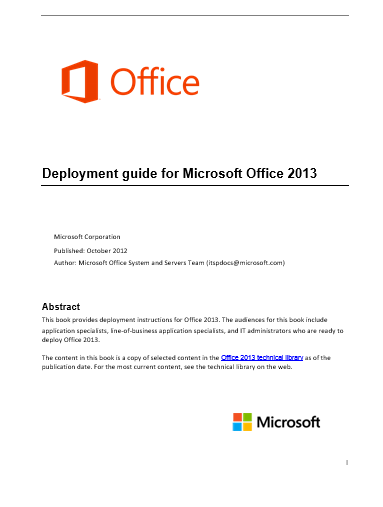
imageThis is a newly released FREE Microsoft eBook: “Deployment Guide for Microsoft Office 2013”

This eBook comes to you from the Microsoft Office System and Servers Team and is available in Microsoft Word (.doc), .epub, .mobi, and .pdf file formats. You can download it through the links below:

To give you a quick view into the fantastic information inside this eBook, here is a rundown of the table of contents:

  • Getting help
  • Volume activation of Office 2013
  • Plan volume activation of Office 2013
  • Volume activation methods in Office 2013
  • Deploy volume activation of Office 2013
  • Use tools to configure client computers in Office 2013
  • Customize installations of Office 2013
  • Customize Setup before installing Office 2013
  • Configure a silent installation of Office 2013
  • Create custom configurations of Office 2013
  • Office Customization Tool (OCT) in Office 2013
  • Config.xml file in Office 2013
  • Setup command-line options for Office 2013
  • Setup properties in Office 2013
  • Setup architecture overview for Office 2013
  • Customize the Accessibility Checker for Office 2013
  • Outlook 2013
  • Planning overview for Outlook 2013
  • Choose between Cached Exchange Mode and Online Mode for Outlook 2013
  • Plan a Cached Exchange Mode deployment in Outlook 2013
  • Plan feature customizations in Outlook 2013
  • Choose security and protection settings for Outlook 2013
  • Configure multiple Exchange accounts for Outlook 2013
  • Configure Cached Exchange Mode in Outlook 2013
  • Configure Outlook Anywhere in Outlook 2013
  • Configure junk email settings in Outlook 2013
  • Roll out Office 2013
  • Install Office 2013 from the local installation source
  • Deploy Office 2013 from a network installation point
  • Deploy Office 2013 by using Group Policy computer startup scripts
  • Language in Office 2013
  • Plan for multi-language deployment of Office 2013
  • Customize language setup and settings for Office 2013
  • Add or remove language packs after deployment of Office 2013
  • Mixed language versions of Office 2013
  • Companion proofing languages for Office 2013
  • Language identifiers and OptionState Id values in Office 2013
  • Security in Office 2013
  • Security overview for Office 2013
  • Authentication in Office 2013
  • Plan for Information Rights Management in Office 2013
  • Group Policy for Office 2013
  • Planning for Group Policy in Office 2013

[taken from the Microsoft Small Biz Blog]

image[taken from the SCSM Engineering blog]

Problem: The interest level in Service Manager is through the roof since we released System Center 2012.  I’ve had so many customers lately through various channels asking to speak with other customers that have deployed SCSM.  They want to understand if SCSM will meet their requirements.  They want to know how to do certain things.  They want to connect with other people that are deploying SCSM so they can learn best practices and what mistakes to avoid.

We produce case studies on how customers use System Center, but that’s not quite as good as talking directly with a customer that is trying to do what you are doing right?

I was thinking about how to solve this problem, but I didn’t really want to be in the business of customer connection brokering.  It’s just challenging to find a customer in a similar industry doing similar things that would be willing to take time out of their day to answer questions from another customer.  Trying to coordinate that for lots of different customers would be pretty time consuming.  Further – a 1:1 discussion is sort of limited – you only get one person’s perspective.  Ideally, you would get multiple because people have different ideas, experiences, skills, and ways of doing things.  There had to be a better way!

Solution: I was interviewing somebody today for a community PM position. I asked her to come up with some creative ways to engage with the community.  After a few suggestions, I asked her to dig deeper to see how creative she could be.  She came up with this idea to host Lync meet ups (a “LyncUp”, sort of like a TweetUp – you heard it hear first!) with the community and let people just have an open discussion about whatever they want.  Brilliant!

So – I’m going to start a regular LyncUp for SCSM customers to get together and just talk to each other about whatever they want.  It won’t be like a user group meeting or a web cast because there won’t be a predetermined speaker or agenda.  I’ll be there and I’m sure some of the MVPs and product team members will be there too.  It will be a way for customers to meet each other and potentially have side conversations following the LyncUps to go deeper on topics or potentially collaborate with each other.

We’ll start with 1/month, but I’m open to feedback on how often we should have them as well as what time of day etc.  Anybody that wants to is welcome to join.  All you need is a phone and/or Lync!

If you are going to use Lync remember to download and install the Lync Attendee client or Lync client ahead of time!

Attached to this blog post is a .ics meeting invite you can add to your calendar. The meeting invite contains the hyperlink to click on if you are going to join the meeting using the installed Lync client, phone numbers if you are in the U.S., and a hyperlink to look up other regional phone numbers.

The first meeting will be Nov. 6th at 9:00 AM Redmond time. See you then!

image

Wow.  If you’re at all interested in runbook automation or help desk systems leveraging the System Center family of products, you’re in serious luck.

Acceleres, a highly proficient solution provider, that focuses on Service Manager and Orchestrator are doing a long series of webcasts that explain a variety of topics to the audience:

IF YOU WANT TO PARTICIPATE:

Posted by: kurtsh | November 2, 2012

HOWTO: Reanimate your Windows 8 Login Screen

Windows 8 metro

UPDATE 11/15/12:
I’ve gotten a report that this registry key may be the cause of the the destabilization of my Surface as was documented here:
https://kurtsh.com/2012/11/11/info-i-have-an-windows-8rt-app-that-just-disappearscrashes-drops-me-into-the-desktop-or-a-blue-background-dude-wtf/

A coworker that was experiencing the exact same symptoms that I was removed the key and has had no problems since, so as a result, I can’t recommend that folks do this hack moving forward.  Nothing is worth destabilizing your desktop experience.

ORIGINAL POST:
[stolen from Maximum PC Magazine]

The first time you boot into the Start Screen after you log in, Windows 8 fills your colored background with your icons with a pretty left-to-right kind of a “fill” animation. We like that. We like it so much, that we want to see it all the time – Windows just makes your Start Screen boringly “appear” when you open and close it after this first login animation.

Open up the registry (type “regedit” on the Windows 8 Start Screen) and navigate over to this key:

  • HKEY_CURRENT_USER\Software\Microsoft\Windows\
    CurrentVersion\ImmersiveShell\Grid

Right-click on the right-most window pane, hover over “New,” and select the “DWORD” option. Right-click on your new DWORD and rename it to “Launcher_SessionLoginAnimation_OnShow,” and then double-click on it and set its Value data to 1. Voila: Pretty Windows 8 icon animation forevermore! To revert this modification, just delete the DWORD you created.

Posted by: kurtsh | November 1, 2012

RELEASE: Microsoft Desktop Optimization Pack 2012

image

The Microsoft Desktop Optimization Pack (MDOP) is a suite of technologies available as a subscription for Software Assurance customers.

MDOP virtualization technologies help personalize the user experience, simplify application deployment, and improve application compatibility with the Windows operating system (UE-V/App-V/MED-V).

Additionally, MDOP helps manage, monitor, and deploy key Windows features (MBAM/AGPM). Using MDOP shifts desktop repair from reactive to proactive, saving time and removing challenges associated with troubleshooting and repairing system failures (DaRT).

NEWS: MDOP 2012 Now Available
http://blogs.windows.com/windows/b/business/archive/2012/11/01/mdop-2012-now-available.aspx 

DOWNLOAD:

image

UPDATE 11/11/12:
Citrix Receiver (RELEASE) hit the Windows Store on Friday.  This replaces the "Preview" that Citrix originally posted 2 weeks ago. (4.53MB)  http://apps.microsoft.com/webpdp/en-us/app/citrix-receiver/dcbba44a-a3fd-41f4-951d-1117998c583d 

Support for Citrix Receiver for Windows RT is available here: http://forums.citrix.com/category.jspa?categoryID=335 

————————–

ORIGINAL POST:
There’s been a lot of discussion about the Citrix Receiver Preview that was posted to the Windows Store for Windows 8/RT-based devices recently. 

I got to talk with my counterpart at Citrix to ask him to help me understand what sort of requirements the Citrix Receiver Preview has & here’s a quick summary of my Q&A with him:

  1. Will older versions of XenApp or XenDesktop work with the Citrix Receiver Preview posted to the Windows Store?
    — No.  Only newer versions will work.  Minimum of XenApp 6 & XenDesktop 5.5.  This is unfortunately not documented.
  2. Is there additional infrastructure required to use the Citrix Receiver Preview?
    — Yes.  Customers must have a Citrix StoreFront to connect to their backend.  There are also explicit setup procedures & system requirements to use the Windows 8/RT version of the Receiver.  This documented in the blog post below.
  3. Is there a place where one can read more information about the Citrix Receiver?
    — Yes.  Interested users should go to the following blog which is the personal blog of the Product Manager responsible for the Preview.
    http://blogs.citrix.com/2012/10/25/microsoft-launches-windows-8/
  4. Is there a Support forum for users interested in using the Citrix Receiver for Windows 8/RT?
    — Yes.  http://forums.citrix.com/category.jspa?categoryID=335
  5. Will my Citrix Secure Gateway work with Citrix Receiver for Windows 8 / RT?
    — No.  If external access is a requirement, a Citrix Netscalar solution must replace the Citrix Secure Gateway.  The Netscalar solution incidentally may be virtualized in Hyper-V for convenience.
Posted by: kurtsh | November 1, 2012

RELEASE: Team Foundation Service now available

imageCloud-based Software Development?  Yeah, we got that!

Introducing ‘Team Foundation SERVICE’ – the Windows Azure-based RCS & collaboration platform for developers.

Team Foundation Server is a mainstay of Microsoft’s collaboration platform for software development teams. It provides modern application lifecycle support for modern app development, including agile project planning and management tools, version control, build automation, and the continuous deployment automation needed to effectively and efficiently manage software development projects.

In addition to the value TFS provides to development teams targeting Windows, more and more we’re seeing it used in heterogeneous environments as well, whether developers are using Visual Studio or Eclipse or Xcode; whether developers are building apps with .NET or Java or C++ or JavaScript or any number of other languages; and whether developers are building apps for Windows, Windows Phone, Windows Azure, Android, iOS, MacOS, or Linux.  We’re also seeing the cloud become a key enabler across the lifecycle of applications.

Last year at the Build conference, we announced Team Foundation Service, a version of Team Foundation Server hosted on Windows Azure, accessible from anywhere using existing and familiar tools, and welcoming all languages and platforms.  Over the last year, we’ve run the service as a preview, and during this time we’ve continued to build out the breadth and depth of functionality included. Today, I’m very excited to share that Team Foundation Service is now released, out of preview and available for full production use.  Check it out for yourself at https://tfs.visualstudio.com.

And what’s even cooler, is that it’s TOTALLY FREE for development groups up to 5 users!  And MSDN subscribers will get the service absolutely no charge!

Free Plan
A plan for up to 5 users is now available!

What it includes

  • Up to 5 users
  • Unlimited number of projects
  • Version control
  • Work item tracking
  • Agile planning tools
  • Feedback management
  • Build (still in preview)

Read more at:

imageFor the next 8 days, you’ll be able to register to get a Windows Phone 8 developer account for $8 instead of the regular $99 price.

Yes.  $8.  That’s not a typo.  You can “unlock” your phone for homebrew apps & sideload whatever the heck you want… all for just $8.

Join
The new Windows Phone Dev Center has everything you need to create great apps and add them to the Windows Phone Store for the world to see, try, and buy. You can start creating apps anytime. When you’re ready to offer them in the Store, you’ll need a subscription to the Dev Center where you can start the process of adding them to the Store catalog. Your subscription includes some useful tools and your own personal dashboard to track your apps and your earnings.

How do I join?
You need a valid credit card, a PayPal account, or a promo code.

Your annual subscription is $99 USD. It’s free if you’re a DreamSpark student.

$8 for 8
Register between 10/30/12 and 11/7/12 and save $91(U.S.) on your Windows Phone Dev Center Individual account registration. Click here for more details.

What do I get?
Your subscription connects you to tools, information, tips, code samples, and a broad community of developers. You can:

  • Get free development tools, including a phone emulator to test your app
  • Explore code samples and all the information in our developer library
  • Read tips about selling your app
  • Review our policy guidelines and certification requirements
  • See tips and guidelines for creating apps that reflect the beauty of our design concepts
  • Create apps with trial options
  • Enable in-app purchasing, so customers can buy things within your app
  • Test your app with a real phone
  • Submit free and paid apps to the Store
  • Distribute your app around the world and set country/region-specific price tiers
  • Watch your progress and manage your apps in a personalized dashboard
  • Ask questions, share advice, or talk with other Windows Phone developer

To sign up & get more details, visit:

imageHere’s a summary of many of the comments made by the media around their first look at Windows Phone 8:
(http://www.microsoft.com/en-us/news/Press/2012/Oct12/10-29WindowsPhone8PR.aspx)

  • “Windows Phone 8 is a delight to use… Its combined good looks, functional features and sexy new hardware make it a winning smartphone.” – Wall Street Journal
  • “Microsoft unveils Windows Phone 8 breakthrough features” – USA Today
  • “Windows Phone’s live tiles are far enough removed from the static icons of iOS and the confusing widget farm that Android has become to put clear blue water between Microsoft and its competitors.” – UK Telegraph
  • “Nice though the 8X hardware is, this phone, like all smartphones, is defined by its operating system. While 2010′s Windows Phone 7 was good; last year’s Windows Phone 7.5 was really good. And Windows Phone 8, from my brief time with it, seems to be really, really good” – Time Magazine
  • “Windows Phone 8 makes big changes while remaining true to its core. It’s sharp, colorful, clean, and simple, but also hip and a bit exuberant.” – CNET
  • “There’s a lot to love about Windows Phone… Windows Phone 8 shines on the 8X and the phone is a pleasure to both hold and carry around.” – Mashable
  • “Windows Phone 8 is elegant, personable, and different… If iOS bores you and Android intimidates you, Windows Phone will likely dazzle you.” – PC Mag
  • “The live tiles and the distinctive user interface remain Microsoft’s biggest selling points for Windows Phone.” – Associated Press
  • “Who would have thought that in 2012 Microsoft would be the company with the boldest phone and software design?” – The Verge’s Josh Topolsky
  • “Redmond is presenting one of the most compelling ecosystem stories in the business right now, and the 8X and Lumia 920 are both lining up to be formidable flagship phones over the next several months” – The Verge
  • “With each new generation of Windows Phone, Microsoft not only closes the gap with iOS and Android in important ways, but it also differentiates in important ways — and that might be more true in version 8 than ever before.” – The Verge
  • “I am indeed composing a love letter to stock software today, only to my eternal surprise I am doing so in Microsoft’s OneNote. My review time with the HTC Windows Phone 8X extinguished the built-up anticipation for the incrementally improved Nexus and replaced it with a burning curiosity to explore the new Windows Phone OS. The more I used the 8X, the more I enjoyed using it.” – The Verge

« Newer Posts - Older Posts »

Categories