Posted by: kurtsh | February 12, 2013

RELEASE: Internet Explorer 10 Blocker Toolkit

imageThe Internet Explorer 10 Blocker Toolkit enables users to disable automatic delivery of Internet Explorer 10 as an important class update via Automatic Updates (AU) feature of Windows Update (WU).
To help our customers become more secure and up-to-date, Microsoft will distribute Windows Internet Explorer 10 as an important update through Automatic Updates for Windows 7 SP1 and higher for x64 and x86 and Windows Server 2008 R2 SP1 and higher for x64.
This Blocker Toolkit is made available to those who would like to block automatic delivery of Internet Explorer 10 to machines in environments where Automatic Updates is enabled. The Blocker Toolkit will not expire.
Note:

  • For computers running Windows 7 or Windows Server 2008 R2, the Blocker Toolkit prevents the machine from receiving Internet Explorer 10 via Automatic Updates on the Windows Update and Microsoft Update sites.
  • The Blocker Toolkit will not prevent users from manually installing Internet Explorer 10 from the Microsoft Download Center, or from external media.
  • Organizations do not need to deploy the Blocker Toolkit in environments managed with an update management solution such as Windows Server Update Services or Systems Management Server 2003. Organizations can use those products to fully manage deployment of updates released through Windows Update and Microsoft Update, including Internet Explorer 10, within their environment.
  • Even if you used the Blocker Toolkit to block Internet Explorer 8 or Internet Explorer 9 from being installed as a high-priority or important update, you will still need to use the Internet Explorer 10 version of the Blocker Toolkit to block Internet Explorer 10 from being installed. There are different registry keys used to block or unblock automatic delivery of Internet Explorer 8, Internet Explorer 9 and Internet Explorer 10.

RELEASE: Internet Explorer 10 Blocker Toolkit
http://www.microsoft.com/en-us/download/details.aspx?id=36512

It seems to be lost on some folks that you’re SUPPOSED to use the DESKTOP for most of your computing.  Windows 8 is designed to be primarily used…:

  • TODAY:  
    …for it’s DESKTOP experience for 90% of what you do
    …for it’s WINDOWS 8 experience for 10% of what you do
  • TOMMORROW:
    …for it’s WINDOWS 8 experience for 90% of what you do
    …for it’s DESKTOP experience for 10% of what you do

Did you catch that?  No?  One more time:

YOU’RE SUPPOSED TO BE USING THE DESKTOP ON WINDOWS 8 FOR THE GREAT MAJORITY OF WHAT YOU DO.  THAT’S WHAT IT’S THERE FOR:  COMPATIBILITY & PRODUCTIVITY.  No one expects the world to be dumping all desktop applications for Windows 8 apps 3 months into Windows 8’s existence.

EXHIBIT A:  DOS-to-WINDOWS
For those that don’t remember the first major Microsoft User Experience transition, when we moved from DOS to Windows, it’s important to know that people didn’t suddenly dump all their DOS applications for what little was available on Windows.  People had lots of DOS-based apps like Multiplan & WordStar that they ran… and they happened to have a few crappy Windows 16-bit apps like “Microsoft Write” that were cute but nothing to get too excited about.

Then over time, across Windows versions  1.0, 2.0, 3.0, and 3.1, an interesting thing happened:  Windows 16-bit applications got better than their DOS-based counterparts especially once Word, Excel, and PowerPoint were released for Windows.  Users transitioned gradually over to using Windows primarily.  This is a process that took 3-4 years to accomplish but eventually, it happened.

Same goes for Windows 8.  Sure you’ll continue to use your DESKTOP apps today, like Office, Quicken, AutoCAD, iTunes, Starcraft II, Photoshop, Vegas Video, Roxio, Final Draft, Rosetta Stone, SAT Prep, yadda yadda yadda… but you’ll want to transfer over to WINDOWS 8 apps when available.  Why?  They’ll be optimized for mobility & touch which means that they’ll be more power efficient, usable without a keyboard, and leverage global operating system functions like "SHARE” and “SEARCH”.

EXHIBIT B: WINDOWS 3.1-to-WINDOWS 95
<to be filled in when I get a break… but you old school folks can extrapolate, right?  Think about the slow Win16-to-Win32 transition that happened from Windows versions 4.0, 5.0, 5.1, 6.0, & 6.1>

WHEN IS ‘TOMMORROW’?
Sometime in the future… no one really knows.  The bottom line is we’re now at Windows 8 (a.k.a. version 6.2) and the point is this:

  1. Windows 8 users are supposed to be using the DESKTOP.  You’re not expected to use WINDOWS 8 apps for even half of what you do today.  The value in today’s computing is in what we do day-to-day and that work is done in the DESKTOP so Windows 8 supports the DESKTOP just as well as Windows 7 does.
  2. The value WINDOWS 8 apps provide are mobility, scalability, offline/online connectedness & usability with touch.  And if you believe that mobility, touch, and tablets are the future, then WINDOWS 8 apps are the future.
  3. The transition to any new UI takes a long time.  It a gradual process and requires value in the destination UI and it requires developers to make the transition first.  It’s happened before and it’ll happen again.
Posted by: kurtsh | February 12, 2013

NEWS: Patch Tuesday 2/12/13. It’s a whopper.

UPDATE 2/12/13 5:49PM:
Official blog post from the Microsoft Security Response Center posted on the patches:
http://blogs.technet.com/b/msrc/archive/2013/02/12/baseball-bulletins-and-the-february-2013-release.aspx

————————-
ORIGINAL POST

Might as well manually kick off Windows Update on your personal machines guys.  This is a doozy and as you can tell below, it needs to be done.  Depending on your system, it could be as little as 70MB or higher than 170MB.

MS13-009 Critical – Cumulative Security Update for Internet Explorer (KB2792100)

MS13-010 Critical – Vulnerability in Vector Markup Language Could Allow Remote Code Execution (KB27970529)

MS13-011 Critical – Vulnerability in Media Decompression Could Allow Remote Code Execution (KB2780091)

MS13-012 Important – Critical – Vulnerabilities in Microsoft Exchange Server WebReady Document Viewing Could Allow Remote Code Execution (KB2809279)

MS13-013 Important – Vulnerabilities in FAST Search Server 2010 for SharePoint Parsing Could Allow Remote Code Execution (KB2784242)

MS13-014 Important – Vulnerability in NFS Server Could Allow Denial of Service (KB2790978)

MS13-015 Important – Vulnerability in .NET Framework Could Allow Elevation of Privilege (KB2800277)

MS13-016 Important – Vulnerabilities in Windows Kernel-Mode Drivers Could Allow Elevation of Privilege (KB2778344)

MS13-017 Important – Vulnerabilities in Windows Kernel Could Allow Elevation of Privilege (KB2799494)

MS13-018 Important – Vulnerability in Windows TCP/IP Could Allow Denial Of Service (KB2790655)

MS13-019 Important – Vulnerability in CSRSS Could Allow Elevation of Privilege (KB2790113)

MS13-020 Critical – Vulnerability in OLE Automation Could Allow Remote Code Execution (KB2802968)

2755801 – Microsoft Security Advisory Update for Vulnerabilities in Adobe Flash Player in Internet Explorer 10

Posted by: kurtsh | February 11, 2013

NEWS: Got Exchange? Don’t upgrade to iOS 6.1

UPDATE 2/15/13 8:00AM
eWeek writes about the nature of the OS bug that Apple distributed to all iDevice users upgrading to iOS 6.1.

And in case you hadn’t heard, in addition to the other reported iOS 6.1 bugs (the cellular networking bug, the Exchange ‘ping’ bug) a pretty surprising information security bug has emerged:  “With the right sequence of button clicking, it’s possible to get to an iPhone user’s voicemails, contacts, and photos—even if the iPhone is locked and password protected.”

——————-

UPDATE 2/13/13 1:59PM:
As of 8:25AM this morning when I checked, Apple produced their own KB article for the ongoing issue of ‘Rapid growth in transaction logs, CPU and memory consumption on Exchange 2010 when a user syncs mailbox when you use an iOS 6.1 device’:

The article points that a fix would be made available in their upcoming software update and listed steps to avoid the bug.

——————-

UPDATE 2/12/13 11:37AM:
We have a formal support document that describes our current statement around our understanding of the matter:

  • MICROSOFT SUPPORT: Rapid growth in transaction logs, CPU use, and memory consumption in Exchange Server 2010 when a user syncs a mailbox by using an iOS 6.1-based device
    http://support.microsoft.com/kb/2814847

——————-

UPDATE 2/11/13 3:27PM:
Apple has reportedly released a 6.1.1 update to iOS.  I don’t know if this fixes the issue for certain however based on the articles I’ve read, the matter may be addressed.  As soon as I hear anything, I’ll edit this post:

UPDATE:  Nope.  They still haven’t fixed the problem as of 2/12/13.

——————-

UPDATE 2/11/13 1:38PM:
So I got a more proper explanation which supersedes that which I’d provided originally:

EAS/iOS 6.1 Repeated Meeting Response Creates Transaction Log Growth Issue:  After the recent release of iOS 6.1 Update, our customers are reporting an issue around how iOS is communicating with Exchange server when the user responds to a meeting invite or update using iOS device. The behavior is such that iOS gets an error back from Exchange when trying to issue the meeting response command and simply retries the command over and over again. Depending on whether the user is an Exchange On-Premises or Exchange Online (Office 365) customer, this will have a slightly different impact.

  • Exchange Online customers: The iOS device will get blocked by Exchange Online for issuing too many commands in a short period of time (EAS Throttling). The end user will get an error message on the device stating that the service is unavailable.
  • Exchange On-Premises customers: The iOS device will continuously retry the meeting response operation – there is no automatic blocking of this behavior. This results in server side resource consumption issues (like transaction log growth, server/CPU load increase, etc.) which can potentially impact other users in the environment. The effects of this behavior seem to be magnified for customers who have configured Exchange compliance features (litigation hold, single item recovery, etc.).

Status: We are working with Apple’s support and engineering teams on this issue.

If we have any end users affected by this issue, they should report the issue to Apple Support and engage with Microsoft Support for any help needed on server side.

At this time, here are some recommended action items for customers to mitigate or prevent this issue:

  1. Consider delaying the rollout of iOS 6.1 or blocking 6.1 devices in your organization.
  2. If iOS 6.1 is already deployed, consider advising users to not respond to meeting invites or updates using iOS 6.1 devices.
  3. Exchange administrators should monitor transaction log growth if they know they have iOS 6.1 devices connecting to their Exchange infrastructure.
  4. If iOS 6.1 devices are found to be repeatedly issuing meeting response commands to Exchange, Administrator can delete the user’s device partnership in EMC or advice user to delete & recreate the EAS mail account profile on the device.

————————

This is causing havok all over the place for folks with Exchange infrastructures.  Issues that have arisen as a result of this issue include draining the device battery, halting email connectivity, and chewing up your data usage. (And this is just the list of issues that I’ve read from the articles below)  If you want to avoid this, don’t upgrade your iDevice to Apple iOS 6.1:  Wait until it’s patched.

To be clear, this is an issue that has arisen only as of the release of Apple iOS 6.1.  iOS devices connected to Exchange Activesync backends, when responding to meeting invite changes or updates, are making repeated commands and are effectively floodpinging the mail infrastructure.  This overwhelms the servers like a Denial of Service attack & after a certain threshold (EAS Throttling), the Exchange Activesync infrastructure refuses requests from that device for a certain period of time.  This effectively disconnects that device from email.  Raising the threshold before the device is ignored on the Exchange infrastructure does nothing because ultimately, the device will reach that threshold anyway.  More importantly, the surge in traffic results in potentially no one being able to get email.

This issue does not exist for Android/Windows Phone users.  There’s more to the issue than just this but again, this is not an issue for Android or Windows Phone users.  The result to the end users are:

  • The device is constantly draining its battery
  • Email connectivity is constantly disrupted; emails that are in the ‘Outbox’ sometimes don’t get sent even after email connectivity has been restored
  • Network utilization increases which is an issue if the device has a data cap

Vodafone has recommended that people hold off on the upgrade entirely and there are plenty of articles reporting the issue:

Posted by: kurtsh | February 11, 2013

INFO: Improving the logo on the back of the Surface

[Before I state anything more, I have to apologize but this is for my customers only, since I don’t have any infinite supply of these.]

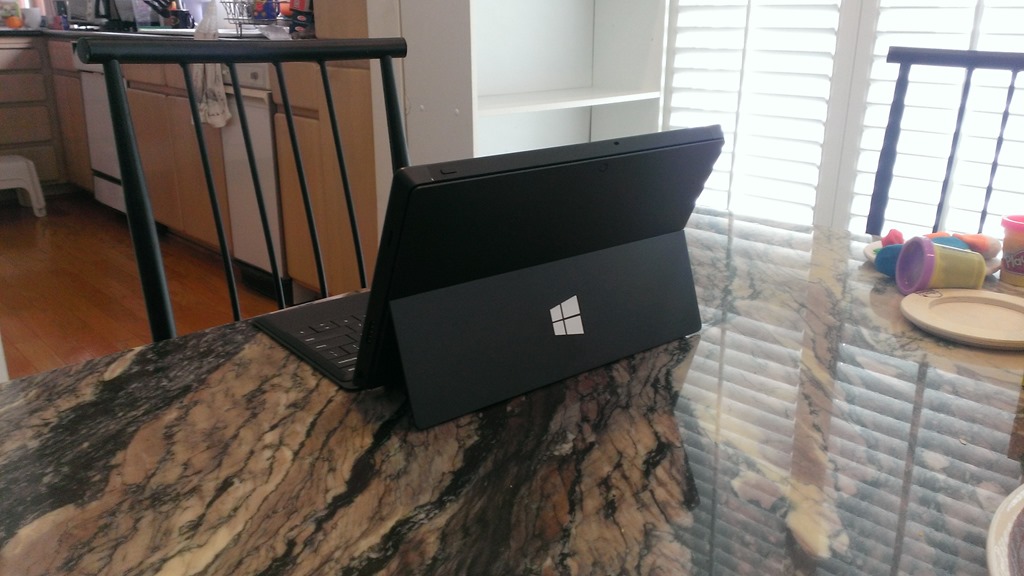
WP_20130210_001

Notice anything different?

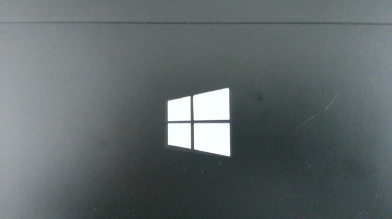
imageThe Windows logo on the back of my Surface devices is a little more whiter, a little more distinctive, and a little more noticeable than normal.  The reason is I have a vinyl decal that goes over the logo perfectly.  It’s made of the same weather-durable material of the logos & decals you see on the back of cars.  This was necessary because I’ve found that the logo on the Surface wears off relatively easily.

It’s not made of cheap cellophane & it’s certainly not an adhesive ‘sticker’.  This is a professional quality decal with seamless edges that was custom manufactured for the back of the Surface.  Each quadrant of the Windows logo is actually its own decal, but when you apply it, it goes on in one stroke.

If you’re a customer of mine, send me a photo of you with your Surface along with a mailing address and I’ll put one of these in the mail for you.  If you’re a customer of mine, you should know how to contact me.

Posted by: kurtsh | February 10, 2013

HUMOR: Fun with Networks (or “Geeks are Awesome”)

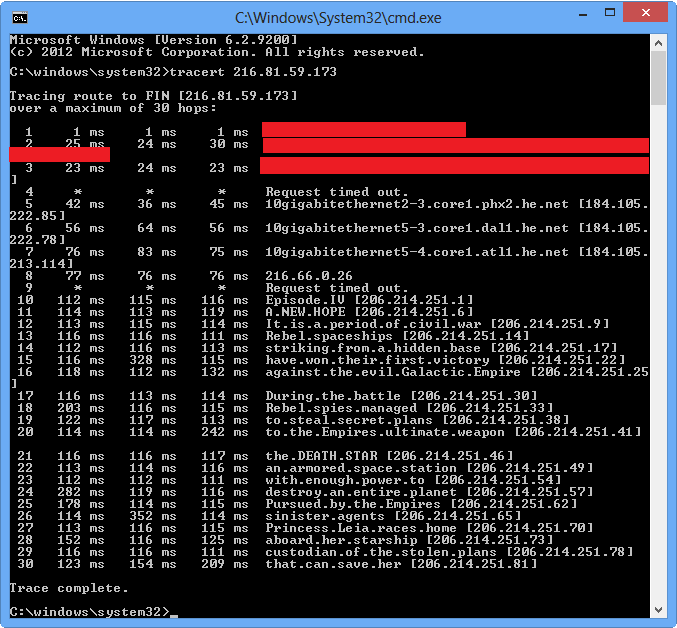
This was something that was being passed around Twitter over the last couple of days.  Apparently someone with access to a virtual net had a little too much time on their hands.

The is the command below… and in the event it no longer works by the time I post this, I have a snapshot of the humorous, geeky results:

  • tracert 216.81.59.173
    Smile

StarWarsTraceRT

Posted by: kurtsh | February 10, 2013

VIDEO: Surface Pro Commercial "The Vibe"

And the new commercial is out for the recently released Surface Pro!

Surface Pro Commercial “The Vibe”

Funny, in all the fervor over Surface Pro, not a lot has been written about the offers they extended to all the people that picked one up from the Microsoft Stores.

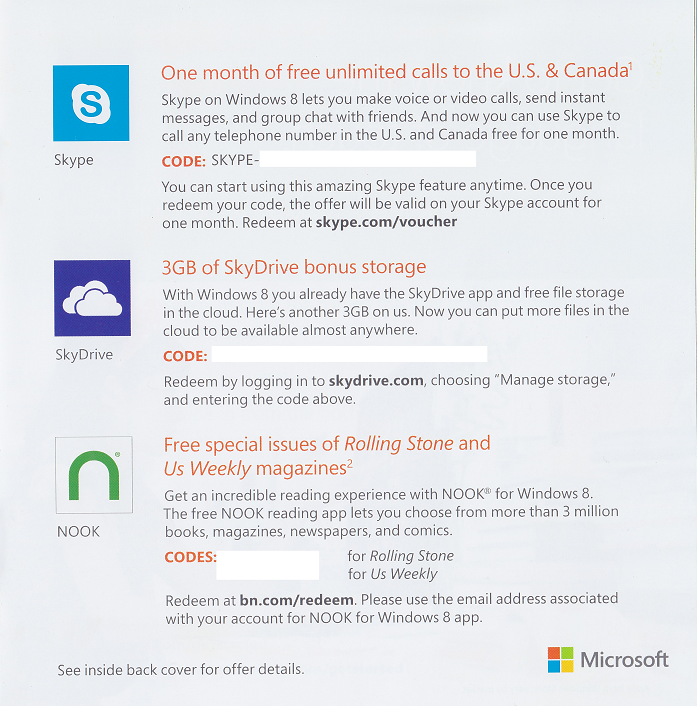
There were 3 offers that came with the unit when purchased by way of a pamphlet & a bunch of special one-time-use 25-digit codes:

  1. SKYPE – Free unlimited calls for 1 month (US & Canada)
  2. SKYDRIVE – 3GB of bonus online storage
  3. MAGAZINES – Free bonus digital issues of US Weekly & Rolling Stone Magazine for NOOK

image

Posted by: kurtsh | February 10, 2013

INFO: Surface Owner Feedback Program

Do you own a new Surface? (RT or Pro)  Would you like to provide feedback about your experience?

image

We have a Surface Owner Feedback Program in place if you’ve got a device and would like to invite you to visit to sign up.  As a thank you for providing this feedback, we’ll enter you to win $200 in Surface accessories.

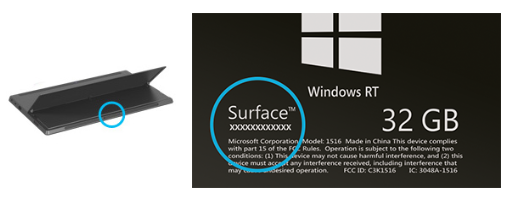
NOTE: You’ll need to enter your Surface’s serial number. This serial number is a 12 digit number that can be found on the back of the box or on the back of the Surface itself.

Visit the URL below to sign up!

imageYou may have heard that we were planning to launch Surface Windows 8 Pro (a.k.a. Surface Pro) in New York but cancelled the event due to a blizzard that hit the region. 

Well, in less than a week, the product team moved the entire launch to Las Vegas and the ‘Fashion Show Mall’ on the Las Vegas Strip (right across from Treasure Island, Wynn/Encore, and Venetian/Palazzo… my Vegas home base!) with very little announcement or warning.  I personally know what goes into these launch gigs and let me tell you, this is nothing short of unbelievable.  Just think of all that has to be re-coordinated:

  • PMs, Event Mgmt, Talent, Assistants
  • Props/Event equipment, Flights/Transportation, Hotels/Planning Rooms
  • Communications center, tech equipment, product delivery
  • Email/phone media coordination, PR & web marketing, public notification
  • Event venue, walkthroughs, service agreements/contracts, legal

Much sleep much have been lost leading up to this gig, but that’s how the Surface team rolls… and that’s what our fearless leader, Panos Panoy, is like.  (Did you notice how ON he was in his delivery?) 

So a fellow named UberGamer256 captured the event on his Nokia Lumia 920.  PROPS TO THAT GUY.  It appears to be the only recording of what was most assuredly a very expensive event to coordinate at the last minute in a weather-safe area.

Here’s his video:

Surface Pro launch at the Fashion Show Mall in Las Vegas!

« Newer Posts - Older Posts »

Categories