Posted by: kurtsh | April 13, 2013

INFO: Windows Server 2012 Self-Study Guide

imageWelcome to the biggest Windows Server 2012 Self-study Guide… EVER.  I gotta hand it to Scott:  This thing is a monster.  I’m not even going to try to enumerate all the items that are covered here except to say that it’s around 10 pages of links and references, including:

  • Technet pointers
  • Downloadable documentation
  • Video training on-demand
  • etc.

To the right you’ll see a snapshot of less than 1/10th of the content he’s published/referenced.  Yeah… it’s that much.

Posted by: kurtsh | April 12, 2013

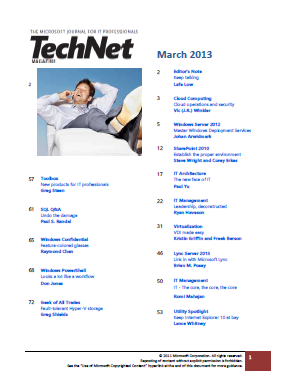
DOWNLOAD: Microsoft TechNet Magazine – March 2013

image

Here’s the digital download for the most recently published TechNet Magazine in PDF format:

  • Cloud Computing: Cloud operations and security
  • Windows Server 2012: Master Windows Deployment Services
  • SharePoint 2010: Establish the proper environment
  • IT Architecture: The new face of IT
  • IT Management: Leadership, deconstructed
  • Virtualization: VDI Made Easy
  • Lync Server 2013: Link in with Microsoft Lync
  • IT Management: IT – The core, the core, the core
  • Utility Spotlight: Keep Internet Explorer 10 at bay
  • Toolbox: New products for IT Professionals
  • SQL Q&A: Undo the damage
  • Windows Confidential: Feature colored glasses
  • Windows PowerShell: Looks a lot like workflow
  • Geek of All Trades: Fault-tolerant Hyper-V Storage

DOWNLOAD: Microsoft TechNet Magazine – March 2013
http://download.microsoft.com/download/D/D/7/DD77229E-1B86-4082-BDFF-320BF3E23495/March2013.pdf

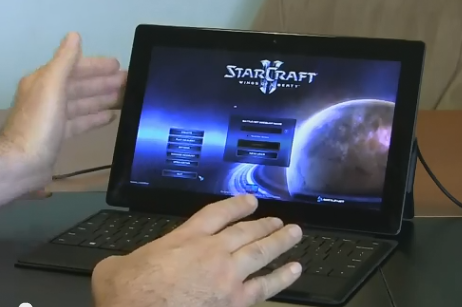
imageJust a quick note:  Anyone interested in installing Starcraft 2 on a Surface Pro should know that it will install just fine however initially, you may find that the mouse pointer will not appear to move on the Starcraft II login screen, making it impossible to login and start the game.

THE STARCRAFT 2 MOUSE POINTER/TEXT SIZE BUG:
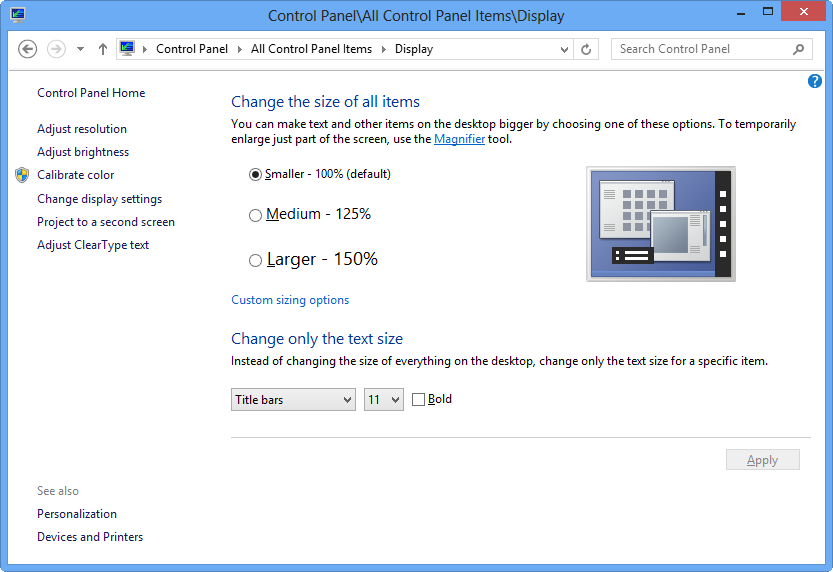
The reason for this is Starcraft 2 has a well-known bug that makes it impossible to control the mouse pointer if Windows is configured with a Text Size of “Larger – 150%”.  This is a setting in Control PanelDisplay.  This bug has never been fixed and has bothered gamers with large display resolutions for a long time.

Surface Pro is pre-configured with the display text size at “Larger – 150%” so if you change this to “Medium – 125%”, and reboot, you’ll find that that Starcraft 2 will work just fine.

image

An account manager I work with asked me this question and I thought it’d be worth writing up:

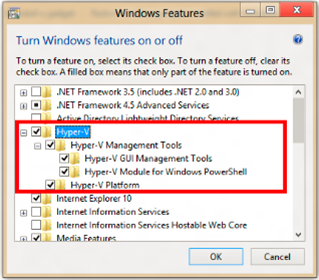
Q: How do you use USB Smartcards with Client Hyper-V Virtual Machines?

THE BAD NEWS:
Hyper-V in general does NOT allow guest virtual machines to use host-connected USB devices.  In other words, if you:

  1. Connect a USB SmartCard to a Win8 PC w/ Client Hyper-V enabled on it
  2. Run Windows 7/8 in a Client Hyper-V Virtual Machine

…you can NOT use the USB SmartCard in the VM through the Virtual Machine Connection client.  Neither the Virtual Machine Connection client nor Client Hyper-V are able to recognize and take advantage of USB devices.

THE GOOD NEWS:
Now, however, if you:

  1. Enable Remote Desktop for the Windows Client VM (Control Panel – System)
  2. Connect to your VM over Remote Desktop Connection using the Remote Desktop Connection client installed on your desktop

the RDP session will redirect the USB port to the Hyper-V Virtual Machine, enabling you to access your local desktop SmartCard through the VM session for access into systems like two-factor authentication VPN.

EXAMPLE:
Below is me using the Remote Desktop Connection client into my local Windows 8 Client Hyper-V-driven Windows 7 VM.  You can see the IT VPN client recognizes my locally installed SmartCard on my machine’s USB port.  (I keep a Windows 7 VM with Office 2010 & other apps running on my system for testing.)

(IMPORTANT: The Remote Desktop Connection client MUST be RemoteFX enabled.  Windows 8 inherently has this capability however if you connect to your Windows 8 Client Hyper-V host from a separate Windows 7 computer, it will need to be updated with an RemoteFX-enabled RDC client by installing the Remote Desktop Protocol 8.0 Update for Windows 7 SP1.)

image

Posted by: kurtsh | April 11, 2013

GUIDE: Using Windows 8 Client Hyper-V

image

Client Hyper-V® is the virtualization technology built into Windows® 8. Client Hyper-V is the same virtualization technology previously available only in Windows Server®. A similar functionality in Windows 7 is called Windows XP Mode.

Client Hyper-V enables you to run more than one 32-bit or 64-bit x86 operating system at the same time on the same host computer. But instead of working directly with the computer’s hardware, the operating systems run inside a virtual machine (VM).

Hyper-V enables developers and IT professionals to easily maintain multiple test environments and provides a simple mechanism to quickly switch between these environments.

Posted by: kurtsh | April 11, 2013

BETA: GeoFlow for Excel 2013 (Preview)

imageProject codename “GeoFlow” Preview for Excel 2013 allows you to plot geographic and temporal data visually, analyze that data in 3D, and create interactive tours to share with others. This preview gives you an early look into the new features that provide 3D data visualization for Excel and a powerful method for people to look at information in new ways, enabling discoveries in data that might never be seen in traditional 2D tables and charts.

Prerequisites:

  • Requires Microsoft Office Professional Plus 2013 or Office 365 ProPlus.
  • GeoFlow Preview for Excel supports 32-bit or 64-bit machines.
  • Requires Windows 8, Windows 7 or Windows Server 2008 R2 (requires Microsoft .NET Framework 4.0).

Taken from the announcement:
http://blogs.office.com/b/microsoft-excel/archive/2013/04/11/public-preview-of-geoflow-for-excel-delivers-3d-data-visualization-and-storytelling.aspx

Today we are announcing the availability of the project codename "GeoFlow" Preview for Excel 2013, a result of collaborations between several teams within Microsoft. GeoFlow lets you plot geographic and temporal data visually, analyze that data in 3D, and create interactive "tours" to share with others.

GeoFlow originated in Microsoft Research, evolving out of the successful WorldWide Telescope project for scientific and academic communities to explore large volumes of astronomical and geological data. Researchers collaborated closely with the Office product team to usher GeoFlow from its research lab inception to this public preview availability in Excel. GeoFlow adds to the existing self-service Business Intelligence capabilities in Excel 2013, such as Microsoft Data Explorer Preview and Power View, to help discover and visualize large amounts of data, from Twitter traffic to sales performance to population data in cities around the world.

With GeoFlow, you can:

  1. Map Data: Plot more than one million rows of data from an Excel workbook, including the Excel Data Model or PowerPivot, in 3D on Bing maps. Choose from columns, heat maps, and bubble visualizations.
  2. Discover Insights: Discover new insights by seeing your data in geographic space and seeing time-stamped data change over time. Annotate or compare data in a few clicks.
  3. Share Stories: Capture ”scenes” and build cinematic, guided ”tours” that can be shared broadly, engaging audiences like never before.
GeoFlow for Excel 2013


Read more at:

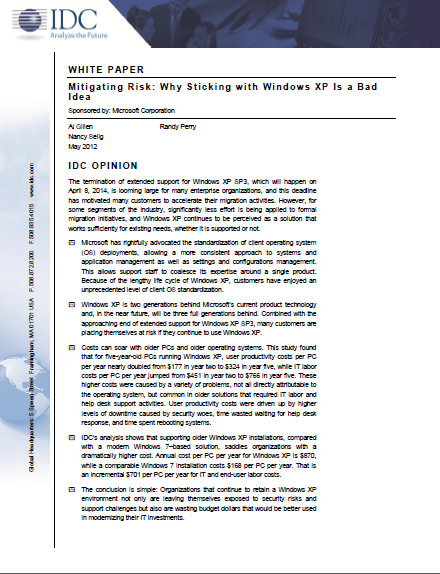
imageNeed a trusted 3rd party to help put into words & numbers the dangers of remaining on Windows XP?  How about a whitepaper written by IDC?

In this IDC white paper, Al Gillen, Program Vice President for IDC’s System Software Research team, provides an overview of the IDC White Paper Mitigating Risk: Why Sticking with Windows XP is a Bad Idea.

This white paper covers the business and operational benefits associated with a move to Windows 7 and why remaining with Windows XP is no longer a good business decision. Costs tend to soar when older products are used beyond their intended lifecycle, and IDC research has clearly confirmed that trend. 

Access other helpful resources when considering options for your organization:

  • Visit http://bit.ly/XPrisk to watch a short webinar narrated by this white paper’s author, Al Gillen.
  • Go to http://bit.ly/XPreport where you can create and share your own free custom analysis:
      • Step 1: In less than 2 minutes, you can generate a free custom analysis tailored to your organization’s unique requirements http://bit.ly/XPreport
      • Step 2: Share your free custom IDC assessment created for your organization with others by email

Download the paper here:

imageOn April 8, 2014, Microsoft will end support for the decade-old Windows XP.This means you will no longer receive updates, including security updates, for Windows XP from Microsoft.

Additionally, Office 2003 updates, and other support, will also be ending on this date.

POTENTIAL BUSINESS IMPLICATIONS
The security and privacy implications of this event could have significant impacts on your business, so if you’re running either of these products you should plan to take action soon.

  • SECURITY RISK: Without critical Windows XP security updates, your PC may become vulnerable to harmful viruses, spyware, and other malicious software which can steal or damage your business data and information. Anti-virus software will also not be able to fully protect you once Windows XP itself is unsupported.
  • SOFTWARE ISSUES: Many software and hardware vendors will no longer support their products that are running on Windows XP as they are unable to get the Windows XP and Office 2003 updates. For example, the new Office leverages the modern Windows and will not run on Windows XP.
  • NO ONE TO CALL: When problems arise, online and phone-based technical support will unfortunately no longer be available to assist you or your IT partner, leaving you on your own to deal with the problem.
  • DOWN TIME: The risks of system failure and business disruption could increase because of the end of support, lack of supported software, and the increasing age of hardware running Windows XP.

MAKING THE SWITCH
Moving off of Windows XP and Office 2003 couldn’t be easier. With the special offers, migration assistance, and other helpful tools found here, your switch to Windows 8 Pro and the new Office will be a snap.

Posted by: kurtsh | April 10, 2013

INFO: FAQ regarding Windows XP’s End of Support

imageAs you’ve probably seen on the Internet, Windows XP has now less than 1 year of support left.  The folks at the Springboard blog (an excellent Microsoft resource for information about deploying Windows – clients devices in particular) have written what amounts to a Frequently Asked Questions post around Windows XP’s expiration to dispel some common myths… not the least of which is the ill-informed, “My antivirus software will protect me!” claim.

Here’s a list of questions they answer:

  1. Microsoft will end Extended Support on April 8, 2014. Why?
  2. What is the difference between extended and mainstream support?
  3. What does End of Support mean to customers?
  4. So no new patches after April 8th, 2014?
  5. I heard that my anti-virus software company will continue to support Windows XP after April 8, 2014. Does that mean I am protected?
  6. What is a “modern operating system”?
  7. Can’t I just upgrade from Windows XP to Windows 7 or Windows 8?
  8. What if I choose to stay on Windows XP and not migrate?
  9. How long has Windows XP been around?
  10. Are there good financial reasons to leave XP?
  11. I have never done application compatibility testing or deployed an operating system. Where do I start?

Read the post here:

This is just announced at MMS 2013… & wicked cool.  MBAM can now support hardware-level encryption for SSDs & take ownership of a remote laptop’s TPM chip without a reboot.  Mind. Blown.

imageToday’s an exciting day for us here at the annual Microsoft Management Summit (MMS) in Las Vegas, as we just announced the general availability of the Microsoft Desktop Optimization Pack (MDOP) 2013 for Software Assurance, which includes a major update to Microsoft BitLocker Administration and Monitoring (MBAM) as well as a series of Service Pack updates for APP-V, UE-V, DART, and AGPM. As mentioned in our announcement on the Windows For Your Business blog the big star in the MDOP 2013 release is MBAM 2.0 which is designed to help you make significant costs reductions when it comes to provisioning, managing and supported encrypted devices (running Windows 7, Windows 8, and Windows To Go) within your environment.

For those of you that have been following our previous MBAM posts here on Springboard or have participated in the MBAM 2.0 beta program,  you’re likely already familiar with the feature set and I’d wager that you’re eager to learn more about how to deploy the final build within your environment. For those of you new to MBAM 2.0, or for anyone who may need a quick refresh, I’d like to quickly point out the key features that you will find in this release:

  • Self-Service Portal: The Self-Service Portal helps end users perform the most common support tasks without need of help desk assistance.
  • System Center Configuration Manager Integration: Integration with System Center Configuration Manager (SCCM) 2007 and 2012 enables organizations to integrate MBAM’s compliance management and reporting capabilities within your existing SCCM infrastructure.
  • Windows 8 Support: Support for managing Bitlocker on Windows 8 and Windows to Go devices has been included along with the ability to take advantage of new WinPE capabilities that will dramatically reduce encryption times.
  • Compliance reporting calculation improvements: Reporting has been updated so that devices are only marked as non-compliant when they’re in a state that is less secure than the minimum requirements defined in policy. This differs from MBAM 1.0 where compliance was based on strict adherence to policy and resulted in devices appearing non-complaint even when they were in a more secure configuration than policy required.

Each of these features were present in the MBAM 2.0 Beta 2 release and have since been improved, however, please note that a number of all new features have been added to the final release which include:

  • Support for managing Windows to Go devices
  • BitLocker pre-provisioning with WinPE including the use of Used Disk Space Only Encryption on Windows 8 devices
  • Windows 8 Operating System Drives can now be protected with the Password protector
  • Improved scalability and performance will enable you to deploy MBAM with less infrastructure
  • Devices left in “protection suspended” mode will automatically resume protection after reboot
  • MBAM can take ownership of the TPM without requiring a reboot (if TPM turned on in BIOS)

Read the rest of this VERY LONG post on the Windows Springboard blog:

« Newer Posts - Older Posts »

Categories