I’ve been using the Sony VAIO S for a while now and one of the things I really liked about it was that when you typed “Fn-LeftArrow” it sent you to the beginning of a text line.  Conversely if you typed “Fn-RightArrow” it sent you to the end of a text line.

When I moved to my Lenovo ThinkPad X1 Carbon Touch, I lost that functionality.  The Fn-LeftArrow & Fn-RightArrow do absolutely nothing.  In fact, I can’t even capture the scan code for those key presses, so I had to think of an alternative.

So how does a guy replicate that functionality?  Using AutoHotKey.

imageWHAT IS AUTOHOTKEY?
AutoHotKey is a freeware piece of software for Windows XP/Vista/7/8/8.1 that allows you to map a keystroke to a specific instruction, script, or another key entirely.  It runs in the SystemTray and basically watches for keystrokes, intercepts them, and does what you want instead.

  • The upside is that it’s extremely powerful because it allows you to remap & program keys to do almost anything.  For example, you can program CTRL-ALT-M to go to http://www.microsoft.com.
  • The downside is that this isn’t for mere mortals.  The tool requires that you write a script that maps key names, scan codes or virtual key names to actions or other keystrokes.  It’s not hard to understand for IT professionals but it’s probably as foreign as Swahili to most end users.

For example, this is the script that I use to map Ctrl-LeftArrow to Home & Ctrl-RightArrow to End.  (It also maps Ctrl-Up to PgUp & Ctrl-Down to PgDown) Note that this isn’t the same thing as Fn-LeftArrow & Fn-RightArrow but it’s close enough for me since the Fn & Ctrl keys are right next to each other.

; Kurt’s Mods here
^Left::Send {vk24}
^Right::Send {vk23}
^Up::PgUp
^Down::PgDn

When you install AutoHotKey, it automatically creates a “starter” script called “AutoHotKey.ahk” in your Documents directory that is automatically loaded every time you run AutoHotKey.  This script needs to have the following done to it:

  1. Copy the above text & paste into the AutoHotKey.ahk file
  2. Comment out all the other text by placing a “;” before each uncommented line

If you run AutoHotKey, it should automatically remap the Ctrl-LeftArrow keystroke to the Home key & the Ctrl-RightArrow keystroke to the End key.

image

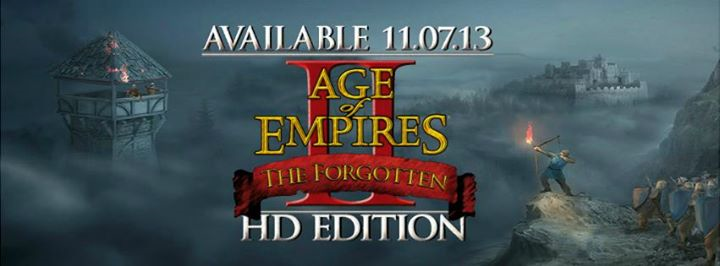
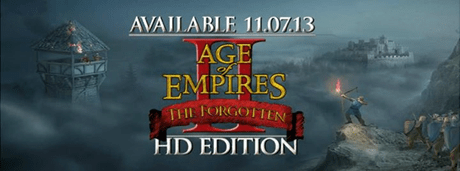
It’s been exactly 14 years since Age of Empires: The Age of Kings was released. And later this year, Age of Empires II: Forgotten Empires will become an official expansion to the series.  Age of Empires 2 HD, The Forgotten, is releasing on Steam (http://store.steampowered.com/) on November 7.

Microsoft Studios is excited to announce the development of Age of Empires II HD – The Forgotten; the first new official expansion for the Age of Empires II universe in over ten years. Challenge friends with five additional civilizations and technologies, battle through four campaigns, vanquish opponents in new game modes on massive maps, or shoutcast a match and stream it all through twitch.tv.

The Forgotten expansion is being developed by Vancouver based studio SkyBox Labs, and in conjunction with Forgotten Empires LLC, the team behind some of the most popular game mods and content for the Age of Empires franchise. Crafted exclusively for Age of Empires II: HD Edition; The Forgotten expansion builds upon the Age of Empires II: HD experience and will be available on Steam for PC this fall and includes Steam workshop support, new expansion rankings, steam trading cards, and more!

Civilizations
Explore five ‘forgotten empires’, and master their unique units and technologies.

  1. Italians
  2. Indians
  3. Slavs
  4. Magyars
  5. Incas

New Campaigns
Test your mettle with four campaigns and over a dozen never-seen-before missions.

  1. Alaric
  2. Sforza
  3. Bari
  4. Dracula

Game Modes:
Master new skirmish and multiplayer game modes!
Popularized in later titles, the economically focused "Treaty" gametype will be available in AoF. Also commonly known as "No Rush", Treaty mode enables a limited duration of battle-free early growth before focusing on military might.
For a quick paced, action oriented battle the new "Capture the Relic" will see players rushing with their monks to take control of a single treasure and return it safely to base.

New Maps
Explore the unknown with new maps available through The Forgotten expansion. Defend your fortress perched on a hill or embrace the unpredictable in MegaRandom. Feeling claustrophobic? Quadruple the space and stretch out in the new LudiKRIS sized maps! Design expansive scenarios across vast stretches of terrain with editor support for up to 500 units, and share your creations with the community through the Steam workshop.

New AI
AoF will incorporate smarter, advanced AI designed to give even the best players a challenge. Designed to adapt to changing units and situations like real players, you’ll actually be able to learn effective strategies for PVP from the computer. Advanced control also allow unprecedented human / AI collaboration and teamwork for more exciting scenarios than ever before.

Observer Mode
The taste of victory is always sweeter when someone is watching. Start the game as a spectator and keep an eye on the action from multiple viewpoints, or invite your friend in to watch as you dominate the opponent with a new build.

Direct Twitch.tv Streaming
Streaming has never been easier with one click broadcasting directly through Age of Empires II: HD – The Forgotten. Demo latest scenario creation, game mod, or an intense multiplayer battle. If shout-casting is your forte, stream from Observer mode to highlight the very best in competitive play!

Age of Empires II HD – The Forgotten expansion will be available on Steam this Fall. Come check out the AoF multiplayer early at PAX Prime!

Taken from the AOEF web site at:
http://www.ageofempires.com/aof.html

Posted by: kurtsh | November 2, 2013

RELEASE: Powershell Development Toolkit 2.5

Powershell2The PowerShell Deployment Toolkit (PDT) is a set of scripts and knowledge for automated deployment of System Center 2012 SP1/R2, including SQL and all prerequisites, and all automatable post-setup integration.  See Building Cloud blog Deployment track for details.

PowerShell Deployment Toolkit version 2.5 has now been posted to the TechNet Gallery here.  Version 2.5 adds a number of enhancements:

  • Deployment of System Center 2012 R2 Preview.
  • Creation of Active Directory during VM creation for end to end isolated environment creation.
  • Static ports for SQL Server named instances to remove requirement for default instances for several components.
  • Validation of components that require full server installations and won’t run on server core.
  • Ability for VMCreator to use either 7-Zip or WinRAR instead of just WinRAR.
  • Ability to specify network adapter identifier during VM creation to allow Windows Server 2008 R2 and non-English OS installation.
  • Ability to specify timezone during VM creation.

The most recent release is available here:

For more information about it’s usage, go to:
http://blogs.technet.com/b/privatecloud/archive/2013/08/30/deployment-using-pdt-for-end-to-end-deployment-including-active-directory.aspx

With NetApp’s assistance, this video humorously demonstrates the power of a new toolkit to migrate off of VMware.  Good stuff!

Fast and Easy VMware Migration

Until now, planning a migration from VMware to Hyper-V meant that even though you’d save money, you’d spend days migrating the VM’s in your datacenter.
Now you can do it in about 5 minutes.

In this video, Migration Mark discusses the this remarkable tool he’s built with our friends from NetApp — the Migration Automation Toolkit (MAT).

The Migration Automation Toolkit (MAT) is a collection of PowerShell scripts that will automate VM conversions. This version of MAT is powered by NetApp’s Project Shift (which are powershell cmdlets found in NetApp’s Data ONTAP PowerShell Toolkit version 3.0. Like the orginal MAT it is back ended by a SQL instance (SQL Express will work). MAT (powered by Project Shift) is able to convert VMs at incredible speeds. Most VMs are fully converted in under 5 mins, so that even customers with very small service windows can use the toolkit.

Posted by: kurtsh | November 1, 2013

ICYMI: Surface Keyboard Shortcuts

These shortcuts were added in June 2013 to Surface for keyboard jockeys.  They’re good to keep in mind as you tap away at your Surface while in “laptop mode”.

Fn + Caps:

Locks F1-F12 into being function keys. Do it again and you get the charms, volume, Home, End, etc. if you are in the function lock mode, you can get the inverse options by pressing the Fn key, naturally

Fn + <spacebar>:

Print Screen

Fn + <spacebar> + Alt:

Print Screen for the in-focus App only

Fn + Del:

Brightness Up

Fn + Backspace:

Brightness Down

Fn + <left>:

Home

Fn + <right>:

End

Fn + <up>:

Page Up

Fn + <down>:

Page Down

Read more about the additions on the Surface Blog:

These posters provide a visual reference for understanding key Hyper-V technologies in Windows Server 2012 R2 and focuses on Generation 2 virtual machines, Hyper-V with virtual hard disk sharing, online virtual hard disk resizing, storage quality-of-service, enhanced session mode, live migration, Hyper-V failover clustering, and upgrading your private cloud.

Posters include:

  • Generation 2 Virtual Machines GA.pdf
  • Hyper-V and Failover Clustering GA.pdf
  • Hyper-V Storage GA.pdf
  • Hyper-V Virtual Hard Disk Sharing GA.pdf
  • Live Migration GA.pdf

To grab these, go to:

Posted by: kurtsh | October 31, 2013

RELEASE: Windows Azure Backup Services

imageWindows Azure Backup helps you protect important server data off-site with automated backup to Windows Azure.

  • Reliable offsite data protection
    Backups are encrypted before transmission and stored encrypted in Windows Azure. These backups are off-site, safely away from your datacenter, protected by reliable Windows Azure storage, reducing the need to secure and protect on-site backup media, .

  • A simple and integrated solution
    Manage cloud backups from the familiar backup tools in Windows Server, Windows Server Essentials, or System Center Data Protection Manager. These tools provide similar experiences configuring, monitoring, and recovering backups whether to local disk or Windows Azure storage. Or you can use the agent software itself. After data is backed up to the cloud, authorized users can easily recover backups to any server.

  • Efficient and flexible backup and recovery
    With incremental backups, only changes to files are transferred to the cloud. This helps ensure efficient use of storage and reduced bandwidth consumption, while enabling point-in-time recovery of multiple versions of the data. Configurable data retention policies, data compression, and data transfer throttling offer added flexibility and help boost efficiency.

To check out the services visit:

For more information on Windows Azure Backup, please review the following posts:

You can get a free voucher for the new Microsoft Virtualization Certification exam by attending our live Server Virtualization Jump Start going on November 19 & 20, 2013 from 9:00am – 4:30pm PST.

imageAlready familiar with other virtualization platforms such as VMware or Citrix? Upgrading virtualization platforms?  New to virtualization?  If any of these are true, then this course is intended for you. Get expert instruction on Microsoft Server Virtualization with Windows Server 2012 R2 Hyper-V and System Center 2012 R2 Virtual Machine Manager in this two-day Jump Start. You will learn how to configure, manage, and maintain Windows Server 2012 R2 Hyper-V and System Center 2012 R2 Virtual Machine Manager including networking and storage services. You will also learn how to configure key Microsoft server virtualization features such as Generation 2 Virtual Machines, Replication Extension, Online Export, Cross-Version Live Migration, Online VHDX Resizing, Live Migration Performance tuning as well as Dynamic Virtual Switch Load Balancing and virtual Receive Side Scaling (vRSS).

This course helps you prepare for the new Microsoft virtualization certification: Microsoft Specialist Exam 74-409– Server Virtualization with Windows Server Hyper-V and System Center. Event attendees will get a free voucher for the exam—normally $150. The number of free exams is limited, so be sure to schedule your appointment to lock in your free exam. Vouchers expire and all exams must be taken by June 30, 2014. 

Course Outline

  • Creating and Managing Virtual Hard Disks, Virtual Machines, and Checkpoints
  • Creating and Configuring Virtual Machine Networks
  • Implementing Failover Clustering with Hyper-V
  • Managing the Networking and Storage Infrastructure with System Center 2012 R2 Virtual Machine Manager
  • Managing Clouds with System Center 2012 R2 Virtual Machine Manager
  • Managing Services with System Center 2012 R2 Virtual Machine Manager and App Controller

Enroll for the course at:

image

Get personal 1-on-1 training every week for a year from a Microsoft trainer… for only $99.

If you have friend, relatives, or customers that need basic “how to” end-user training, would like PERSONAL attention, & they happen to live near a Microsoft Store, this offer is absolutely unbeatable.  Folks can get trained on any of the following topics each week:

  • imageWindows 8.1
  • Windows Phone 8
  • Windows Phone 7
  • Word 2013
  • PowerPoint 2013
  • Excel 2013
  • Outlook 2013
  • OneNote 2013
  • Word 2010
  • PowerPoint 2010
  • Excel 2010
  • Outlook 2010
  • OneNote 2010
  • Office 365 for Small Businesses
  • Internet Explorer 10 & SkyDrive
  • Windows Essentials (Windows Movie Maker, Windows Photo Gallery)
  • Skype

And each topic has multiple levels of training.  Your friend or relative can spend as many sessions as they’d like training on a given product.

Again, that’s 1 training session for an hour each a week… for an entire year for just $99.  Technically, you can get a SINGLE training session for $49… but I think you’re gonna find that the $99 offer is a no-brainer.

For more information, visit:

Posted by: kurtsh | October 30, 2013

RELEASE: Windows Azure HDInsight (Hadoop for Cloud)

imageAs announced on the SQL Server blog:

Today, Microsoft announced the general availability of Windows Azure HDInsight, its cloud-based distribution of Hadoop. Further expanding on Microsoft’s big data strategy, Microsoft CVP Quentin Clark will deliver a keynote at O’Reilly Strata + Hadoop World tomorrow, where he will discuss Microsoft’s vision to democratize big data by providing easy to use tools and a unified data platform. Clark further detailed this approach in a post on the Official Microsoft Blog.

Here’s links to the announcement and where to Get Started:

« Newer Posts - Older Posts »

Categories