Posted by: kurtsh | November 22, 2013

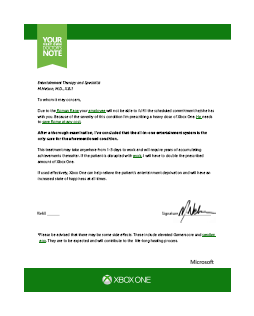
DOWNLOAD: Doctor’s Note for Xbox One Launch Day

image

I have no idea where this came from being that I haven’t actually seen a link from Major Nelson himself.

That being said, it’s a pretty funny note “from your doctor” to explain your absence from work today, the day after the launch of Xbox One.

Enjoy.

(Hat tip to my coworker Mark McReynolds for passing this on)

Posted by: kurtsh | November 21, 2013

VIDEO: Plugging the Xbox One… into itself

Y’know, I kinda wondered about this. 

Q: What happens when you plug the HDMI OUT of the Xbox One… into the HDMI IN?

Plugging the Xbox One… into itself

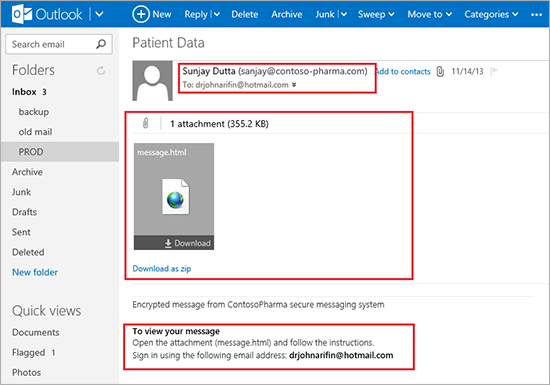
Beginning Q1 2014, Office 365 E3/E4 customers will be getting Message Encryption at no-charge!  This is really awesome if you’re a business interested in sending secure messages to partners & customers.

imageIntroducing Office 365 Message Encryption: Send encrypted emails to anyone!

We’re pleased to announce the upcoming release of Office 365 Message Encryption, a new service that lets you send encrypted emails to people outside your company. No matter what the destination-Outlook.com, Yahoo, Gmail, Exchange Server, Lotus Notes, GroupWise, Squirrel Mail, you name it-you can send sensitive business communications with an additional level of protection against unauthorized access. There are many business situations where this type of encryption is essential. We’ve listed just a few.

  • A bank sending credit card statements to customers over email.
  • An insurance company providing details about the policy to clients.
  • A mortgage broker requesting financial information from a customer for a loan application.
  • A healthcare provider using encrypted messages to send healthcare information to patients.
  • An attorney sending confidential information to a client or another attorney.
  • A consultant sending a contract to a client.
  • A therapist providing a patient diagnosis to an insurance company.

Office 365 Message Encryption is the new version of Exchange Hosted Encryption (EHE). This version includes all of the capabilities of EHE plus new features, such as the ability to apply your company’s branding to encrypted messages. Like EHE, Office 365 Message Encryption works with Office 365 mailboxes as well as with on-premises mailboxes that use Exchange Online Protection.

Here’s the added good news: Office 365 E3 and E4 users will get Office 365 Message Encryption at no extra cost. We’re including it in Windows Azure Rights Management, which is already part of E3 and E4 plans.  We’re also including it in the standalone version of Windows Azure Rights Management, without raising the price of that service. For $2 per user per month you can get a complete solution for internal and external information protection: traditional Rights Management capabilities like Do Not Forward for internal users, plus the new ability to encrypt outbound messages to any recipient.

Read more here:

Posted by: kurtsh | November 21, 2013

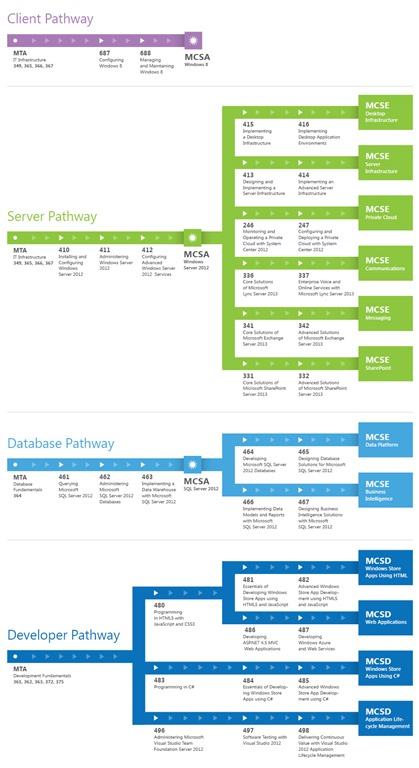
TRAINING: Microsoft Certification Pathway for MCSA, MCSE

My coworker, Lee Reese, posted this and I thought it might be worth sharing.  It’s a simple workflow of what tests are required to attain certain levels of certification such as MCSA and MCSE.

Remember that more information can always be found at the Microsoft Certification web site and the Microsoft Certification blog, “Born to Learn”.

Click on the image to expand.

MSL-CertificationPathways-Commercial-Nov2012_V3

This is too cool a demo to not post.  Check this out:

Dell Venue 8″ Pro Tablet turned into a full desktop with the Plugable Dock

I’m buying one right now as I type this.

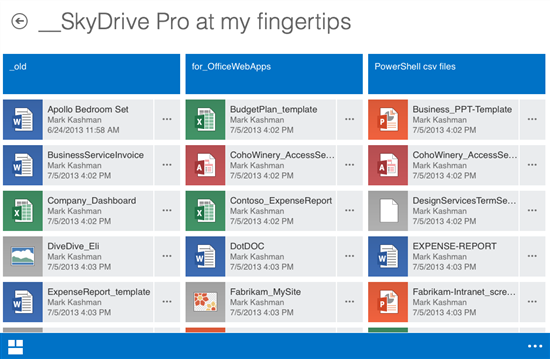
Check this out:  If you’re using Office 365, SharePoint Online will be presenting users with a touch-friendly interface very soon that will work across all supported touch devices.

image

Read more here:

image

On your marks… get set…
(FYI: Black Friday deals start Midnight EST, November 28th.)

Gaming

  • Xbox 360 250GB console for $199
  • Xbox 360 4GB console for $179
  • Call of Duty: Ghosts for $39.99 (Xbox 360), $49.99 (Xbox One)
  • Grand Theft Auto V for $33.99
  • Battlefield 4 for $38.99 (Xbox 360)
  • FIFA 14 for $24.99 (Xbox 360)
  • Assassin’s Creed IV: Black Flag for $33.99 (Xbox 360)
  • Madden 25 for $24.99 (Xbox 360)
  • Skylanders Swap Force for $38.99
  • Minecraft for $9.99

Tablets

  • Surface RT 32GB for $199
  • Surface RT 64GB for $379

Laptops

  • Dell Inspiron 15Z with Intel Core i5 processor, 6GB RAM, 32GB SSD and 500GB HDD for $399

Visit:

(Thanks to coworker, Rob Fannon, for the heads up)

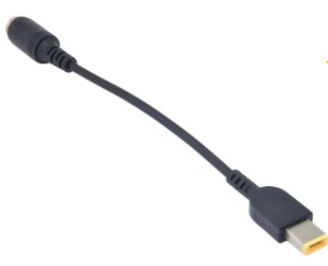
imageIf you’re like me, you have a TON of those old “circular tip” shaped Lenovo Power Adapters.  They were used for the ThinkPad laptops like the ThinkPad X201T convertible tablet/laptop.

I have 6 of these old adapters & as a result, I’ve been using these 3rd party adapters that convert these old style power adapters to the new interface used by the ThinkPad X1 Carbon Touch.

Here’s the listed specs.  I don’t anything about this company.  All I know is that I bought 4 of these and they all work beautifully with my old power adapters.  Saves me a ton of money by reusing my old accessories on my new laptop.  I leave them around at the office, home, and in my bag now.

  • Adapter for Lenovo ThinkPad X1 Carbon 0B47046 Laptop.
  • Length: 7" (7 Inch) long.
  • voltage:19V
  • Connector:one side is 7.9×5.5mm female plug, another side is Square male plug for X1 Carbon Ultrabook.

This has been floating around the Internet for years so it’s nothing new but for anyone that puts a premium on battery life on their Surface Pro (original or Pro 2) like I do (I specifically need to extend the battery because 90% of what I do with it is take handwritten notes using the stylus & OneNote) then this might interest you.

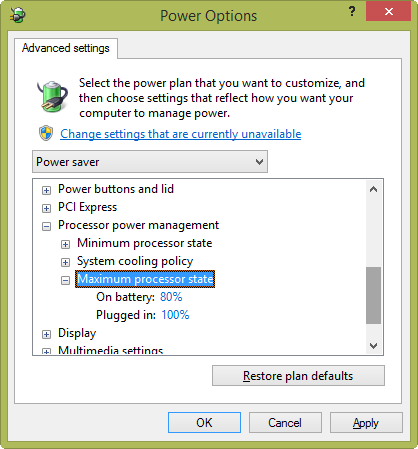
Adjusting Max Processor State in Windows 8
In order to extend the battery life a bit, all you have to do is change the the maximum processing power percentage assigned to the Power Options profile on your device from 100% to 80%.  This provides a noticeable difference in battery life – some have reported up to 1-2 hours, & for most purposes like inking in OneNote or browsing, you’ll probably won’t see any change in performance.

To accomplish this:

  1. Right click on the battery icon in the System Tray & select “Power Options”.
  2. Select a Power plan by clicking on a circular radio button in the list of plans.  You may select any Power Plan however I select “Power saver”.
  3. Click the “Change plan settings” link next to the plan then click “Change advanced power settings”.  You will see the following dialog box appear:

    image

  4. Expand the selection for “Processor power manager but clicking the “+” next to it.  It should reveal “Maximum processor state” as on of the list items.
  5. Expand the selection for “Maximum processor state” and select “On battery”.  This should allow you to change the percentage of processor time used by the device.
  6. Change the “On battery” setting to “80%”.
  7. Click the “Ok” button which will close the dialog.  You may need to then click “Save Changes” in the following window.

I’m going to run some tests on how this affects the Surface Pro & Surface Pro 2 but the results have been promising so far.  I suspect that with this setting, I may be able to get as much as 9 hours on my Surface Pro 2.

We released another FREE eBook for folks to download.  This is a shorter, 70pg, 6.0MB book targeting architects of .NET applications called “.NET Technology Guide for Business Applications”.

imageKey takeaways

Select your architecture approaches and development technology based on your specific application’s priorities and requirements.

A single architecture and approach won’t work for every type of application. The Microsoft development stack and .NET are extremely flexible and offer many possibilities, but it’s essential that you choose specific approaches and technologies based on the kind of application—or even subsystem—you build. Each application will have very different priorities and tradeoffs that must be taken on different paths.

Business application modernization goes further than simply building mobile apps. Mobile applications must rely on and extend your foundational business applications.

To be successful, mobile apps must be built with deep integration into your current foundational business applications. Mobile business apps should be part of the larger enterprise ecosystem and substantially extend foundational business applications, whether the foundational systems are established legacy applications or new, large, mission-critical applications built with innovative, scalable, and elastic services.

Positioning your application or subsystem within a global patterns segmentation will help you to choose the right approaches and technologies.

It is fundamental to position your application/subsystem in the right segmentation area. The right approaches and technologies for each of the following application types could potentially be very different:

  • Emerging application patterns
    – Devices and services
  • Established application patterns
    – Small and medium-sized business applications
    – Large, mission-critical business applications

Read more here:

« Newer Posts - Older Posts »

Categories