clip_image002

Attention Office 365 admins—Do you have users still running Office 2013 ProPlus? If so, please read on…

If your organization has deployed Office ProPlus from your Office 365 subscription, you may still have some users who are running Office 2013 ProPlus. Not only are these users missing out on the new capabilities in Office 365, like Groups and Skype for Business, but there is something more important for you to be aware of…the end of mainstream support for Office 2013 ProPlus.

As of February 28th, 2017, Office 2013 ProPlus will no longer be covered by mainstream support. Users running Office 2013 ProPlus will still receive critical security updates, but they will no longer receive product updates for new features that are added to the service. There is no automatic way to move from Office 2013 to Office 2016; however, Microsoft is here to help you transition to 2016 so you get access to mainstream support, as well as the latest features the service has to offer.

Here are the steps you should follow:

1. Get familiar with the Office channel release model. Office 2016 is shipping in multiple channels. These different release channels allow you to control who in your organization gets the latest release, based on your needs.

The First Release for Deferred Channel (FRDC) enables you to configure (per user) a group of early adopters. This group will get the latest and greatest features four months in advance of a Deferred Channel (DC) release. Premier Support escalates any cases related to the FRDC build directly to the Office engineering team, so that issues can be addressed prior to the DC release.

The DC is made available only a few times a year (instead of every month) and is best for organizations that don’t want to deploy the latest features of Office right away or that have a significant number of LOB applications, add-ins, or macros that need to be tested. This approach helps to avoid compatibility issues that can potentially stall deployments.

Start testing FRDC now, if you plan to roll out the DC June release. TechNet has more information about channel release models.

2. Determine which of your users are still running Office 2013. Upgrading from Office 2013 to Office 2016 is not an automated process. If you are an Office 365 admin, you need to determine which of your users are still running Office 2013. Once you have identified these users, you will need to uninstall Office 2013 and reinstall Office 2016 for each of them.

3. Start a group of users on the First Release builds. This group could include the IT team or early adopters, and gives them an opportunity to get comfortable with the new capabilities and test any LOB integrations that are critical to your business.

If your users find any potential issues, they can open a CSS support incident. We actively monitor First Release tickets to more quickly escalate issues to the product engineering team.

4. Contact the FastTrack Center to get assistance for your Office 365 ProPlus deployment. They will provide assistance to help you upgrade 2013 clients to 2016 and ensure you are on the latest service managed client. You can review the FastTrack Benefit Overview to learn more about how to work remotely with Microsoft specialists to get your Office 365 environment ready for use, as well as to plan rollout and usage within your organization.

The FastTrack Center can provide you with assistance in testing, repackaging, and distributing Office 365 2016 ProPlus or help you to validate your deployment approach with a Microsoft engineer. To request assistance, go to the FastTrack site, select the Services tab, and submit the Request Office 2016 ProPlus Upgrade Assistance form.

Posted by: kurtsh | January 24, 2017

DOWNLOAD: Surface Tools for IT

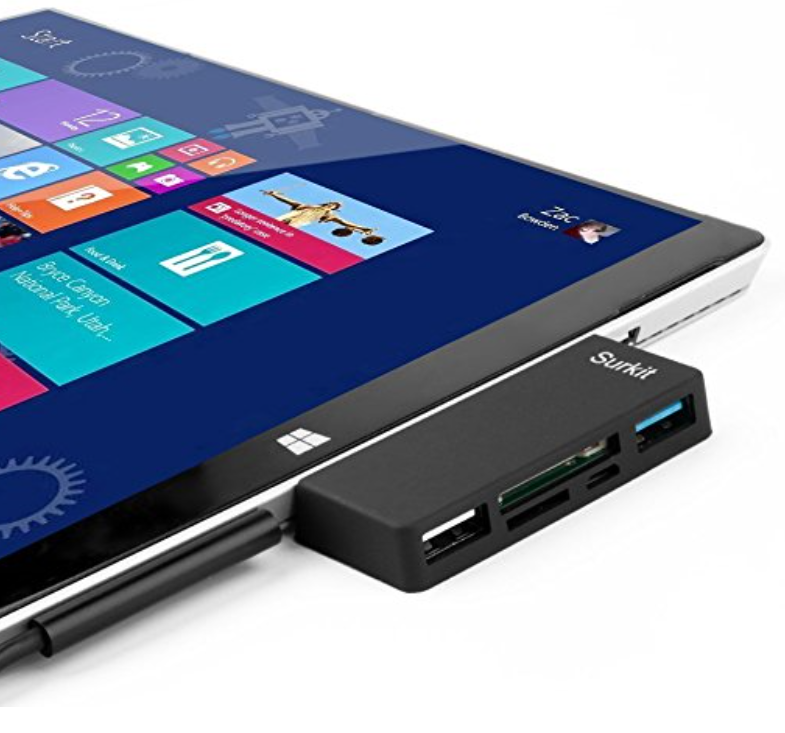
imageI was recently directed to set of tools for Surface that I’d not seen before.  Looks like we just published them today.

This download location stores all the right tools you need as a IT Professional when you want to deploy, manage and secure a Surface device in your organization.

  • Cisco_EAP_Supplicant_Installer_v1.zip
  • Surface_Data_Eraser_Installer_v3.1.9.msi
  • Surface_Deployment_Accelerator_v_1.96.0405.msi
  • Surface_Diagnostic_Toolkit_v1.1.8.0.zip
  • SurfaceDockUpdaterSetup.msi
  • SurfaceUEFI_Configurator_v1.0.25.0.msi
  • SurfaceUefiManagerSetup.msi
  • SurfaceWOL.msi

Grab the tools here:

image

Learn how to maximize your team’s effectiveness through 90-minute online training sessions on Microsoft Teams, the new chat-based workspace in Office 365. Launched last November, Teams provides built-in access to Word, SharePoint, PowerPoint, OneNote and Skype for Business, and allows users to work on documents directly in the app

Sign up here:

image

Forrester—one of the most influential research and advisory firms in the world—recently released their latest report evaluating enterprise collaboration providers, and we’re pleased to share that Microsoft is named a Leader in the report.

imageTo help protect against credential theft, such as pass-the-hash attacks, Microsoft IT enabled Credential Guard across our network on all Windows 10 devices.

Credential Guard isolates derived domain credentials—and the process for managing them—in a secure container, using Hyper-V and virtualization-based security. It’s one more way we reduce our risk profile and secure our network against cyber security threats.

image

See more at:

Posted by: kurtsh | January 18, 2017

INFO: Connecting your AWS & Microsoft Azure Environments

image

I loved this post about connecting AWS environments securely with your Microsoft Azure environment… so I wanted to let you folks know about it as well:

In this post I will show how created that site to site IPsec tunnel to connect to a Virtual Private Cloud (VPC) hosted in Amazon Web Services (AWS) to a Virtual Network in Azure. Using this setup you can have workloads in one or both clouds with full VM to VM connectivity over a secure IPsec tunnel. This easily can provide connectivity for high availability operations, backup or (like in our case) migration between clouds.

Read more here:

This article helps you understand how Microsoft Azure services compare to Amazon Web Services (AWS). Whether you are planning a multicloud solution with Azure and AWS, or migrating to Azure, you can compare the IT capabilities of Azure and AWS services in all categories.+

In the tables following, there are multiple Azure services listed for some AWS services. The Azure services are similar to one another, but depth and breadth of capabilities vary.

image

Read the article here:

Additionally, there’s a larger article about Azure for the AWS professional that’s available for review:

imageSign up for a Groove Music Pass, and the next four months are on the house. What’s even better than millions of songs in your pocket – plus playlists, artist radio, Xbox Background Music for gamers, and more? Getting all that music free for 4 whole months.*

For a limited time, new customers who sign up for a Groove Music Pass will get their first trial month free, and will receive a promo code for the next 3 months on us. As always, you can cancel anytime. But act fast – this deal won’t last long.

Sign up here:

(*Sign up for a 30-day Groove Music Pass trial before March 1st, 2017 and we’ll send you a token within 30 days for an additional 3 months of free music. Must be redeemed by 03/14/17. 30-day trial continues to a paid monthly subscription unless canceled or after the promotional period. Credit card required. Limit 1 per person; prior Zune, Xbox or Groove Music Pass trial customers not eligible. Groove Music Pass sold separately and in selected markets. Catalogue size and availability varies by market and over time. Microsoft account and internet required; ISP fees apply. Works with Windows 10, PCs, tablets and phones, Windows 8.1, Windows Phone 8, Xbox One and Xbox 360 (Xbox Live required). Works with Sonos, Android and iPhone; see app stores. Requires up to 100 MB storage. Download music on up to 10 devices (not available on Xbox and the Web). Stream to one device at a time. Subject to terms (which may change without notice) at microsoft.com/msa.)

image

Cloud computing has become a crucial element in today’s businesses, and as a result, IT organizations must play increasingly important roles in driving business strategy. Among its other benefits, cloud computing shifts portions of capital expenses into operating expenses. This paradigm shift has enabled organizations to accelerate their rate of growth and speed to market, which results in revising and updating tactics. But, as with any business decision, there are a number of factors to consider—not the least of which is making the transition to the cloud.

Migrating part or all of the IT portfolio to the cloud might seem like a daunting task—but migration doesn’t have to be prohibitively complex. Moving to the cloud is transformative for companies and while it isn’t a trivial matter to do so, the long-term benefits far outweigh the short-term issues.

This eBook goes over the value of a move to the Azure cloud as well as what the steps are to migrate.

Posted by: kurtsh | January 17, 2017

TOOL: Kurt’s Favorite Tools for Windows

[This is as of 1/17/17]
I recently got a new computer and it reminded me that I’ve never posted about the tools that I use that I consider essential to my Windows PC.

So here’s a list of my favorite tools.  Each of these deserve a a full post but this fiscal year hasn’t granted me nearly the time so here’s a quick synopsis instead.  Enjoy.

  • CCleaner Professional
    http://www.piriform.com/ccleaner
    imageEveryone knows the FREE version of this tool clears Internet history/caches, temp directories, memory dumps, etc. but not everyone knows that the Professional version (which costs $25) also does the following:

          • Removes cookies & trackers DAILY or whatever frequency you need from IE, Edge, Firefox, Chrome, & Opera (with an easy-to-use whitelisting tool to KEEP the cookies you want)
          • Real-time monitoring, to automatically clear cookies & trackers whenever you close the browser or whenever the cache exceeds a certain size.
  • DUMeter
    http://www.hageltech.com/dumeter/about
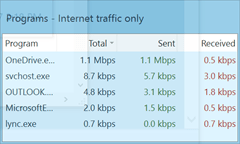
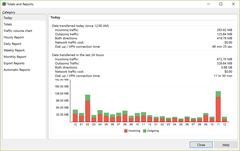
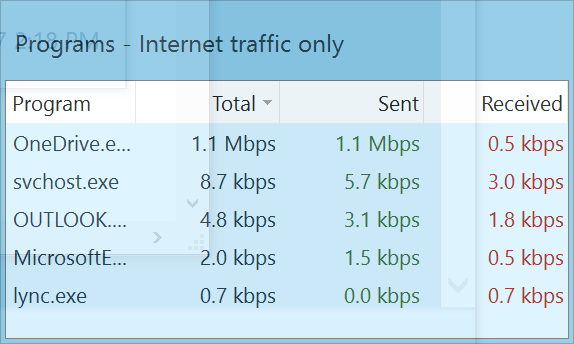
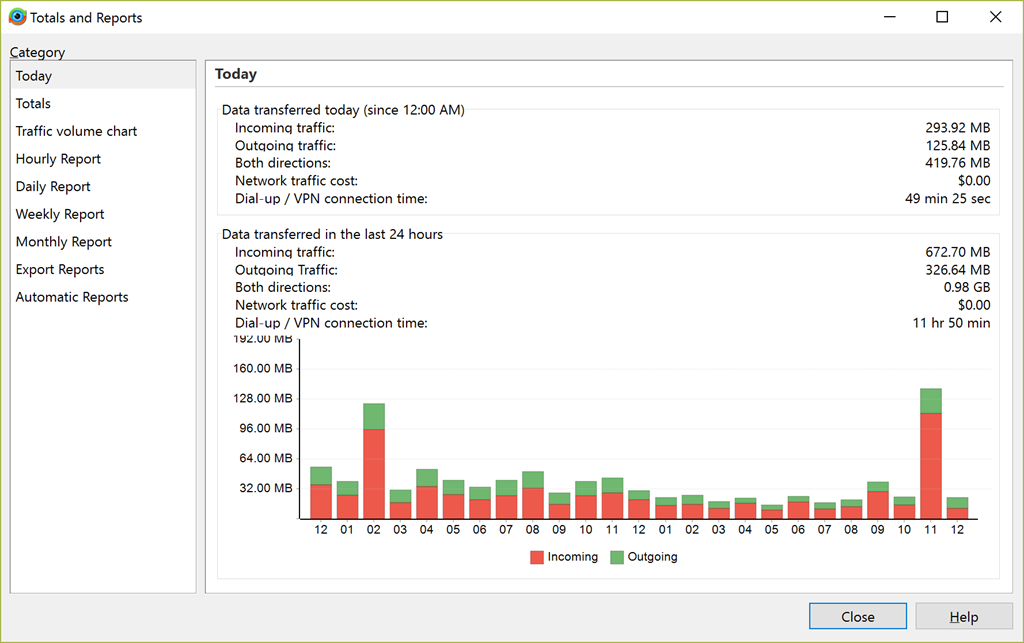
    imageThis is a little desktop tool that shows bandwidth consumption in real-time.  It can show it numerically, graphically in a histogram, or by application so you know what apps are consuming bandwidth on your machine.  Really essential tool.
  • AutoHotKey
    https://www.autohotkey.com/image
    This is a free automation tool that allows you to program keystrokes to execute macros.  In my case, I love to reprogram CTRL-LEFT ARROW and CTRL-RIGHT ARROW to be Home & End, and AutoHotKey does that for free.
  • DrawboardPDF
    https://www.microsoft.com/store/apps/9wzdncrfhwqt
    imageThis is a great tool for modifying & marking up PDF files.  Ever wish you could type into a PDF-based form or add your signature using your Surface Pen?  This is the tool to do it with.  It’s $9.99 but I think it’s worth it to be able to visually sign forms using my stylus and be able to save them digitally.
  • Multiplicity
    http://edgerunner.com/multiplicity
    imageI have 3 laptops on my desk at all times: Surface Pro 3, Surface 3, and a Surface Book which is my primary.  Using the mouse & keyboard of my Surface Book, I can move the mouse pointer across all 3 laptops and use the keyboard depending on where the mouse is using Multiplicity.  It costs as little as $20 for 2 PCs and has solid tech support which is – believe me – CRITICAL to ensuring connectivity/troubleshooting support.  I’ve personally tried Synergy, MouseWithoutBorders, SpaceDesk, SplashTop, and others and only Multiplicity had the support I think a tool like this needs.
  • FileMinimizer Suite
    http://balesio.com/fileminimizersuite/eng/index.php
    imageThis is a tool that compresses & shrinks Office & PDF documents while keeping the files readable.  This is not a ZIP tool as it keeps the document readable by inspecting it for things like oversized graphics and resizing them, conserving space.
    The tool is very useful when you want to send a file over email and need to shrink it down in order to attach it and stay under the maximum attachment size threshold.
    It’s not free however.  At $95 a copy, it might be a little beyond a lot of folks but it’s been a good value for me.
  • SimplyFile
    http://www.techhit.com/SimplyFile/
    imageTechHit’s SimplyFile is one of my all time favorite tools:  It’s an Outlook add-in that automatically determines what folder an email should be moved/filed in.  Simply clicking on an email displays the predicted folder name on a button & pressing that button moves the email to that folder.  If the folder is incorrect, you can change the prediction directly in the toolbar.  It’s one of the biggest productivity enhancers I’ve had and I’ve used it for over 10 years.
    Warning:  It’s not cheap.  I think it’s something like $50. But it’s been very worth it for me as a ‘filer’.
  • SendIndividually
    http://www.sperrysoftware.com/Email-Tools/product/send-individually/image
    Another of my all time favorites, Send Individually is my mail merge tool and it’s something I’ve been using for a decade or so.  It’s an Outlook add-in that allows you to put hundreds of people in the TO: line of an email – including Contact Groups – and send an individual copy of an email to each of them. It doesn’t use BCC: and none of the recipients other than the single destination show on the To: line.
    You can insert the recipients name in the body of the message using <firstname> or <lastname> and other mark up terms, and it automates the creation of all the individual mails you need, puts them in the Outbox, and you can watch them leave Outlook as they’re sent.  Note: This is also not a cheap tool at $50 but it doesn’t incur ongoing charges like many mail services do.
  • Teracopy
    http://codesector.com/teracopy
    imageTeracopy is a free tool that does one thing:  Copy files reliably and quickly.  It’s special features, compared to a standard Windows file copy, include the ability to check the copy’s CRC, pipeline files for reading & writing to optimize throughput, and provide specific instructions on what to do in case of collisions.  (For example, “Overwrite the destination file, only if it’s smaller than the file being copied.”)
  • Open Live Writer
    http://openlivewriter.org/
    imageOpen Live Writer is what I’m using to write this post to WordPress.  It’s a free tool that originated from the open sourcing of Windows Live Writer, a lightweight blogging tool created many years ago.
    Open Live Writer is a wonderful blogging tool for folks like me that just need the ability to have a WYSIWYG editor that will create drafts, insert photos & videos, directly publish posts to my blog, edit previously published blog posts, and manage multiple blog accounts.
    It’s sort of like Word… but quick to load, quick to create, and quick to publish.  Like I said, ‘lightweight’.

« Newer Posts - Older Posts »

Categories