Posted by: kurtsh | March 21, 2017

HOWTO: Disable Focused Inbox in Outlook 2016

imageHave you received the new Outlook “Focused Inbox” through Office 365 Updates?  Having problems adapting to it and wanna disable it?

For Outlook 2016 (Windows)

  • Select View tab
  • Unclick “Show Focused Inbox” button

For Outlook 2016 (Mac)

  • Select Organize tab
  • Unclick “Focused Inbox” button

For Outlook Web App (Online)

  • Select “Settings” gear
  • Navigate to “Display Settings” –> “Focused Inbox”
  • Select “Don’t sort messages”
Posted by: kurtsh | March 21, 2017

INFO: Creating Bots for Microsoft Teams (preview)

imageBuild and connect intelligent bots to interact with Microsoft Teams users naturally through chat.

Or bring your existing bot from another channel, and add Teams-specific support to make your experience shine.

Or if you are just looking for a way to simply extend your team by integrating with custom tools and services in a secure manner, check out our new Custom Bots feature.

Taken from the UserVoice site for Microsoft Teams:

imageFor those who want to be able to format text on the fly or collaborate on code, Markdown has finally arrived. Now, you’ve got a quick, easy way to perform the following actions:

  • Add asterisks to either end of some text to make it bold
  • Underscore the beginning and end of some text in order to make it italic
  • Add a tilde before and after your text to strike through
  • Add a double pound sign (##) before your text to create a Header
  • Type [text](URL) to create a hyperlink within a message
  • To start a bulleted list, preface your text with an asterisk (*) or a hyphen (-)
  • To start a numbered list, preface your text with
  • To create a block quote, just add a right-hand bracket (>) before your text

Even better, our markdown syntax includes support for code:

  • To add an inline block of code, start and end the block of text you want to add with an `
  • To add a multi-line block of code, preface your text with “` and then paste it into your compose box

Please let us know how it goes and keep adding more suggestions here!

Suphatra

Twitter: @skprufo

Posted by: kurtsh | March 21, 2017

INFO: Enabling & Using Windows 10 Speech Recognition

image

Did you know Windows 10 has a voice-to-text solution built into it?

It can be used to dictate content into things like email through Outlook, Word, OneNote or any note-taking solution.  And it comes for free with Windows 10.

Here’s how to set it up:

  1. In the search box of Windows 10, type speech recognition
  2. Select Windows Speech Recognition.
  3. Follow the instructions to train the tool using your voice. (This will take a few minutes, requiring you to speak a variety of sample sentences.)

Windows 10 builds a voice profile during training to recognize your voice. The more you use it, the better it will understand you.

If you’re interested in knowing what the speech commands are, go to this Support article for a reference:

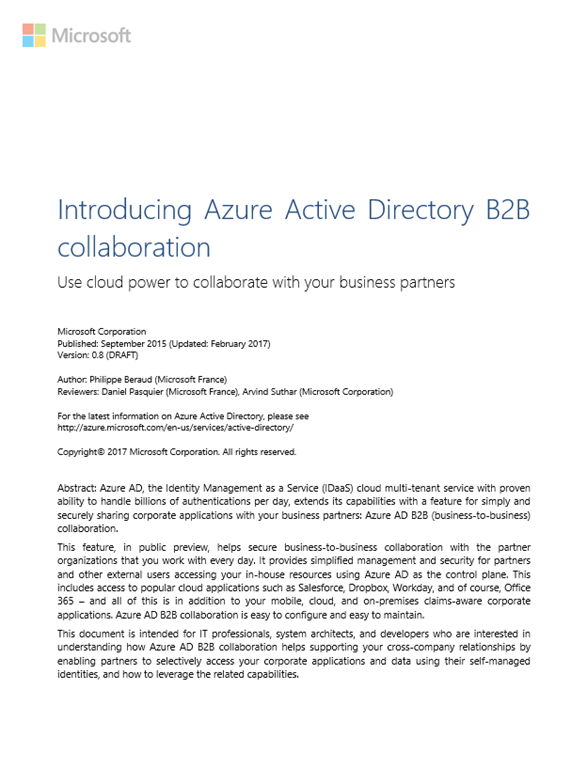
imageWe have a single page that provides a series of whitepapers for the person interested in Azure Active Directory’s offerings.  Updated as of Feb 24, 2017, this is the latest content available for most things Azure AD.

Here’s the topics:
(Note: “Azure AD seamless sign-in” is actually a 7-part series of whitepapers)

    1. Towards Identity as a Service (IDaaS) – Use cloud power to solve cloud era challenges
    2. Active Directory from the on-premises to the cloud (updated)
    3. An overview of Azure AD
    4. An overview of Azure AD B2C
    5. Introducing Azure AD B2B collaboration
    6. Azure AD & Windows 10: Better together for Work or School
    7. Azure AD/Office 365 seamless sign-in
    8. Azure AD/Office 365 single sign-on with Shibboleth 2
    9. Leverage Multi-Factor Authentication with Azure AD
    10. Leverage Multi-Factor Authentication Server on your premises
    11. Leverage Azure AD for modern Business Applications

Get the whitepapers here from this one page:

Posted by: kurtsh | March 21, 2017

INFO: Support lifecycle for Office Viewers

Microsoft recently discontinued the older versions of Office viewers. Microsoft will not provide hotfix, service pack, or security update support for these products. The discontinued Office viewers are as follows: 

  • Word Viewer 97/2002
  • Word Viewer 2003
  • Excel Viewer 97/2000
  • Excel Viewer 2003
  • PowerPoint Viewer 97/2000/2002
  • PowerPoint Viewer 2003

To obtain the latest supported versions of the Office viewers, go to the following Microsoft websites: 

Note: Office viewers must be updated to a supported service pack level in order to remain in support. Use the following table to obtain applicable service pack information. 

Supported Office viewer Service pack applicability Notes
PowerPoint Viewer
Apply service packs for PowerPoint Viewer
PowerPoint Viewer is also known as PowerPoint 2010 Viewer
Word Viewer Not applicable No service packs apply to Word Viewer
Excel Viewer Apply service packs for Excel Viewer 2007 Excel Viewer is also known as Excel Viewer 2007
Visio Viewer Apply service packs for Visio 2010 Viewer
Visio Viewer is also known as Visio 2010 Viewer

For more info:

This month, we released ten new Windows 10 virtual labs so that IT pros can get direct hands-on experience with Windows as a Service (WaaS), Windows security technologies, and new deployment scenarios before doing a full-scale rollout in the organizations.

clip_image002What is a virtual lab?
Virtual labs let IT pros try-out common Windows 10 tasks using a cloud-based private virtual machine environment. Each lab features a series of instructions, and access to one or more virtual machines, with no additional software or setup required.

Labs available today:

  • Deploy and manage Windows as a Service
  • Deploy Windows Information Protection
  • Deploy Device Guard
  • Deploy Credential Guard
  • Enable and secure a remote workforce by joining Windows 10 to Azure Active Directory
  • Simplify Windows 10 deployment by using provisioning packages
  • Upgrade in place to Windows 10 by using MDT and Configuration Manager
  • Customize the Windows 10 Start menu and taskbar during deployment
  • Set up Windows Store for Business to deploy apps in your enterprise
  • Use Internet Explorer Enterprise Mode to fix compatibility issues

For your convenience, we’ve created a single landing page for these labs on the Windows IT Center – https://aka.ms/w10virtuallabs – and we’ll be adding new labs in the months to come.

image

On April 22, 2017, 198 User Groups (and counting) around the world will throw Azure meetups to help people learn & discover Microsoft Azure.

imageAnyone wanting to learn or teach about Azure and Microsoft cloud computing should attend.  The Global Azure Bootcamp event web site is located here:

SOUTHERN CALIFORNIA EVENTS:
Here’s the locations in Southern California:

CODE Mag Azure Bootcamp
(Los Angeles, CA)

SoCal Microsoft Azure User Group – Azure Bootcamp
(Orange, CA)

imageMicrosoft Ignite, Microsoft’s technical professionals conference takes place September 25–29, 2017 in Orlando, FL. 

The conference always sell out.  This year’s registration period opens March 28.  If you want to get registered immediately to ensure your attendance, save the date through the link below.

Posted by: kurtsh | March 16, 2017

TRAINING: Office 365 Virtual Training

imageDo any of the following Office 365 topics look interesting to you?

If you’re ready to learn how to harness Office 365 to get the most secure Office for your business, you’re in the right place.

These learning opportunities can help you get started quickly—from product exploration to deep training and certification.

If you’d like to see all the webcast recordings, check them out at this page:

« Newer Posts - Older Posts »

Categories