imageMicrosoft & ServiceNow will accelerate digital transformation for enterprise and government customers. 

ServiceNow moves workloads to Microsoft Azure for highly regulated industries

Microsoft Corp. (NASDAQ: MSFT) and ServiceNow (NYSE: NOW) today announced a broader strategic partnership intended to significantly enhance the integration and optimization of the companies’ products, platform and cloud capabilities. Through this expanded partnership, the companies will enable enterprise customers in certain highly regulated industries, as well as government customers, to accelerate their digital transformation and drive new levels of insights and innovation. And, for the first time, ServiceNow will house its full SaaS experience on Azure in addition to its own private cloud. The expanded partnership will elevate ServiceNow to one of Microsoft’s strategic partners in its Global ISV Strategic Alliance Portfolio.

Read the following for more information:

External news:

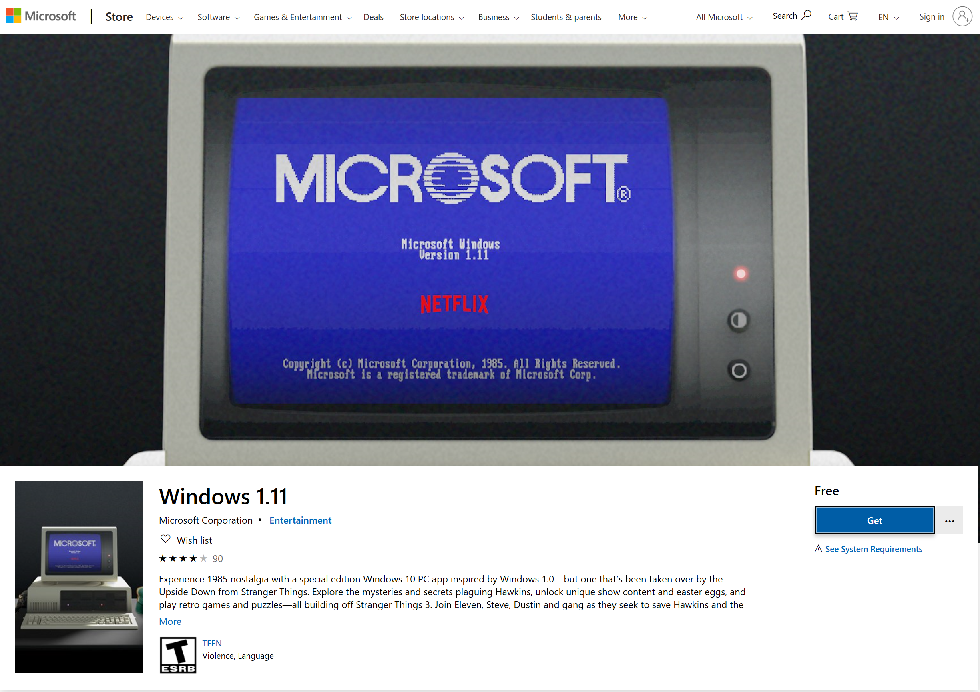
Get the free "Windows 1.11" Experience Simulator is now available in the Windows App Store for Windows 10.  Hint: It’s actually more than meets the eye… 🙂

image

Experience 1985 nostalgia with a special edition Windows 10 PC app inspired by Windows 1.0—but one that’s been taken over by the Upside Down from Stranger Things. Explore the mysteries and secrets plaguing Hawkins, unlock unique show content and easter eggs, and play retro games and puzzles—all building off Stranger Things 3. Join Eleven, Steve, Dustin and gang as they seek to save Hawkins and the world. Embrace the 80s and grab your hairspray, because it’s basically the raddest show companion experience ever. But fair warning: beware the Mind Flayer. Download the Windows 1.11 app today. Best of luck!

Get it here:

(Ironically, the app is much larger than Windows 1.11 actually was. )

imageSome Microsoft UC old timers may recall Microsoft Lync used to have a ‘lurker’ feature hidden that enabled the end user to “appear offline”.  The same feature currently exists for Microsoft Teams.

ACCESSING THE TEAMS CLIENT EXTENDED DIAGNOSTICS MENU
Setting a Teams client to “appear offline” requires going to the Microsoft Teams client for Windows and opening a hidden diagnostic menu.

The systray icon for Teams usually has a pretty spartan menu however if you do the following, a much larger menu is revealed:

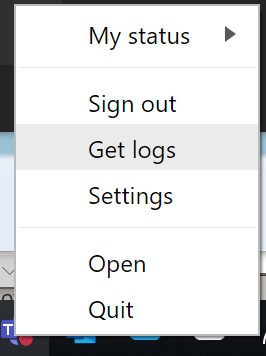
    1. imageClick on the Teams icon in the client Systray 5 times.
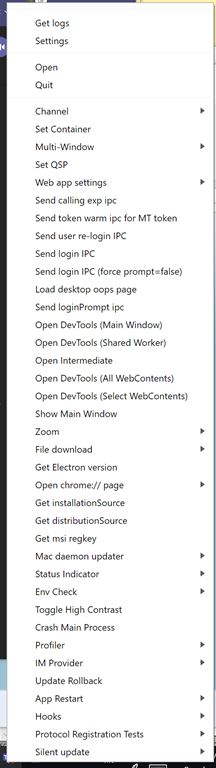
    2. Right click on the Teams icon. This should reveal the hidden “Extended Diagnostics” menu for the Teams client.  There’s a couple interesting items that should show up including “Open chrome://page”, “Update rollback” and one called “Status Indicator
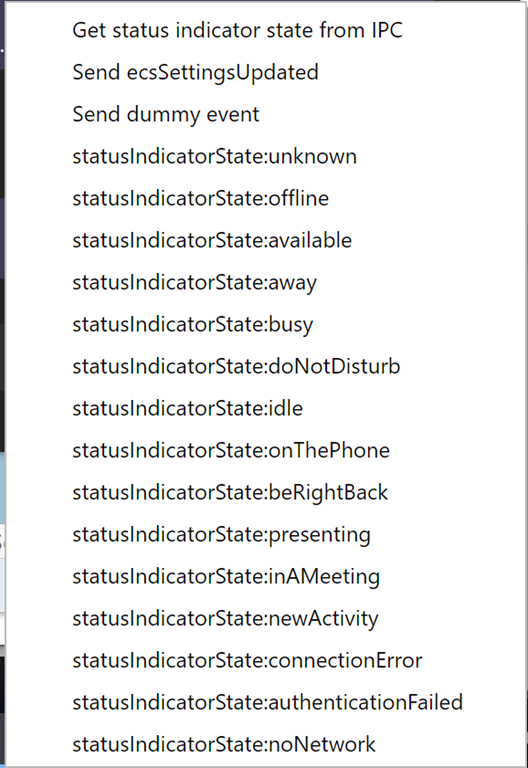
    3. Click on “Status Indicator”. This enables you to access a secondary menu that has a number entries in it.
      image


  • Click on imagestatusIndicatorState:offline”.  You’ll notice that the status indicator icon on the Teams systray icon is an “empty circle” indicating you’re now presenting yourself as “offline”

To be clear, despite looking to the outside world like you’re not logged in, you are still very much logged into Microsoft Teams.  You can see chats/IMs & access Teams resources.  You can also see who is currently online while appearing to be offline.  (Hence the term, “Lurker” mode is often used for this)

imageUPDATE 3/16/20:
A message from the event team:

The health and safety of our community is top priority. In light of global health concerns due to the novel coronavirus (COVID-19), we will deliver Microsoft Business Applications Summit as a digital event, in lieu of an in-person experience. Refunds will be issued to all event registrants.

We look forward to bringing together our community of business applications power users and business decision makers in this new digital format to learn, connect, and grow together. Please watch for additional information coming soon. Sign up to receive updates on our digital event.

Virtual Event registration continues to be available here:
https://info.microsoft.com/Business_Applications_Summit_2020_Sign_Up.html

—————

ORIGINAL POST:

Are you a PowerBI, PowerApps, Microsoft Flow, or Dynamic 365 user?

Start planning to attend the Microsoft Business Applications Summit 2020 – April 20-21, in Anaheim, CA.

Sign up for the latest event updates today:

Check out the on-demand sessions posted from this year’s Microsoft Business Applications Summit 2019 here!

imageHave you registered for SharePoint Fest Seattle? Join us at the Washington State Convention Center, August 19-23!

SharePoint Fest brings to you the world’s leading experts in SharePoint, Office 365, Microsoft Teams and Azure. Whether you are new to SharePoint or an experienced power user, admin or developer, SharePoint Fest has content designed to fit your experience level and area of interest. Our workshops and sessions are taught by Microsoft Certified Trainers, Microsoft MVPs, Microsoft Regional Directors and Microsoft engineers.

At SharePoint Fest, subject matter is divided into tracks and each session is designated for beginner, intermediate or advanced. Tracks are offered for the following subjects: Office 365, Azure, Teams, OneDrive, Search, Content Management, Power Users, Business Value, Implementation/Administration, Workflow, Business Intelligence, SharePoint Development, and more.

Visit the info below to register:

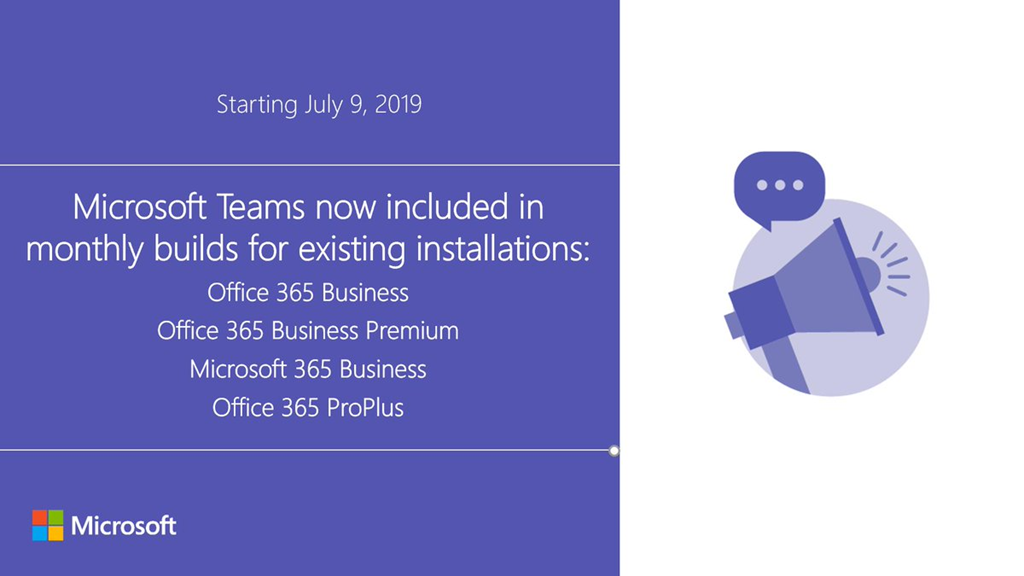
imageThe Microsoft Teams desktop app is coming to existing installs of Office 365 ProPlus and Microsoft/Office 365 Business/Business Premium.

Starting on July 9, 2019, Click-to-Run will install the Teams client for all PCs on the monthly channel, and the client will update itself regularly from that point onward. This will be a gradual rollout over several weeks, so not all existing installations will immediately get Teams added when Office is updated.

Read the announcement here:

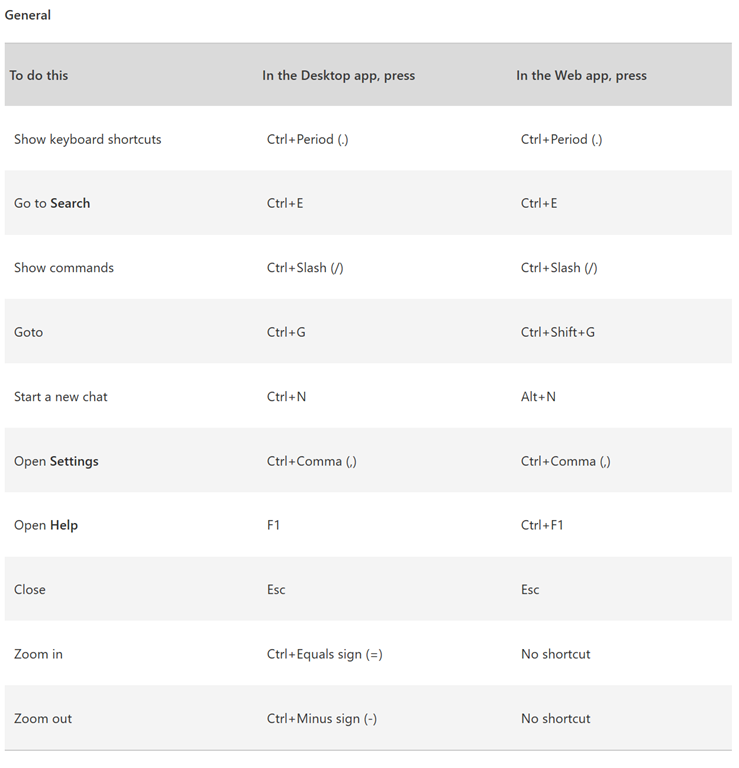
imageAre you a heavy user of Microsoft Teams?  Tired of having to use the mouse for things?

Hit “Ctrl-.” while in the Microsoft Teams client in order to get a list of keyboard shortcuts.

Note: One of my favorite keyboard shortcuts is “CTRL-ENTER” to “SEND MESSAGE” when you respond to an instant message that appears as a pop up or “toast” in the bottom right hand corner.

Here’s some good ones you may not know:

General

  • VIEW COMMANDS (Used from Search/Command bar)
    Ctrl+/
  • GO TO SEARCH/COMMAND BAR
    Ctrl+E
        • CALL SOMEONE
          /call [person’s name]

Meetings/Calls

  • GO FULL SCREEN IN A MEETING
    Ctrl+Shift+F
  • TOGGLE MUTE
    Ctrl+Shift+M
  • TOGGLE VIDEO
    Ctrl+Shift+O

If you’d like to see the same content online, check out this URL:

The tools in the Microsoft Desktop Optimization Pack are generally supported online.

Documentation & Overview:

imageExplore five principles that will help you successfully deploy and manage Linux in the cloud with Azure.

Migrating to the cloud can have a positive impact on the cost, maintenance, scalability, elasticity, and versatility of your IT infrastructure.

In this O’Reilly e-book, author Sam Alapati examines five principles for successfully deploying and managing Linux in the cloud. Review examples from Azure and other cloud service providers. Explore best practices for moving your system out of your data center and into the cloud. Get a detailed overview of various types of cloud services and deployments. By better understanding cloud migration principles, your team will be ready to:

  • Assess and identify which Linux virtual machines (VMs) are adaptable in the cloud.
  • Determine and plan for your workload’s level of availability for new deployments.
  • Monitor your applications running on Linux across the entire stack.
  • Ensure your Linux VMs are secure and backed up.
  • Govern your cloud environment with policy management best practices.

Download the eBook here:

We’ve released two additional interactive guides, both loaded with content, downloadables, and videos for IT professionals and decision makers and their adoption of either Microsoft 365’s security capabilities or Microsoft Teams for Government.

Check them out now:

image image

« Newer Posts - Older Posts »

Categories