We will be retiring the Planning Services benefit in Software Assurance.

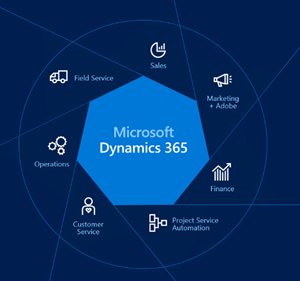
Bimageeginning in February 2020, we’re retiring the Deployment Planning Services benefit in Software Assurance. We’re consolidating our programmatic deployment planning assistance to a single approach, and Microsoft FastTrack is our primary implementation support offer. You can use FastTrack for Azure, Microsoft 365, and Dynamics 365 engagements. Cloud services will be retired from Deployment Planning Services eligibility in February 2020 in favor of FastTrack deployments. Learn more about FastTrack.

Deployment Planning Services will be available until January 2022. With deployment planning you get in-depth planning assistance from qualified partners or Microsoft Consulting Services to help you plan your deployment—whether on-premises or in hybrid environments. These structured engagements help you plan your deployment of the latest Microsoft technology.

  • Help ensure efficient deployments through collaborative planning built on best practices.
  • Extend your IT staff with expert advice from on-site deployment planning specialists.

The above was taken from:

imageSo for those of you who still need to install & activate Windows 10 PCs occasionally, using Windows 7/8/8.1 activation keys still conveniently works to activate personal installations of Windows 10. (Thanks to a change that was made as of Windows 10 Threshold 2/1511)

Here’s some pointers:

  1. DOWNLOAD WINDOWS 10 INSTALLATION MEDIA
    Download the Winodws 10 Media creation tool from the link below.  There are other options listed as well if you have access to the Volume Licensing Service Center, have MSDN, are a Windows Insider, etc. 
    https://www.microsoft.com/en-us/software-download/windows10/
  2. GET YOUR 25-DIGIT WINDOWS 7/8/8/1 ACTIVATION KEY
    I am assuming that you have your Windows 7/8/8.1 key stashed away.  (I have more keys than I know what to do with. Smile)  You can use this during or after the installation of Windows 10 – the key will be accepted just as a Windows 10 activation key would.

    EXTRACTING YOUR KEY FROM WINDOWS 7
    If you DON’T have your key, take a look at the link below on how to use NirSoft’s tool for extracting the key from your existing Windows 7 installation.
    https://www.howtogeek.com/206329/how-to-find-your-lost-windows-or-office-product-keys/

  3. USE YOUR 25-DIGIT WINDOWS 7/8/8.1 KEY TO ACTIVATE
    If you’re activating Windows 10 after the installation, go to Settings > Update & Security > Activation to enter the key.
    (Follow the instructions here for steps on how to use the key if it isn’t clear.
    https://www.howtogeek.com/266072/you-can-still-get-windows-10-for-free-with-a-windows-7-8-or-8.1-key/)

The following was sent to all SA Benefit Administrators & SA Benefit Primary Contacts:

imageMicrosoft is retiring two Software Assurance benefits that have similar offerings outside of Software Assurance and changing the eligibility criteria for a third benefit. Specifically:

1. We’ll retire the Deployment Planning Services benefit and fulfill your implementation needs through Microsoft’s premier cloud migration and deployment program Microsoft FastTrack.

2. Microsoft is investing in new, modern skilling programs. Training vouchers will be phased out as a Software Assurance benefit and will no longer be used to convert to planning services.

3. We’re adjusting the eligibility criteria of 24×7 support and changing support allocations to align Software Assurance support with Microsoft’s new Unified Support offering.

The first of these changes go into effect in February 2020, with the remaining changes gradually rolled-out through Jan 1 2022, to give your organization time to accrue and use your remaining planning days, training vouchers, and support incidents. You can find details on each benefit change and timeline for benefit allocation and use deadlines here.

Software Assurance continues to offer a set of helpful benefits coordinated across software and cloud to support your organization’s deployment, management and support needs. Contact your Microsoft sales professional for more details. You can see a full list of benefits and eligibility at https://www.microsoft.com/licensing, and learn more about FastTrack, Microsoft Learn, and Microsoft Support.

The public statement of these changes are highlighted on the following page under each of the SA benefits tabs:

imageOne of my new favorite – and free – tools: PureText.

PureText is a tiny tray utility that removes all text formatting from your clipboard and optionally pastes the resulting pure text to the active window with a single hotkey.

Have you ever copied some text from a web page or Word document, and wanted to paste it as plain text into another application without getting all the formatting from the original source?

PureText makes this simple. Just copy/cut whatever you want to the clipboard, click on the PureText tray icon, and then paste to any application. Better yet, you can configure a PureText Hotkey to convert and paste the text for you. The pasted text will be pure and free from all formatting.

After running PureText, you will see a "PT" icon appear near the clock on your task bar. You can click on this icon to remove formatting from the text that is currently on the clipboard. You can right-click on the icon to display a menu with more options.

The easiest way to use PureText is to simply use its Hotkey to paste text instead of using the standard CTRL+V Hotkey that is built into most Windows applications. To configure PureText, right-click on its tray icon and choose "Options" from the pop-up menu. The default Hotkey is WINDOWS+V, but this can be changed. In this Options window, you can also configure PureText to run each time you start Windows.

Posted by: kurtsh | September 25, 2019

EVENT: SharePoint Saturday, Los Angeles – Sept 28, 2019

imageSharePoint Saturday returns to Los Angeles, CA. This is a free event organized by the West Coast SharePoint Saturday Organizing Committee and will focus on sessions from Office 365, SharePoint, OneDrive, Azure and other products in the Microsoft technology stack.

SharePoint administrators, end users, architects, developers, and other professionals that work with Microsoft SharePoint Technologies will meet on September 28th, 2019​ at the Microsoft Playa Vista Office, in Los Angeles, CA.

Posted by: kurtsh | September 25, 2019

INFO: Microsoft Ignite 2019 – Waitlist for Registration

imageI’ve received over a dozen requests & questions related to Microsoft Ignite 2019.  Here’s an FAQ of sorts for those of you wondering:

  1. NO COMPLIMENTARY PASSES
    There are no complimentary passes available.  If you’re a customer of mine, I did submit your name as a requestor but unfortunately we were not granted any passes.
  2. PREMIER-FUNDED PASSES ARE NO LONGER AVAILABLE
    Ignite passes purchased through Premier had to have been done back in April-May.  They consumed roughly 10hrs of Premier contract time and again, needed to be done early – as I’ve mentioned before.  There were only a limited number of passes that were allowed to be purchased this way and once those were gone around mid-May, that was it.
  3. NO ESCALATION OF WAITLIST PRIORITY
    The online waitlist is your best option for passes at this time as we have exhausted all of our passes & registrations in the US. I’ve gone as high as I can go and our marketing team has no influence or ability to prioritize the waitlist. The Ignite registration team will contact a customer directly as space becomes available.

Sorry for the bad news but this is what I know to date.

We have discontinued the eLearning benefit in Software Assurance.

imageThe Software Assurance E-Learning benefit has been replaced with Microsoft Learn. Microsoft Learn is a free, interactive, quick, and fun way to learn Microsoft products and services! Microsoft Learn helps you quickly learn new skills with step-by-step interactive tutorials including videos and hands-on learning. The E-Learning Software Assurance benefit and associated platform have been retired, and access to current courses, transcripts, completion certificates and administrative tools residing on those sites is no longer available.

You will be able to access the Microsoft Learn training resources at the following locations.

Courses by Product – New Location

Read the announcement and an FAQ here:

Recently announced change to the Software Assurance Benefits program:

imageWe’re retiring the Software Assurance training voucher benefit starting in February 2020, and training days will no longer be used to convert to Planning Services days. You can still use training vouchers until January 2022, with the exception of Azure training, which will be removed from the course catalog in February 2020.

Software Assurance training vouchers provide in-depth technical training for IT professionals and developers. Developed by Microsoft experts with classroom training, taught by Microsoft Certified Trainers and Microsoft Official Courses On Demand (MOD) hosted online and taught by top trainers. Training vouchers help your IT staff deploy, manage, support new software and stay current with technology—without impacting your budget.

Your training days are based on the type and number of licenses you have with Software Assurance. Work with your Microsoft Certified Trainer partners to identify the right option for your training needs.

This is all I have on the matter.  Read the announcement here.  (Note there is an FAQ in the article that may be worth reading):

Posted by: kurtsh | September 23, 2019

HOWTO: Automatically dismiss reminders from past events

imageOutlook has an option to automatically dismiss reminders for past events.

It’s not enabled by default.  Here’s how to enable it:

Automatically dismiss reminders for past events

If you don’t want to see reminders for events in the past, you can tell Outlook to automatically dismiss reminders for past events. For example, if you’re out of the office for three days, you might not want to come back and see reminders for the meetings that took place while you were gone.

  1. Select File > Options > Advanced.

  2. In the Reminders section, select Automatically dismiss reminders for past events.

[stolen from Jen Gentleman]

The support page documentation is here:

Posted by: kurtsh | September 23, 2019

RELEASE: Surface Dock Firmware Update tool for v1.42

UPDATE 10/4/19:
A comment was posted on the original announcement page that’s worthy of highlighting.  Note that for consumers, they noted that this firmware update will eventually get pushed out via Windows Update so it’s not that necessary that individual users apply the patch manually – unless of course it addresses an issue you need:

I’m re-posting @Mendioroz ‘s helpful information with correct formatting to make it a little easier to read for everyone:

  • The firmware (MSI) is only installable on Windows 10 1803 and beyond (any edition).
  • In Windows 10 S mode, the previous tool didn’t work and it this one won’t since it’s a MSI package (no executables were able to run).
  • If a Dock is updated with the MSI package, and then another Dock is connected to the same Surface device, in Registry Editor will show the information from the last Dock connected.
    HKEY_LOCAL_MACHINE\SOFTWARE\Microsoft\Windows NT\CurrentVersion\WUDF\Services\SurfaceDockFwUpdate\Parameters
  • If the Dock was updated with the Surface Dock Updater Tool before, there’s no need to install the MSI since there’s no changes on the “MSI firmware update”.
  • It is planned to release this update through Windows Update (no expected time).

I will also confirm that nothing appears in the Start menu when you install this new update and that it silently performs the update in the background when you connect a Surface Hub.

ORIGINAL POST:

Just released… an MSI for updating the Surface Dock firmware to version “1.42”.  (This supersedes the previous version “2.2” which had a legacy versioning system.)

imageThe latest firmware for Surface Dock now runs automatically in the background and simplifies the process of keeping your Surface Dock up to date. For full details, refer to Microsoft Surface Dock Firmware Update.

The tool comes packaged as a separate .MSI file in Surface Tools for IT. Simply download and install the tool on your Surface device to automatically update your Surface dock.  And of course, the Windows Installer .MSI file can be deployed remotetly across multiple Surface devices.

It supersedes the earlier Surface Dock Updater tool, which has been retired, is no longer available for download, and should not be used.

Surface Dock includes two high-definition video ports, a gigabit Ethernet port, four USB 3.0 ports, and an audio output, enabling users to transform their Surface device into a desktop PC.

View the original post here, along with the Q&A in the comments:

« Newer Posts - Older Posts »

Categories