[This is a repost from a blog article I wrote in 2012 about Microsoft Lync. People are still doing it, except now it’s being done through Microsoft Teams. Please stop. I beg you. 🙂]
Cardinal rule for presenting slides in Microsoft Teams:
- Never “share your screen” to do a PowerPoint presentation.
- Upload your PowerPoint into Microsoft Teams when delivering presentations to remote audiences using “PowerPoint Live”.
HOW TO UPLOAD YOUR POWERPOINT INTO MICROSOFT TEAMS
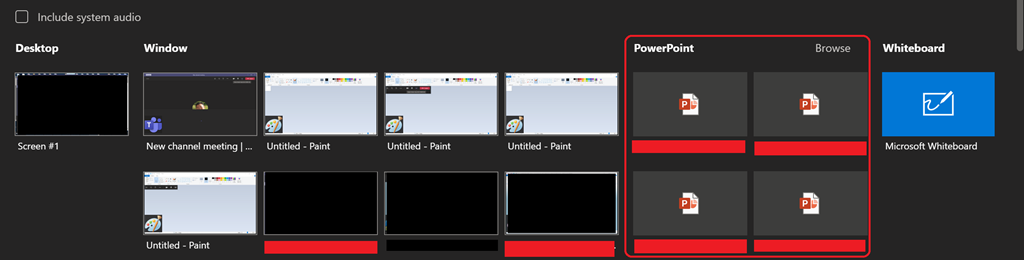
 All one needs to do is click the “OPEN SHARE TRAY” button (or CTRL-SHIFT-E)within Microsoft Teams and select the PowerPoint Presentation you need to share – or browse your drive for it. This will allow you to upload the deck into the Teams session & automatically convert it into an HTML5 presentation, complete with full animations, transitions, etc.
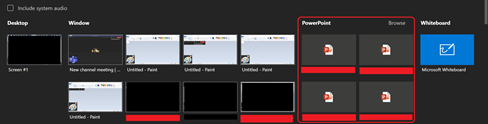
Share Tray in Microsoft Teams
Please note that this process may take a few minutes to complete depending on the size of the presentation but the results are excellent and a little forethought/ preparation before presenting should not be a big deal.
WHY IS SCREEN SHARING POWERPOINT SO BAD?
Sharing one’s desktop to deliver a PowerPoint presentation may look okay to you as a presenter, but from the stand point of an attendee (especially those with highly questionable bandwidth or weak QoS at their Internet gateway) pixel-level desktop sharing can take forever to do screen updates when using POWERPNT.EXE, especially at typical 1280×1024 resolutions & 24-bit color depth.
It can also pixelate the screen creating compression artifacts and sections of the screen sometimes will not update until a key frame is sent. This can take a while under low bandwidth situations.
In a phrase, it can be downright painful to view a screen shared PowerPoint presentation & it’s inconsiderate to your audience.
WHAT ARE THE BENEFITS OF UPLOADING THE .PPTX FILE?
When you load the presentation into Teams using “PowerPoint Live”, there are several major benefits for attendees viewing the slides in this manner versus ‘screensharing’ POWERPNT.EXE:
- IMMEDIATE SLIDE CHANGES
All slide changes are immediate, eliminating the annoying pauses & frame rate issues that occur during screensharing while the screen refreshes on a pixel-by-pixel level. For attendees with crappy bandwidth, a single 1280x1024x64k slide change can take close to a minute. Meanwhile, the presenter is likely yammering away, while the slide hasn’t even appeared on his attendees screens & has no idea how bad the experience is on their end.
- SMOOTH TRANSITIONS & ANIMATIONS
All animation & transitions are supported and appear smoothly, whereas pixel-sharing can make animations at 1280x1024x64k run at less than a frame per second when delivered over a 64kbps connection, which can happen when the attendee is viewing the presentation with bad Internet access. When the file is uploaded to the Teams session, the presentation is automatically scaled to the attendee’s local desktop resolution, so the presenter’s desktop resolution isn’t relevant. (During desktop sharing for things like application demos, smart presenters normally shuttle down their resolution/color depth beforehand to minimize network I/O to the attendees)
- VIDEO SHARING WITH NO LAG
If you “Insert videos” into your PowerPoint deck – either from an MP4 file from your local storage or from an online video from YouTube, Vimeo, or Stream – when presented using PowerPoint Live, your audience’s viewing experience will be smooth, lagless & in sync with your playback during your presentation. More interestingly, Teams (or the online video service being used) will automatically deliver the best video resolution quality to each participant based on their unique bandwidth.
- CLIENT-SIDE SLIDE CACHING
The attendee’s Teams client will pre-cache the entire PowerPoint presentation on the attendee’s machine locally and display the first presentable slide immediately, making bandwidth usage irrelevant after the initial slides of the deck are cached. This allows presenter slide changes to occur immediately on the attendee’s screens & also provide…
- SLIDE LOOKAHEAD/LOOKBACK
If an attendee wants to look back at a previous slide, they have the ability to do so unless the presenter specifically restricts them from doing so. This gives them freedom to review the content on their own & better understand the presenter’s point.
(BTW Presenters need to get over the fear of “attendees looking ahead” and “not being focused”. If folks want to look ahead, that’s great – they’re curious. If they don’t like what they see, why should they linger & waste their time? If they refer back to previous slides, it gives them an opportunity to review & better understand you content. Stop treating your audience like “captives” to control.)
- POWERPOINT DECK DOWNLOAD
Once uploaded to Teams, it’s stored in the following directory in your OneDrive for Business:
C:\Users\<username>\OneDrive – Microsoft\Microsoft Teams Chat Files
Since it’s already in your OneDrive for Business, it’s simple to share the deck with your audience so they can download the .PPTX for their offline use, which is a common request from attendees.
Comments Off on COMMENTARY: Stop screensharing PowerPoint on Microsoft Teams
Posted in Uncategorized
 Today our Microsoft Information Protection story becomes even more complete with the GA release of service based auto labeling of sensitive labels for SharePoint Online, OneDrive and Exchange.








 kurtsh


You must be logged in to post a comment.