Announced yesterday:

imageMicrosoft & Workday, today announced a strategic partnership prioritizing enterprise planning in the cloud and expanding the business solutions customers can use to better optimize their everyday work. Through this partnership, Workday customers will also be able to run Workday Adaptive Planning on the Microsoft Azure cloud. Further, Microsoft will adopt Workday Adaptive Planning for its global finance teams for planning, budgeting and forecasting to help accelerate decision-making.

The companies also unveiled new integrations between Workday’s suite of applications and Microsoft Teams and Azure Active Directory that will enable customers to simplify day-to-day tasks, foster collaboration, increase productivity and enhance security.

Read the announcement here:

imageRegister now and join us for the Azure Active Directory Webinar Series. Our engineering team is hosting a free webinar series on deploying and configuring Azure Active Directory!

In this 12-part series, we will cover methods and best practices to help you better secure your identities. Please see table below for a registration link for each of the remaining June sessions.

  • June 11, 2020
    Identity Governance for Modern Organizations (We will introduce tools to govern the lifecycle of user and guest identities in your Azure AD and Office 365 deployment.)
  • June 18, 2020
    Getting started with Azure AD Reporting and Insights
    (You will learn how to Interpret Azure AD Logs, Integrate with your SIEM tools and Gather Insights about your Azure AD Service.)
  • June 25, 2020
    Azure AD as the New Security Control Plane
    (You will learn how to assess and implement a modern approach to secure your organization identities with Azure AD.)

REGISTRATION:

—————-

PAST RECORDINGS
Want to watch and listen to these webinars? Check back a few weeks after each webinar session at https://aka.ms/AADWebinarRecordings.

Posted by: kurtsh | May 27, 2020

INFO: Microsoft Build 2020 “Book of News”

imageDid you miss the announcements from Microsoft Build 2020 from May 19-20, 2020?

It’s not too late!  Check out the big “Book of News” from the Microsoft Build 2020 event.

Pro Tip:  It’s HUGE.  Go to the Table of Contents and jump to the section & one of the 20 subsection that makes the most sense for you to review.  Main sections cover:

  1. Azure
  2. Microsoft 365
  3. Security
  4. Windows
  5. Edge & Bing

(For those of you asking, “Where’s Dynamics or Power Platform"?” you should have attended the Microsoft Business Applications Summit 2020 from last month.  Not to worry – all of the MBAS 2020 sessions are online too.)

imageTo answer questions and help you more easily set up and configure Windows 10 devices so end users can work productively (and securely) from anywhere, the Microsoft Endpoint Manager team will be hosting a one-hour Windows Autopilot AMA event on Wednesday, June 3, 2020.

  • The Microsoft Endpoint Manager AMA space will open at 10:00 a.m. PT June 2nd and remain open until 10:00 a.m. PT June 3rd.
  • You can post questions anytime during the 24-hour window. To submit a question, simply click Start a new conversation—and do this for each new question.
  • Our subject matter experts will be answering questions throughout the 24-hour window—and they will all be standing by live for the final hour, from 9:00-10:00 a.m. PT on June 3rd.
  • At the end of the AMA, the Microsoft Endpoint Manager AMA space will close and become a read-only resource. We will post a final recap within 72 hours.

MONTHLY EVENT!
This will be the first in a series of monthly Microsoft Endpoint Manager AMAs. Stay tuned to the Microsoft Endpoint Manager blog for details on future events.

imageLearn how infrastructure as code enables you to describe and automatically provision the infrastructure that you need for your application.

In this module, you will:

  • Learn what we mean by infrastructure as code and why it’s a best practice in DevOps.
  • Apply a Terraform plan that provisions everything you need to run your web application.
  • Add a job to your Azure Pipelines configuration that provisions your infrastructure when the pipeline runs.

Prerequisites

  • An Azure subscription
  • An Azure DevOps organization
  • Visual Studio Code
  • .NET Core 3.1
  • Git
  • A GitHub account

This module is part of these learning paths

Go through the training here:

Posted by: kurtsh | May 22, 2020

EVENT: Ability Summit 2020 – May 27 & 28

imageThe 10th annual Ability Summit is moving to an all digital event! The Ability Summit brings together people with disabilities, allies, and accessibility professionals to Imagine, Build, Include, and Empower the future of disability inclusion and accessibility. And for the first time we will share content virtually!

This virtual event will be held over two days. All are encouraged to attend both days for this free virtual event.

  • Wednesday, May 27th from 9:00 AM – 12:30 PM, PT
  • Thursday, May 28th from 1:00 PM – 4:00 PM, PT

2020 Ability Summit will feature:

  • Keynotes from Microsoft executives and notable members of the disability community
  • Expert panels featuring exciting projects and innovations
  • Demos of the latest accessibility features in Office, Windows, Xbox, and more

(And on a personal basis, the event has Mandy Harvey, performing who is really an emotional and compelling performer with a fantastic story)

For more details, visit:

[This is a repost from a blog article I wrote in 2012 about Microsoft Lync.  People are still doing it, except now it’s being done through Microsoft Teams. Please stop. I beg you. 🙂]

Cardinal rule for presenting slides in Microsoft Teams:

  1. Never “share your screen” to do a PowerPoint presentation.
  2. Upload your PowerPoint into Microsoft Teams when delivering presentations to remote audiences using “PowerPoint Live”.

HOW TO UPLOAD YOUR POWERPOINT INTO MICROSOFT TEAMS

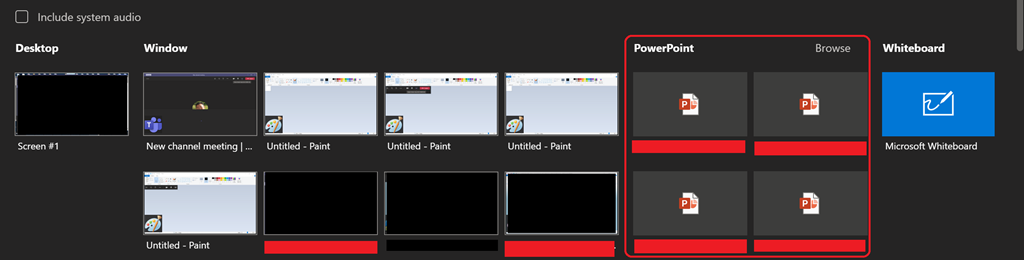
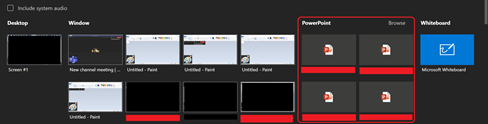
imageAll one needs to do is click the “OPEN SHARE TRAY” button (or CTRL-SHIFT-E)within Microsoft Teams and select the PowerPoint Presentation you need to share – or browse your drive for it.  This will allow you to upload the deck into the Teams session & automatically convert it into an HTML5 presentation, complete with full animations, transitions, etc.
image

Share Tray in Microsoft Teams

Please note that this process may take a few minutes to complete depending on the size of the presentation but the results are excellent and a little forethought/ preparation before presenting should not be a big deal.

WHY IS SCREEN SHARING POWERPOINT SO BAD?
Sharing one’s desktop to deliver a PowerPoint presentation may look okay to you as a presenter, but from the stand point of an attendee (especially those with highly questionable bandwidth or weak QoS at their Internet gateway) pixel-level desktop sharing can take forever to do screen updates when using POWERPNT.EXE, especially at typical 1280×1024 resolutions & 24-bit color depth.

It can also pixelate the screen creating compression artifacts and sections of the screen sometimes will not update until a key frame is sent. This can take a while under low bandwidth situations.

In a phrase, it can be downright painful to view a screen shared PowerPoint presentation & it’s inconsiderate to your audience.

WHAT ARE THE BENEFITS OF UPLOADING THE .PPTX FILE?
When you load the presentation into Teams using “PowerPoint Live”, there are several major benefits for attendees viewing the slides in this manner versus ‘screensharing’ POWERPNT.EXE:

  1. IMMEDIATE SLIDE CHANGES
    All slide changes are immediate, eliminating the annoying pauses & frame rate issues that occur during screensharing while the screen refreshes on a pixel-by-pixel level.  For attendees with crappy bandwidth, a single 1280x1024x64k slide change can take close to a minute.  Meanwhile, the presenter is likely yammering away, while the slide hasn’t even appeared on his attendees screens & has no idea how bad the experience is on their end.
  2. SMOOTH TRANSITIONS & ANIMATIONS
    All animation & transitions are supported and appear smoothly, whereas pixel-sharing can make animations at 1280x1024x64k run at less than a frame per second when delivered over a 64kbps connection, which can happen when the attendee is viewing the presentation with bad Internet access.  When the file is uploaded to the Teams session, the presentation is automatically scaled to the attendee’s local desktop resolution, so the presenter’s desktop resolution isn’t relevant.  (During desktop sharing for things like application demos, smart presenters normally shuttle down their resolution/color depth beforehand to minimize network I/O to the attendees)
  3. VIDEO SHARING WITH NO LAG
    If you “Insert videos” into your PowerPoint deck – either from an MP4 file from your local storage or from an online video from YouTube, Vimeo, or Stream – when presented using PowerPoint Live, your audience’s viewing experience will be smooth, lagless & in sync with your playback during your presentation.  More interestingly, Teams (or the online video service being used) will automatically deliver the best video resolution quality to each participant based on their unique bandwidth.
  4. CLIENT-SIDE SLIDE CACHING
    The attendee’s Teams client will pre-cache the entire PowerPoint presentation on the attendee’s machine locally and display the first presentable slide immediately, making bandwidth usage irrelevant after the initial slides of the deck are cached.  This allows presenter slide changes to occur immediately on the attendee’s screens & also provide…
  5. SLIDE LOOKAHEAD/LOOKBACK
    If an attendee wants to look back at a previous slide, they have the ability to do so unless the presenter specifically restricts them from doing so.  This gives them freedom to review the content on their own & better understand the presenter’s point.
    (BTW Presenters need to get over the fear of “attendees looking ahead” and “not being focused”. If folks want to look ahead, that’s great – they’re curious.  If they don’t like what they see, why should they linger & waste their time?  If they refer back to previous slides, it gives them an opportunity to review & better understand you content.  Stop treating your audience like “captives” to control.)
  6. POWERPOINT DECK DOWNLOAD
    Once uploaded to Teams, it’s stored in the following directory in your OneDrive for Business:
    C:\Users\<username>\OneDrive – Microsoft\Microsoft Teams Chat Files

    Since it’s already in your OneDrive for Business, it’s simple to share the deck with your audience so they can download the .PPTX for their offline use, which is a common request from attendees.

imageFind all the new Microsoft Teams updates, events, and resources here!

NEW! Teams 101 and power user demos

Interactive demos

In the spirit of helping our customers embrace remote work with Microsoft Teams, we’ve consolidated the top Teams trainings resources on a new website and launched a sweepstakes for end users. 

Visit page

Teams virtual Trainings

Virtual Trainings for end users

Join us to learn the basics of how to use Teams to chat with your colleagues and collaborate on projects through a series of live demonstrations and best practices.

Find a training here

Cloud Skills Challenge

Self-paced trainings

The Microsoft Cloud Skills Challenge is a 30 day accelerated learning environment that puts you against other industry pros in a race for knowledge and leaderboard superiority. Complete The Microsoft Teams modules to compete against others, expand your skillset, and win some swag.

Sign Up Now

Teams empower hour: Broadcast live events

On-Demand webinar

Join us to learn how to produce a Microsoft Teams Live Event. It’s simple to broadcast video and meeting content to a very large online audience (up to 10,000 attendees).

Watch now

Enable remote work in financial services with Teams

On-Demand webinar

Join this webinar for concrete examples of Teams at work in these scenarios and more financial services industry specific contexts.

Watch now

Tackling Remote Work with Microsoft Teams

On-Demand Webinar

With all the moving parts involved in starting, managing, and completing projects, how do you make sure nothing falls through the cracks? There is a better way to communicate with all your stakeholders, drive deadlines, and share files.

Watch now

Teams Virtual CIEs

Virtual Trainings

Online guided trainings to learn how Teams can bring everything together in a shared workspace where you can chat, meet, share files, and work with business apps.

Register Here

imageWe just released our MIP and Compliance deployment acceleration guide.

This guide will help you understand, plan and accelerate your information protection and compliance deployment. Doc is available for download here. (31 pgs)

Link to blog: https://techcommunity.microsoft.com/t5/security-privacy-and-compliance/microsoft-information-protection-and-compliance-deployment/ba-p/1403493#M1504

Nuff said.

image

« Newer Posts - Older Posts »

Categories