Everyone’s got contacts.  Very few people share them.

  • Interested in hosting a list of Contacts in Teams/SharePoint Online so everyone can see them?
  • Wish anyone could sync those Contacts to a separate contacts database in their installations of Outlook?
  • Now imagine editing those Contacts within Outlook & having those changes synced back to the online database for everyone else to receive?

Creating shared contacts databases appears to be a lost art but can be very useful when sharing contacts with everyone in a group.

CREATING A CONTACTS DATABASE IN MICROSOFT TEAMS/SHAREPOINT ONLINE
Here’s some basic steps to creating an initial Contacts database.  The first few steps are only for Microsoft Teams users to find the SharePoint Online site associated with their Microsoft Teams channel.  The remaining steps are for SharePoint Online.

For Microsoft Teams only:
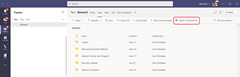
      1. imageOpen Microsoft Teams & go to the Teams Channel in which you wish to create the Contacts database.
        At the top of the screen you should see a menu with “Posts, Files, Wiki”, etc.
      2. Click the FILES tab at the top of the screen.  A submenu should appear showing “New, Upload, Sync", etc.
      3. Click “Open in SharePoint” in the Submenu that appears. If you don’t see this, click on the “…” to reveal “Open in SharePoint” and select it.
        This should open a browser to reveal the SharePoint Online site associated with the Microsoft Team you’ve selected.

For SharePoint Online:

    1. Go to the SharePoint Online site you wish to build the Contacts database in.

For both Teams/SharePoint Online –
Creating the Contacts Database:

  1. Click Home.  This step is important!  Clicking Home will reveal a special “+New” button on the screen that will allow you to create a new “App”.
  2. Click “+New” & select “App”.
    (Note: You must have clicked “Home” prior for “App” to be displayed as a selection.)
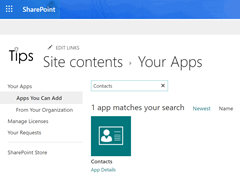
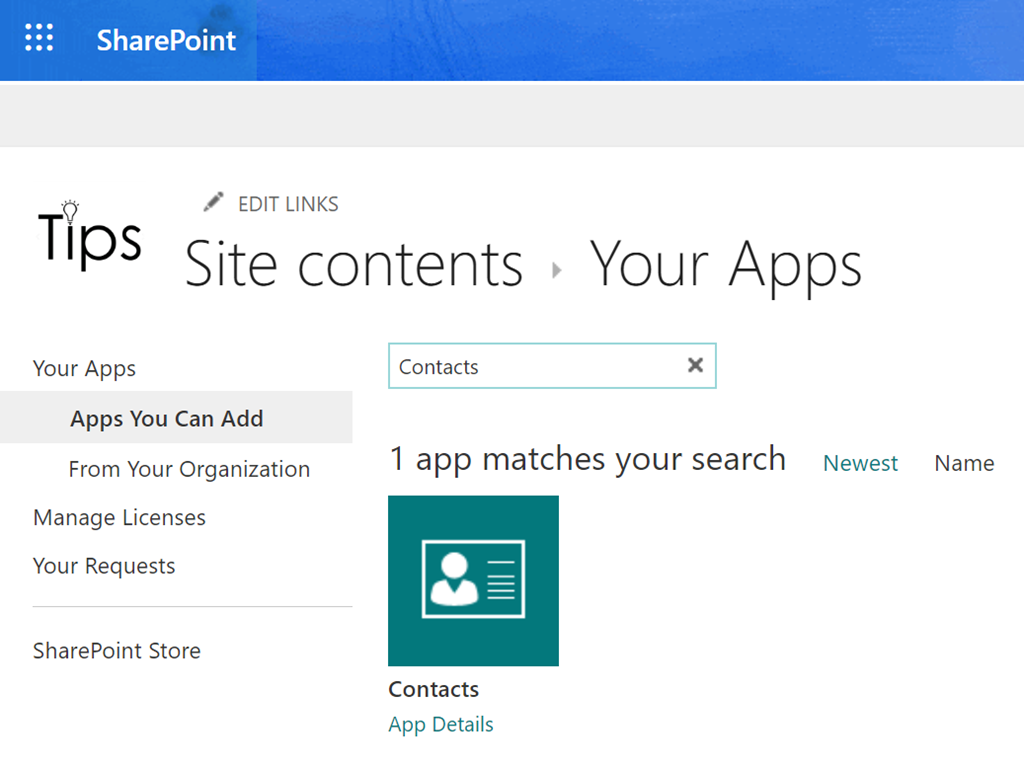
  3. imageClick the “Find an app” field & type “Contacts” & hit ENTER.
    This will search the possible apps for a Contacts database.
  4. Select “Contacts
      1. imageComplete the “Adding Contacts” dialog box by filling in the “Name” field and click the “Create” button.
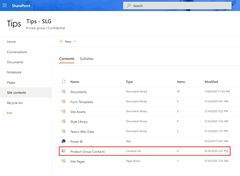
        Once completed, you will see a list of Site Contents for your SharePoint Online site. This should include an item of type “Contacts”
      2. Click on the Contacts database you just created in the list. You’ll be taken to a web view of the contacts in the database.
        (There’ of course won’t be anything in the database list yet.  If you want to create a sample contact entry, click on “+New” and create a new sample contact)
Changing the List View of the Contacts list [OPTIONAL]
This is purely cosmetic however the default web view for each Contacts entry is not very useful and displays the following columns for all contacts at first:

  • Attachments
  • Title (Mr./Mrs./Ms.)
  • First Name
  • Company
  • Business Phone
  • Home Phone
  • Email Address

It doesn’t display last name, job title, mobile phone, etc.  imageTo change this, do the following from the Web View of your Contacts database:
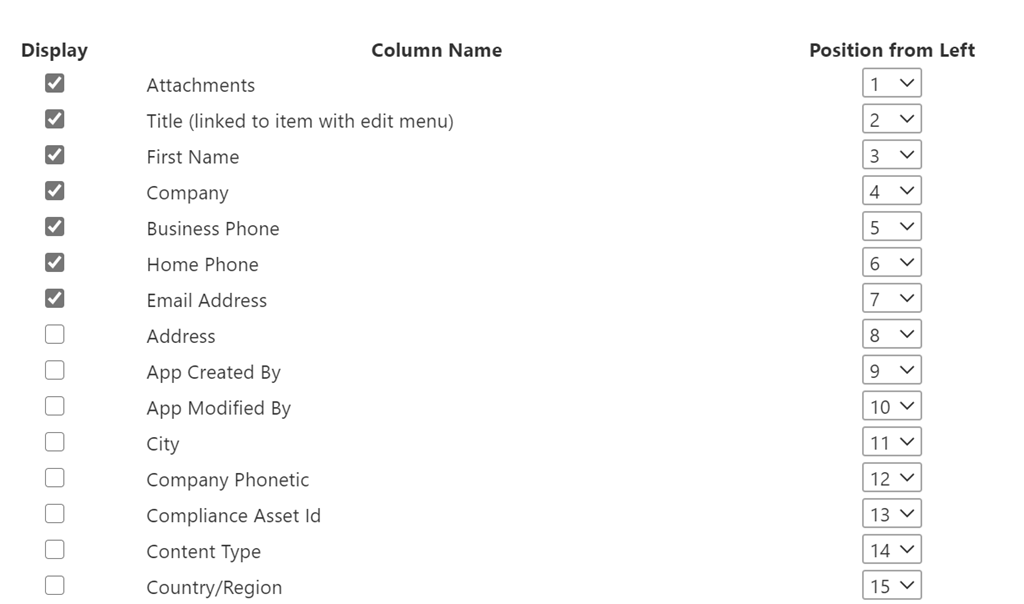
    1. Click “All Contacts” drop down list in the upper right hand corner.  You’ll be given a list of options.
    2. Click “Edit current view”.  You’ll be given a list of Columns to display in the view.
    3. Uncheck the columns/contact fields you don’t want to display and check those you do. Personally, I uncheck everything and then select:
          1. Full Name
          2. Job Title
          3. Company
          4. Email Address
          5. Business Phone
          6. Mobile Phone
          7. City
    4. Reorder the list of Columns by enumerating them in the “Position from the Left” column.
    5. Click OK to save this view.

COMING UP NEXT…
In the next blog entry, I’ll explain how to set up synchronization of the empty Contacts database with your local installation of Outlook so you can start copying Contacts into it.
image

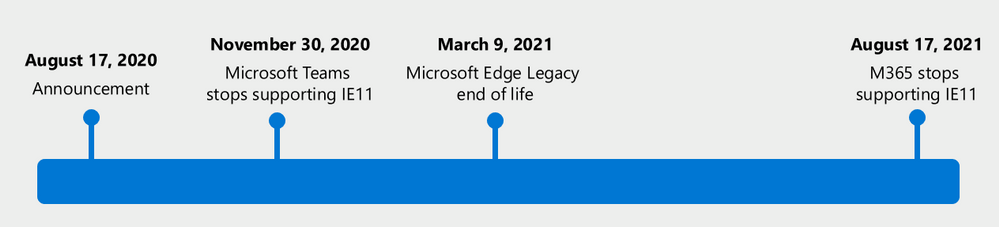
Enterprises & government agencies should start moving to Microsoft Edge (Chromium) “with IE Mode” & away from Internet Explorer 11 & Microsoft Edge (Legacy).

Why?

  • Microsoft Teams web app will no longer support IE 11, beginning November 30, 2020
  • All Microsoft 365 apps and services will no longer support IE 11, beginning August 17, 2021.

To be clear:

  • IE 11 will still work & be supported by Microsoft support as part of Windows.
  • IE 11 will no longer be tested or assured to function with Microsoft 365 services such as:
        • Microsoft Teams web client
        • Microsoft Outlook web client
        • Any of the Microsoft 365 services such as SharePoint Online, OneDrive for Business, Yammer Enterprise, etc.

The Trident HTML engine is basically no longer supported.  This means that Edge Chromium “IE mode” will ALSO not be a supported means of accessing Microsoft 365 services either:

Note: Using Internet Explorer mode in the new Microsoft Edge will not help to extend IE 11 access to Microsoft 365 apps and services beyond the dates listed above. Microsoft 365 apps and services will stop supporting IE 11 on the dates listed.

For more details, including information on how to get help to transitioning to the new Edge Chromium, read the announcement here:

Posted by: kurtsh | August 15, 2020

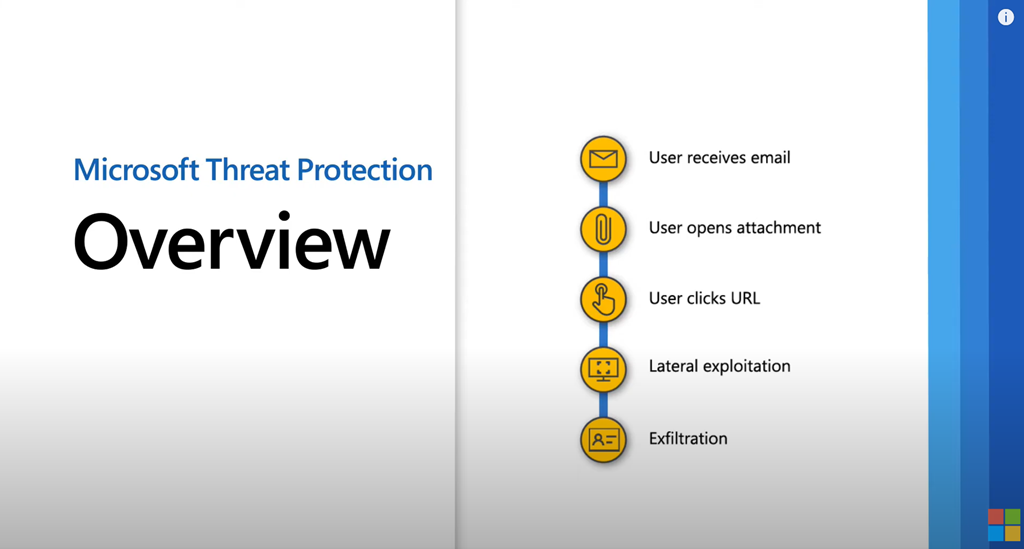
VIDEO: Microsoft Threat Protection Overview

Learn how Microsoft Threat Protection can help you secure attack vectors across users, endpoints, cloud apps, and data.

imageMicrosoft Threat Protection (MTP) is an integrated experience with AI and automation built in that’s also built on our best-in-class Microsoft 365 threat protection services and pools their collective knowledge and capabilities to accrue to something even better. It leverages and integrates these services’ industry-leading prevention, detection, investigation, and response techniques to help secure attack vectors across users, endpoints, cloud apps, and data. Empower defenders to move from reacting to employing their unique expertise to keep bad actors out.

View the overview here:

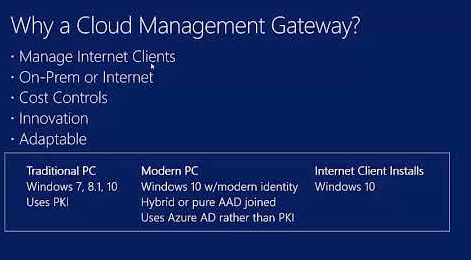
imageA question I’ve gotten numerous times – enough that I’ve noticed – from customers is, “How much does SCCM Cloud Management Gateway cost in Azure consumption?”

If I’m being honest, I realize that this is a necessary question to be answered but it sort of ruffled my feathers because these things are so difficult to estimate given the variables in play:  Number of clients, need for high availability, size of packages to distribute, bandwidth costs, availability of reserved instances, etc.

But at the end of the day, the cost is never a lot.  Usually something like $200-$500/mo in Azure charge for a 10,000+ client configuration.

Well, Configuration Management expert, Johan Arwidmark answered the question for us by exposing all the costs for each variable allowing people to figure out what their estimated costs would be for an implementation in their environment:

A few days ago I asked my fellow tweeps for some real-world numbers of the cost of using the pretty amazing CMG feature for ConfigMgr. The CMG Platform as a Service (PaaS) is using a A2 V2 instance which will determine the minimum cost, but, obviously, the price will vary depending on usage, downloads, and storage costs etc.

Typically the CMG costs around $100 per month per instance, no matter if you’re managing 50 devices or 5000 you will pay that fee. Data is then so cheap ($0.087 at its most expensive) that it doesn’t really add much to the total cost for smaller environments.

Note: CMG does support BranchCache, and if you have remote branch offices where clients are using a CMG, you can reduce the download cost quite a bit by leveraging peer to peer.

TL;DR: Using a CMG is in general not very expensive at all.

The Numbers
Below is what I got so far, but if you can, please share your numbers in the comments below, and I’ll update the post.

Read more about his analysis here:

imageWhether you’re a developer or an administrator, you’ll find everything you need to know about deploying and managing Linux workloads on Azure in this e-book.

This complimentary e-book provides comprehensive technical guidance on how to:

  • Keep using the same Linux tools and commands that you’re used to on Azure.
  • Use Ansible to manage your Linux instances in Azure cloud environments.
  • Automate Linux deployments with Azure Resource Manager and PowerShell.
  • Enhance your Linux security and use Azure identity management services.
  • Manage containers in Azure environments.

Azure supports most common Linux distributions, including Red Hat, SUSE, Ubuntu, CentOS, Debian, and CoreOS—and more supported distributions are on the way.

Download it here:

imageWe created a comic book that explains what Azure Static Web Apps are and how to use them.

A developer has been tasked by his professor to update the website for an upcoming seminar, migrating to the cloud and automating deployment (Probably a similar situation that most of us can relate to!)

He struggles but fortunately for him, Sophia, his friend, appears and explains to him how he can publish his site without having to write code, or connect with tokens, or write a yaml. He can now do it with any framework – from Angular, React and Vue.js.

Read more about how he easily solves his problem with Azure Static Web apps.

Grab the entire comic book here:

These Comic Book is illustrations by Ai Minatogawa, Project owner @suzukin, Kudos so many Microsoft Japan members.

Posted by: kurtsh | July 28, 2020

BETA: Microsoft News Bar

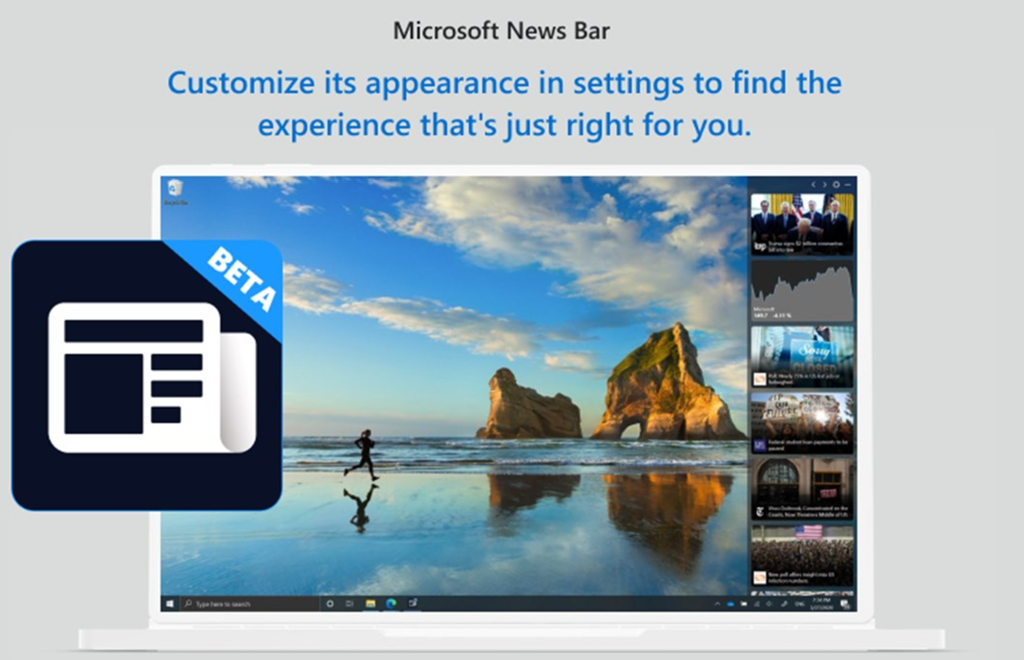
imageThe News Bar brings you the latest news from the Microsoft News network of over 4500 of the world’s most respected journalism brands. In addition, you can configure it to provide you with up to date information throughout the day on your favorite stocks.

Microsoft’s Windows News Bar works just like the Windows Taskbar. It’s there when you need it, where you need it and how you need it.

Customize its appearance in settings to find the experience that’s just right for you. It can be placed on the sides of your display or at the top or bottom.  If you want to focus, don’t worry, you can minimize the News Bar at any time and then bring it back when you’re ready for it again.

The News Bar is in Beta now, try it out and let us know how we can make it better!

Download it for free from the Microsoft Store: (Requires Windows 10 version 17134.0 or higher)

imageExplore what’s possible with Power Automate and Robotic Process Automation (RPA)

  • Automating manual processes 
  • Planning RPA deployment 
  • Preparing for a proof of concept using UI flows

Download the white paper:

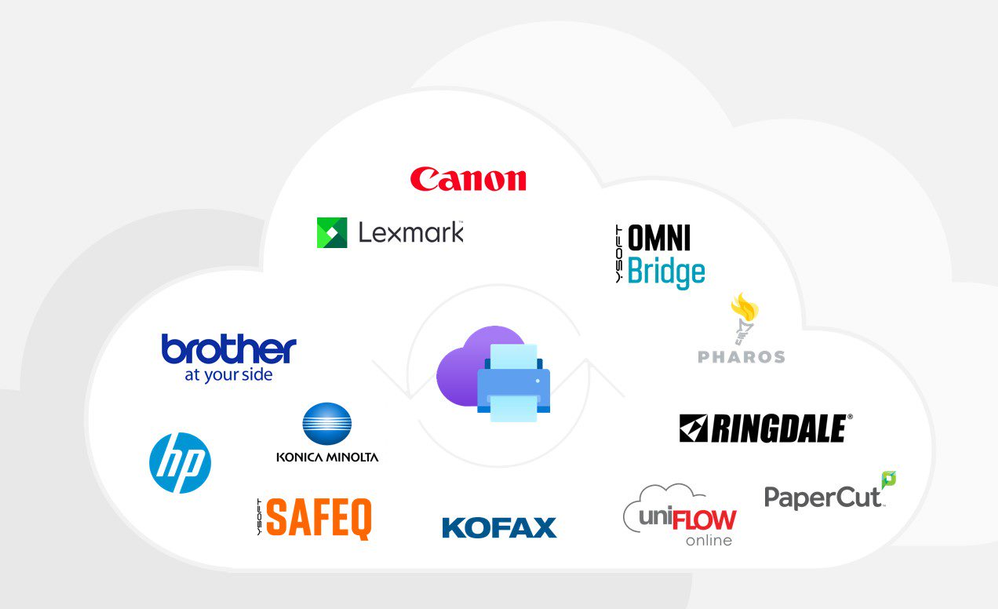
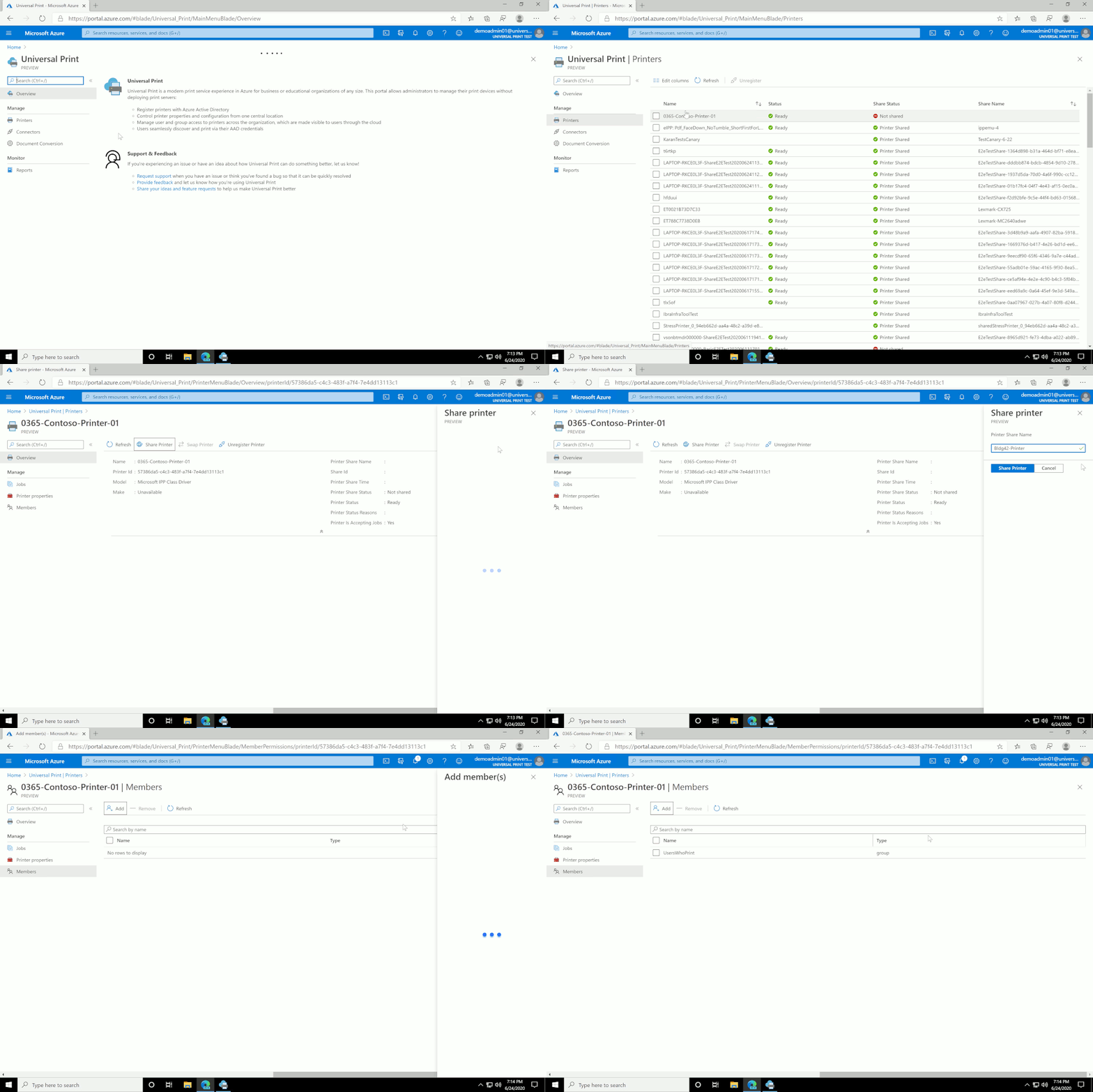
imageToday we are excited to announce the public preview of Universal Print, a Microsoft 365 service that enables an intuitive, rich, and secure print experience for users, while helping IT reduce time and effort.

Organizations moving to the cloud with Microsoft 365 have responded en masse since we announced the private preview of Universal Print in March, and today we have more than 2,500 customers testing the new service. Many of them have accelerated their adoption of cloud services and Universal Print because employees and teachers working from home can now print to company or school printers from anywhere when connected to the internet. While many processes have gone paperless, many critical business processes – especially in education, healthcare, and other industries – still require print.

What is Universal Print?

Universal Print provides a user-friendly, easy print experience that also:

  • Eliminates the need to install printer drivers because it is built into the Windows experience
  • Helps you to find printers both near and outside of your current location
  • Enables print from zero-trust networks via single sign-on (SSO) when connected to the internet and authenticated to Azure Active Directory (Azure AD).

For IT professionals who are managing print, Universal Print offers:

  • A print solution to unblock the move to the cloud and support print for Azure AD users.
  • Managed printing in zero-trust networks.
  • Eliminates the need to manage print servers or the need for complex hybrid print solutions.
  • A centralized portal that enables robust management capabilities.
  • Visibility and insights into your print with reporting.
  • Print data stored in the same manner as other Microsoft Office data, in accordance with Microsoft’s data management guidelines.
  • Printer deployment and default printer configuration on end-user devices using Microsoft Endpoint Manager (Microsoft Intune).

universal-print-gif.gif

Universal Print public preview rolling out globally

We are ready to roll out the Universal Print public preview to data centers in North America, Europe, and Asia Pacific in waves over the next weeks. We will start with Microsoft 365 E5 and A5 tenants, followed by customers who have a Microsoft 365 E3 or A3 subscriptions, and then those who have Windows 10 E3, A3 and E5 only subscriptions. And finally, we will complete the roll-out with Microsoft 365 Business Premium and Microsoft 365 Firstline F3 customers. Details will be published on the Universal Print release page, where you can start your journey with us.

Read more here:

imageEnsuring that sensitive data is protected from risky or inappropriate sharing, transfer, or use has always been a top priority for organizations. The new reality of significant numbers of employees working from home or other remote locations indefinitely has created renewed emphasis on providing strong and coordinated protection on the endpoints they use every day. To help customers accelerate their deployment of a comprehensive information protection strategy across all their environments, we are announcing the public preview of Microsoft Endpoint Data Loss Prevention (DLP).

At Microsoft, we have long invested in developing cutting-edge information protection solutions for our customers. Microsoft Information Protection (MIP) is a built-in, intelligent, unified, and extensible solution that understands and classifies your data, keeps it protected, and prevents data loss across Microsoft 365 apps (e.g., Word, PowerPoint, Excel, Outlook), services (e.g., Microsoft Teams, SharePoint, Exchange), third-party SaaS applications, and more – on premises or in the cloud. Endpoint DLP now extends MIP classification and protection to devices.

Microsoft 365 customers only need to create DLP policies once in the Microsoft 365 compliance center. They can then apply the policies to Exchange, Teams, SharePoint, OneDrive for Business, and now – to endpoints as well. All that is required is for the endpoint to be onboarded in your environment using your established device management onboarding process.

Endpoint DLP identifies and protects information on endpoints. Endpoint DLP does not restrict or limit the use of applications, web browsers, or other services when sensitive data is not present. It delivers three core capabilities: Native protection, seamless deployment, and integrated insights.

Endpoint DLP is native to Windows 10 and the new Microsoft Edge browser. There is no need to install or manage additional DLP software on Windows 10 machines anymore. Providing DLP experiences natively on the endpoint has many benefits.

——–

Endpoint DLP starts rolling out to customers’ tenants in Microsoft 365 E5/A5, Microsoft 365 E5/A5 Compliance, and Microsoft 365 E5/A5 Information Protection and Governance.

For more information, visit:

« Newer Posts - Older Posts »

Categories