When emailing out Outlook Meeting Invites to groups of people who don’t know each other, you may not want their email addresses exposed on the To: line of the Outlook invite to maintain the privacy of those you’ve invited – especially if the invitees are from different organizations.
Additionally, for Teams Meetings, you may want to hide the identities of the people that have joined so others can’t see their names or email addresses.
Both of these privacy-protecting features are available through Microsoft 365.

HIDE ATTENDEE LIST IN OUTLOOK MEETING INVITE
To “Hide Attendee List” for an Outlook Meeting Invite to protect customer privacy, you MUST first use “Outlook Web Access” or the “New Outlook”.
- Create the Outlook meeting from the Outlook Web/New Outlook Calendar. (Again, you cannot do this from “Classic Outlook”)
- Turn on the “Teams Meeting” switch.
- Enter in the attendee names in the Attendee field
- Click the dropdown next to the Attendees field and select “Hide attendee list”
Now customers will only see their email address in the To: line when they receive the invite.
HIDE ATTENDEES NAMES DURING TEAMS MEETING
(Hide attendee names in Microsoft Teams meetings and webinars)
Before you SEND, you should also “Hide attendee names” in the actual Teams Meeting options for customer privacy during the meeting.
1. Go the Outlook meeting from the Calendar from “Outlook Web Access” or the “New Outlook”.
(You cannot do this from “Classic Outlook”)
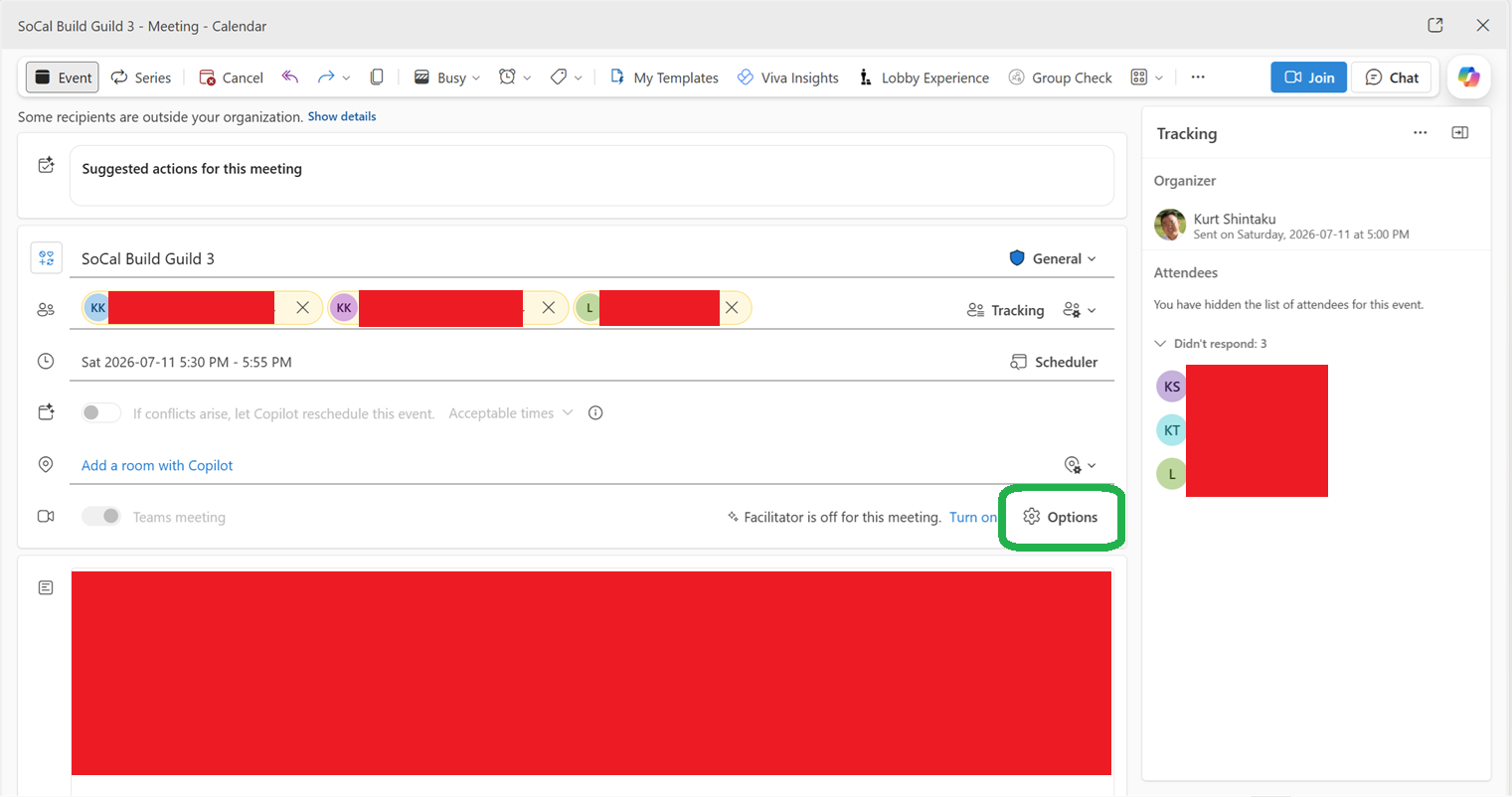
2. Go to the Click the “Options” button for the Teams Meeting.
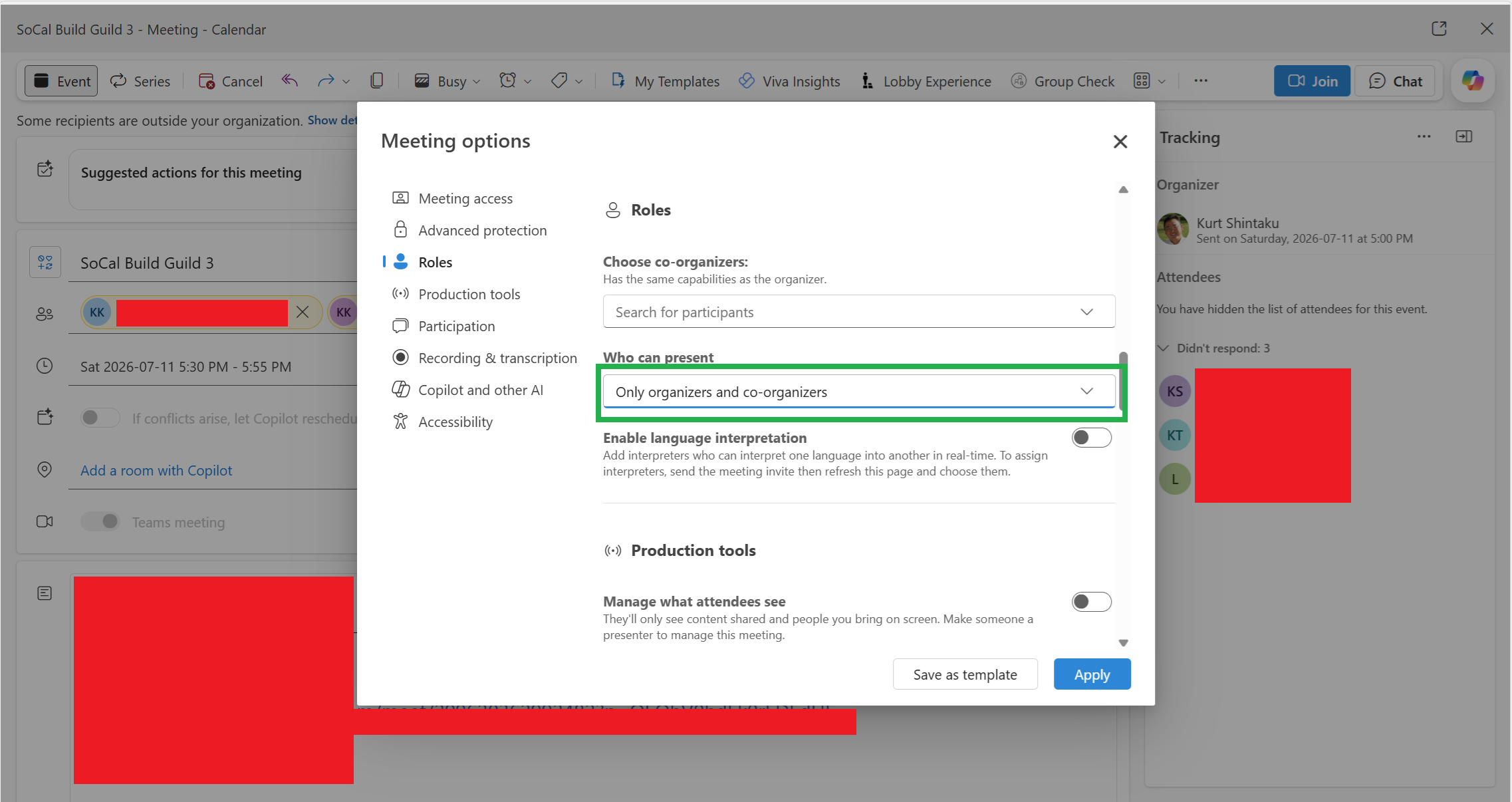
3. Under “Roles”, set “Who can present” to “Only organizers and co-organizers”
4. Under “Participation”, turn on “Hide attendee names”
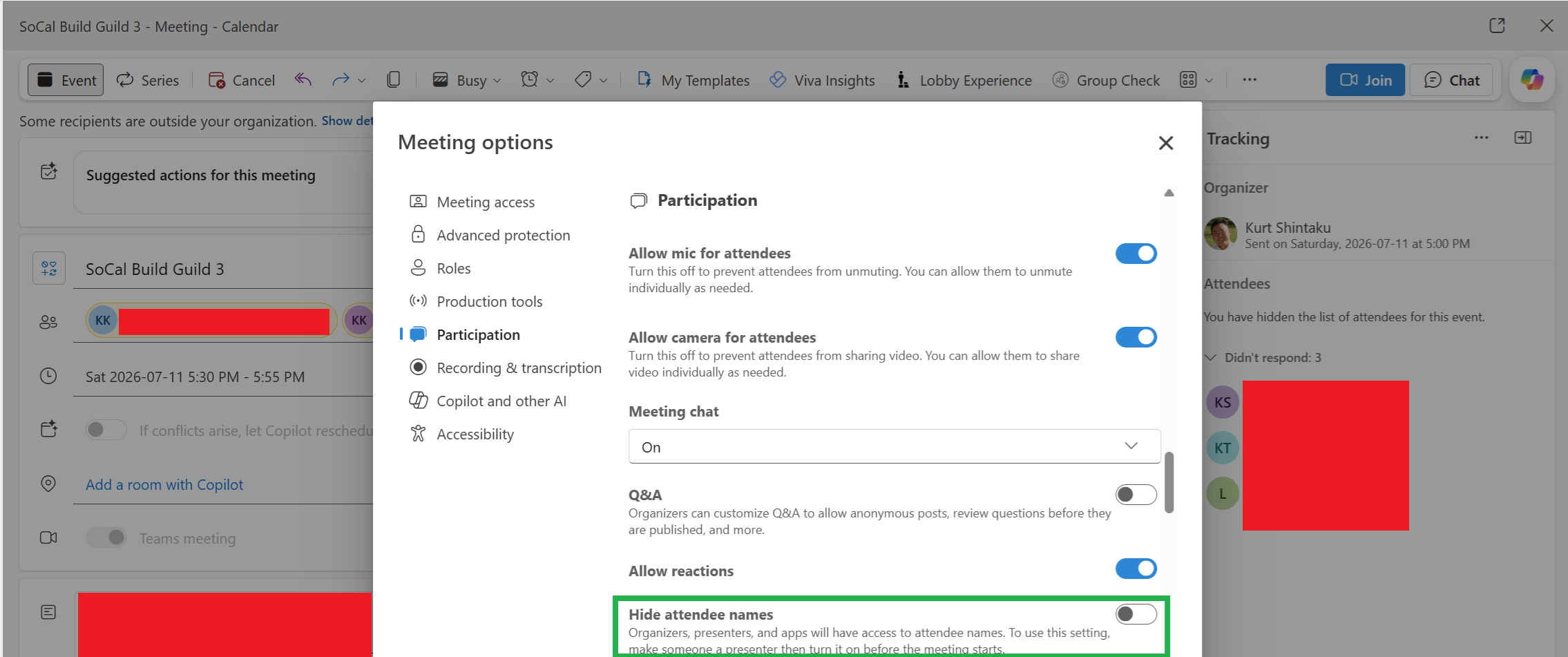
Now customers will not see other attendee’s email addresses/identities. They will only see their own email address & the identities of the Presenters/Organizers.
 kurtsh


You must be logged in to post a comment.