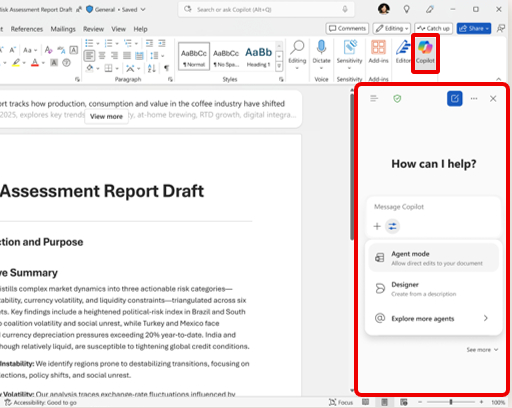
On April 15, 2026, for Microsoft 365 subscribers with >2000 users, the following changes will take place for “Copilot Chat (Basic)” users, formerly called “Copilot Chat”:
- “Copilot Chat (Basic)” will not be available directly within Word, Excel, PowerPoint & OneNote applications – meaning there will be no button & no rail panel. See image to the right for what will be removed from these applications.
- Copilot Chat (Basic) will continue to be available in the Outlook application to reason over email & calendar appointments.
- Copilot Chat (Basic) users will be granted “Standard Access” which limits performance to service capacity available throughout the day,
- The label “Copilot Chat (Basic)” will be seen in the Microsoft 365 Copilot App to clearly identify the user’s experience.
- Word, Excel & PowerPoint Agents will continue to be available however ONLY within the Microsoft 365 Copilot App.
There are no changes for licensed users of Microsoft 365 Copilot – aka “M365 Copilot (Premium)”. For a comparison of “Copilot Chat (Basic)” and “Microsoft 365 Copilot (Premium)”, visit: How Copilot Chat works with and without a Microsoft 365 Copilot license
The following is the Message Center message that describes this change – MC1253858 – sent out on March 16th to Microsoft 365 Commercial customers that belong to subscribers larger than 2000 users. You may have a different Message Center notice depending on your configuration:
- MC1253856 – Government Community Cloud (G3/G5) over 2000 users
- MC1253857 – Government Community Cloud (G3/G5) under 2000 users
- MC1253858 – Commercial (E3/E5) over 2000 users
- MC1253863 – Commercial (E3/E5) under 2000 users
Microsoft 365 Copilot Chat – Updates to Copilot in Word, Excel, PowerPoint, and OneNote
MC1253858
This post describes changes we’re making for Copilot Chat users without a Microsoft 365 Copilot license. There are no changes for users with a Microsoft 365 Copilot license.
Starting April 15, 2026, Copilot will no longer be available in Word, Excel, PowerPoint, and OneNote for Copilot Chat users. To ensure a high-quality experience, we are reserving the full Copilot experience in these apps—with advanced reasoning and model choice—for users with a paid Microsoft 365 Copilot license. If you would like users to access these experiences, you can provide a Microsoft 365 Copilot license.
There are no other changes for users without a Microsoft 365 Copilot license. Copilot Chat still offers secure, AI web chat and the Word, Excel, and PowerPoint agents for chat-first content creation within the Microsoft 365 Copilot app. Additionally, users still get Copilot in Outlook with inbox and calendar grounding.
We are also adding in-product labels to help end users and admins identify their user experience. We are labeling the experience for users without a Microsoft 365 Copilot license as “Copilot Chat (Basic)” and labeling the experience for users with a Microsoft 365 Copilot license as “M365 Copilot (Premium)”.
If you would like to further discuss this change, please work with your Microsoft sales representative or Microsoft reseller to learn more.
When will this happen:
These changes will go into effect starting April 15, 2026.
How this affects your organization:
Who is affected:
- Affected users are those without a Microsoft 365 Copilot license. There are no changes for users with a Microsoft 365 Copilot license.
What will happen:
- Copilot will no longer be available in Word, Excel, PowerPoint, and OneNote. It will remain available in the Microsoft 365 Copilot app and Outlook.
- Users will see the “Copilot Chat (Basic)” label in-product to help them identify their experience.
What you can do to prepare:
These changes will take effect April 15, 2026. No action is required for this change.
If you want to enable Copilot in Word, Excel, PowerPoint, and OneNote for these users, you can provide them with Microsoft 365 Copilot licenses.
 kurtsh
 Kurt Shintaku's Blog
You must be logged in to post a comment.