Recently, I’ve gotten an unusually large number of inquiries from customers about a change to Teams, where the “animation” setting was removed & instead the Teams client defaults to the system setting in the operating system in either Windows or MacOS.
Microsoft 365 Administrators were notified of this change back a few months ago in the Microsoft 365 Message Center (through the Microsoft 365 Admin Portal) however the message was recently updated on April 16th to reflect the full deployment. Below is the MC Message number & description for COMMERCIAL cloud instances. (For government customers, I don’t have immediate access to the GCC message but I’m sure it’s similar.)
MC1056991 – Microsoft Teams: Use OS-level animation settings instead of Teams-level animation settings
Summary
Microsoft Teams has removed its animation setting, now relying on the OS-level animation settings in Windows and macOS. This change is automatic and requires no admin action. It applies to Teams for Windows desktop, Mac desktop, and the web. Notify users and update documentation as needed.
More information
We have removed the Animation setting in Microsoft Teams. Instead, users can configure animations at the operating system (OS) level. If users disable animations in Microsoft Windows or macOS, Teams will honor that preference. This means users no longer need a separate setting in Teams to control animations. We will not reinstate the Teams-level animation control. Moving forward, Teams will rely entirely on the OS setting for animation preferences.
This message applies to Teams for Windows desktop, Teams for Mac desktop, and Teams for the web.
When this will happen:
General Availability (Worldwide): Available now.
How this will affect your organization:
This change is on by default.
What you need to do to prepare:
This change happened automatically. No admin action is required. Review your current configuration to assess the impact on your organization. You may want to notify your users about this change and update any relevant documentation
——————————————————
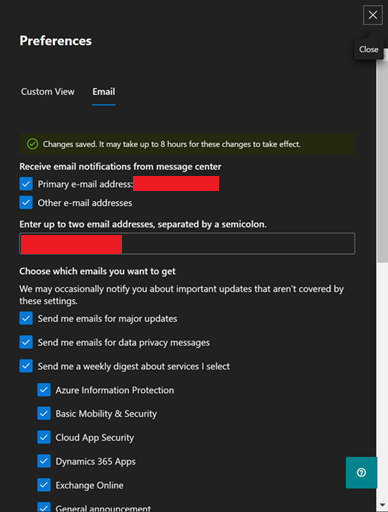
For future reference, Microsoft 365 administrators should be monitoring the Message Center daily to avoid surprises. If an admin wants email notifications on all or some of the messages, they should set that up through the Message Center email notification service. It’s also possible to “just get Microsoft Teams changes” notifications through filters. I’ve outlined how to do this here:
- DOCS: Filter & set Preferences for receiving “email notifications from message center”
https://learn.microsoft.com/en-us/microsoft-365/admin/manage/message-center?view=o365-worldwide#preferences - HOWTO: Be notified of new posts in the Microsoft 365 Admin Message Center | Kurt Shintaku’s Blog
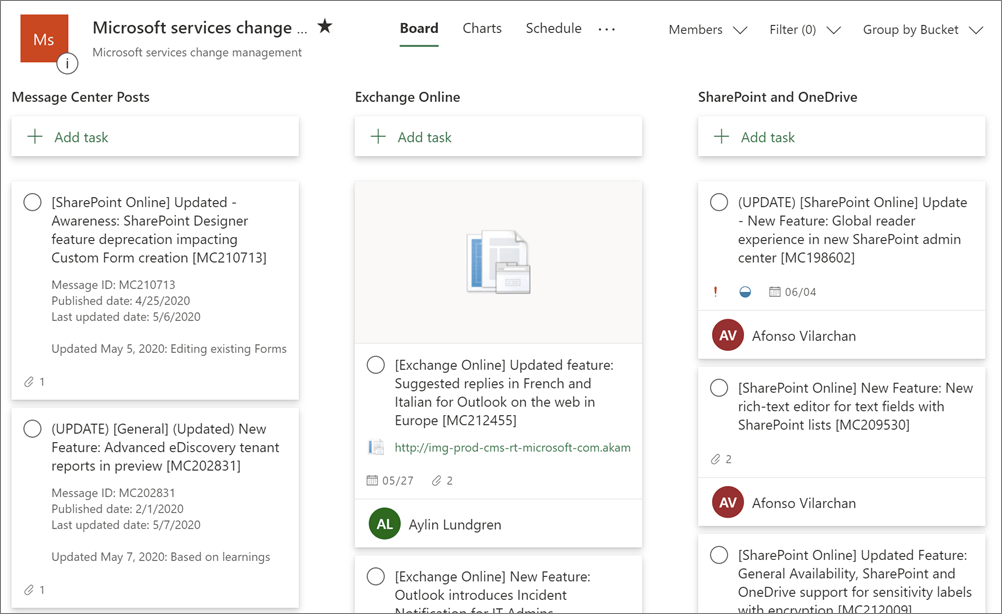
Additionally, Microsoft 365 Admins can also sync Message Center posts to Microsoft Planner. I documented how this is done here:
- DOCS: Track your message center tasks in Planner
https://learn.microsoft.com/en-us/planner/track-message-center-tasks-planner?source=recommendations - HOWTO: Syncing Office 365 Updates from Message Center to Microsoft Planner | Kurt Shintaku’s Blog
For more information around how to “stay on top of Microsoft 365 changes”, please review the following documentation:
- DOCS: Stay on top of Microsoft 365 product and feature changes
https://learn.microsoft.com/en-us/microsoft-365/admin/manage/stay-on-top-of-updates?view=o365-worldwide
 kurtsh
 Kurt Shintaku's Blog
You must be logged in to post a comment.