 Q: I want to be able to type 12/31/30 and have the date be resolved as 12/31/2030 instead of 12/31/1930?
(In the same way that 12/31/29 is resolved to 12/31/2029?)
A: Changing this behavior on a Windows 10/11 workstation by hand is documented in the article below:
Windows 10
1. In the search box on the taskbar, type control panel, and then select Control Panel.
2. Under Clock, Language and Region, click Change date, time, or number formats
3. Click Regional and Language Options.
4. In the Region dialog box, click Additional settings.
5. Click the Date tab.
6. In the When a two-digit year is entered, interpret it as a year between box, change the upper limit for the century.
As you change the upper-limit year, the lower-limit year automatically changes.
7. Click OK.
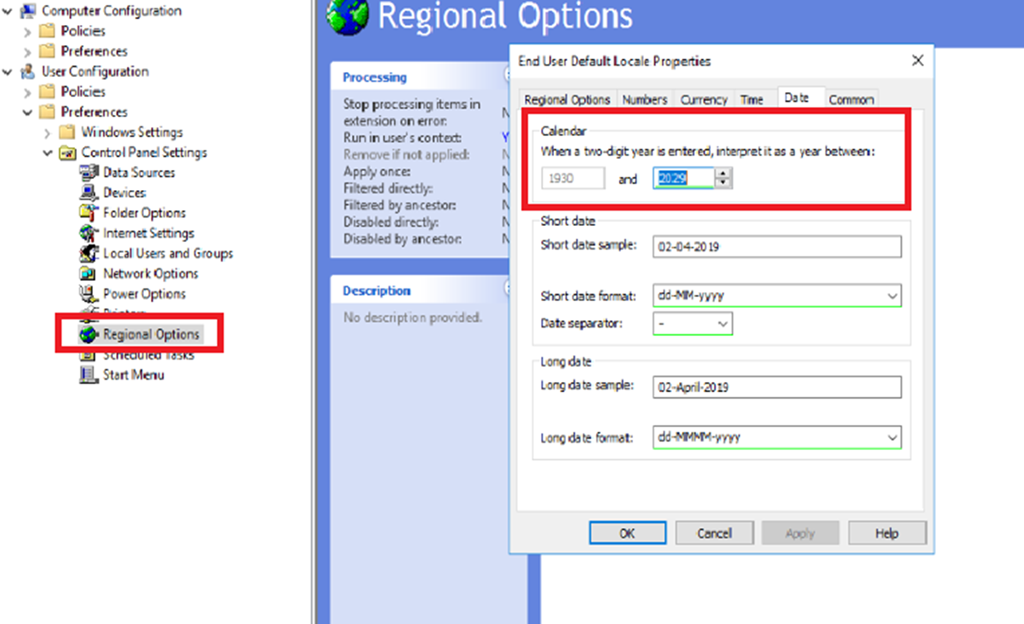
For broader organizational deployment via a Group Policy Object:
- Creating a Group Policy Object to distribute this change organization wide
Applying this across your workstations would require the creation of a Group Policy Object (or modifying an existing one) that makes this change on every workstation.
A general tutorial on how to do this from the “Group Policy Management” console is written about here.
https://theezitguy.wordpress.com/2014/08/07/group-policy-use-regional-settings-to-change-date-format/comment-page-1/
 kurtsh
 Kurt Shintaku's Blog