Our architects here at Microsoft have shared some useful tools for Azure for the Azure Administrator that I’ve found useful & thought I’d share here:
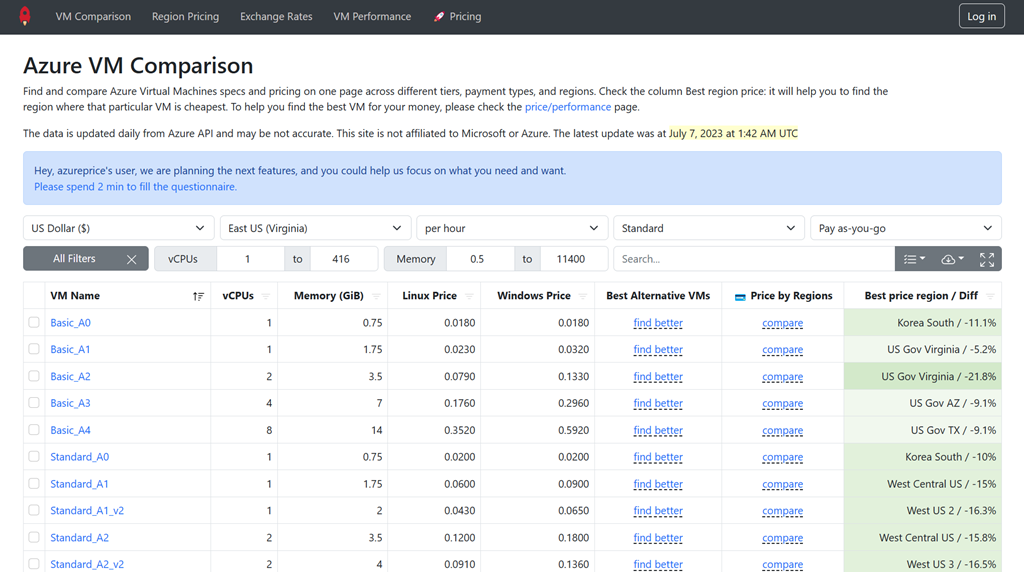 Azure VM Comparison
(https://azureprice.net)
Find and compare Azure Virtual Machines specs and pricing on one page across different tiers, payment types, and regions. Check the column Best region price: it will help you to find the region where that particular VM is cheapest. To help you find the best VM for your money, please check the price/performance page.
 Azure VM Selector
(https://aka.ms/VM-selector)
The Azure VM selector is a web-based tool that helps you identify the right virtual machine (VM) based on your needs and budget. It is localized in 26 languages and available worldwide. Using the VM selector, you can specify your requirements, such as the category of workload you plan to run in Azure, and the technical specifications of your VM (e.g., OS disks storage options, data disks storage performance, Operating System, deployment region, etc.). After a few simple steps, the tool identifies the best VM and disk storage combination based on the information you enter. You will then be able to view the details of the recommended VMs and their prices.
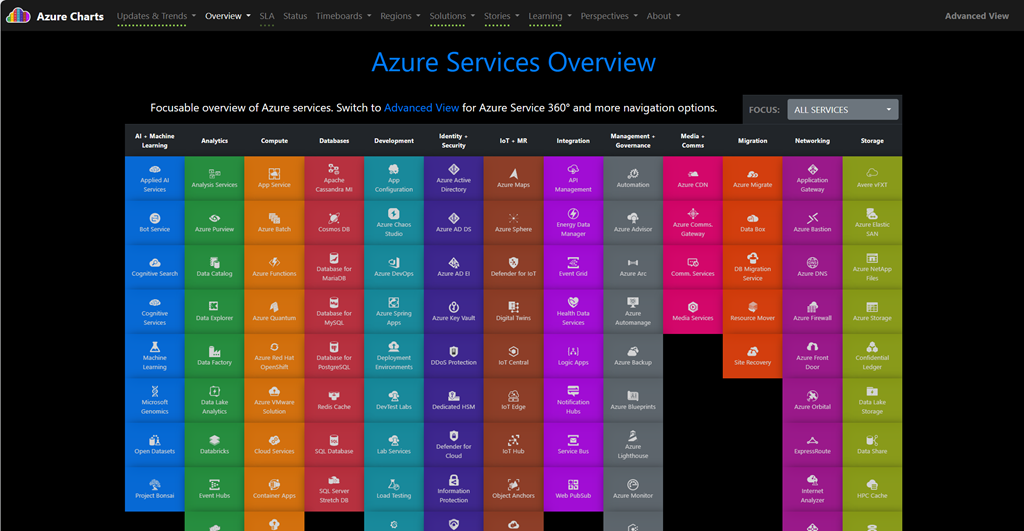 Azure Charts
(https://azurecharts.com/)
Azure Charts is a web-based application that helps you visualize and explore the Azure cloud and its ecosystem. You can use Azure Charts to see the live status, metrics, and trends of Azure services, regions, solutions, and topics. You can also compare different scenarios and options, and learn more about Azure features and best practices. (Azure Charts is a side project created by a Microsoft employee, Alexey Polkovnikov, using public data sources)
 Azure Pricing Calculator
(https://aka.ms/pricing)
The Azure Price Calculator is a tool that helps you estimate the cost of using various Azure services. You can select the services you want to use, specify the configuration and usage details, and then see the estimated cost based on the current prices for those services. You can also compare different scenarios and options to find the best fit for your needs and budget.
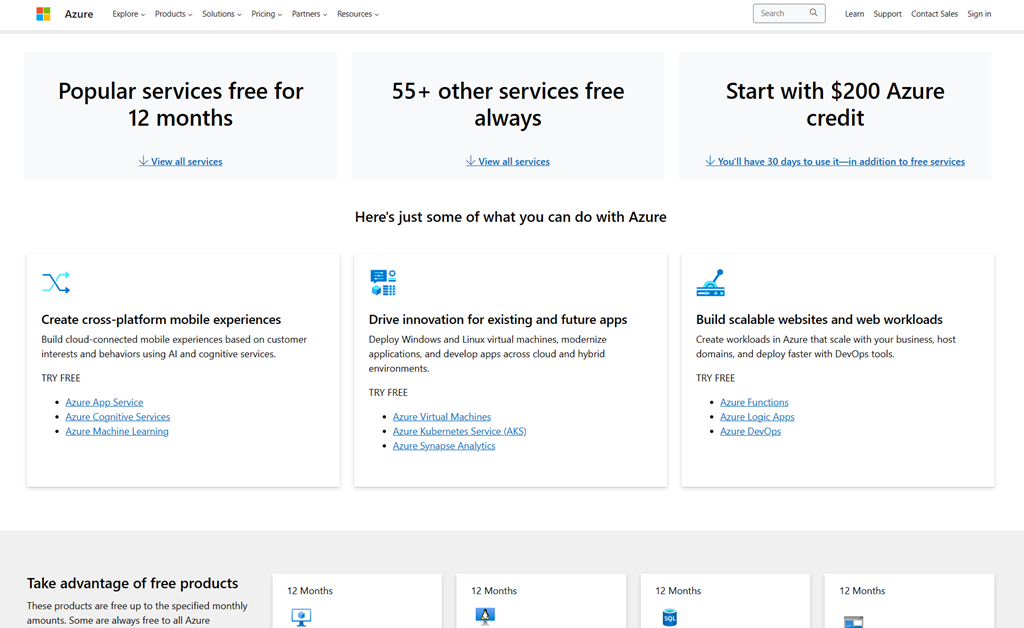 Azure Free
(https://aka.ms/freeazure)
Azure Free is a way to get started with Azure without paying anything. You can create a free account and get $200 in Azure credits for the first 30 days, as well as some services that are always free or free for 12 months. You can use these free services to learn about Azure, build your skills, and test your ideas. Some of the free services you can use are:
- Azure Virtual Machines: Create Windows or Linux virtual machines in the cloud.
- Azure SQL Database: Manage relational data with a fully managed database service.
- Azure Cosmos DB: Build scalable applications with a fast and flexible NoSQL database service.
- Azure App Service: Host web, mobile, or API apps with a fully managed platform.
- Azure Functions: Run code on demand without managing servers or infrastructure.
- Azure Cognitive Services: Add AI capabilities to your apps with smart APIs.
 Azure Mobile App
(Android | iOS)
Azure has a mobile app available on both Android and iOS. The official app is a handy tool to have on hand when away from your PC or office that helps you keep track of your resources while on-the-go:
- Stay connected to the cloud and check status and critical metrics anytime, anywhere
- Stay informed with notifications and alerts about important health issues
- Stay in control of your resources and take corrective actions, like starting and stopping VMs and web apps
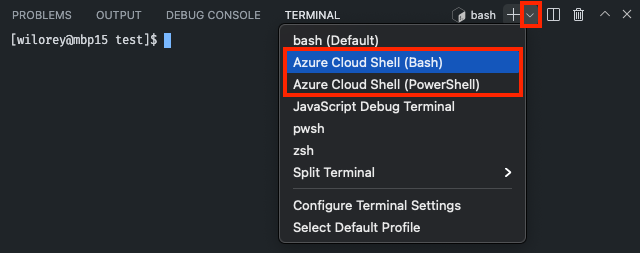 Azure Cloud Shell & Visual Studio Code Azure Account Extension
The Azure Account extension provides a single Azure sign in & subscription filtering experience for all other Azure extensions. It makes Azure’s Cloud Shell service available in VS Code’s integrated terminal.
Azure Cloud Shell itself is an interactive, authenticated, browser-accessible terminal for managing Azure resources. It provides the flexibility of choosing the shell experience that best suits the way you work, either Bash or PowerShell.
Cloud Shell runs on a temporary host provided on a per-session, per-user basis. Your Cloud Shell session times out after 20 minutes without interactive activity. Cloud Shell persists your files in your $HOME location using a 5-GB file share.
(https://marketplace.visualstudio.com/items?itemName=ms-vscode.azure-account)
 Azure Status & Azure Service Health
(https://azure.status.
microsoft/)
(https://aka.ms/
azureservicehealth)
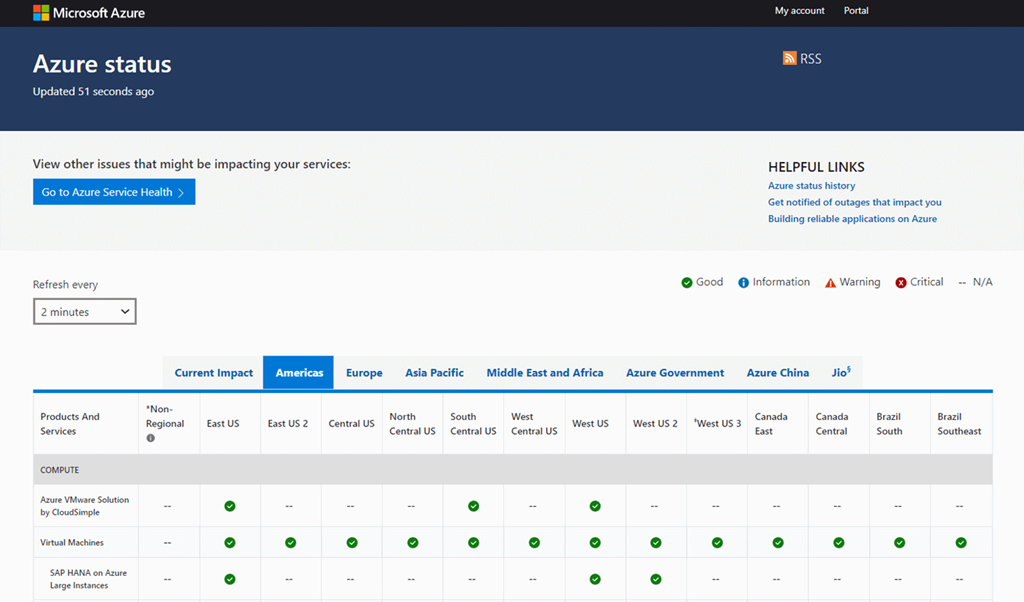
Azure Status provides you with a global view of the health of Azure services and regions. With Azure status, you can get information on service availability. Azure status is available to everyone to view all services that report their service health, as well as incidents with wide-ranging impact.
Azure Service Health provides a personalized experience that includes all outages, upcoming planned maintenance activities, and service advisories.
 Azure Updates
(https://azure.microsoft.
com/en-us/updates/)
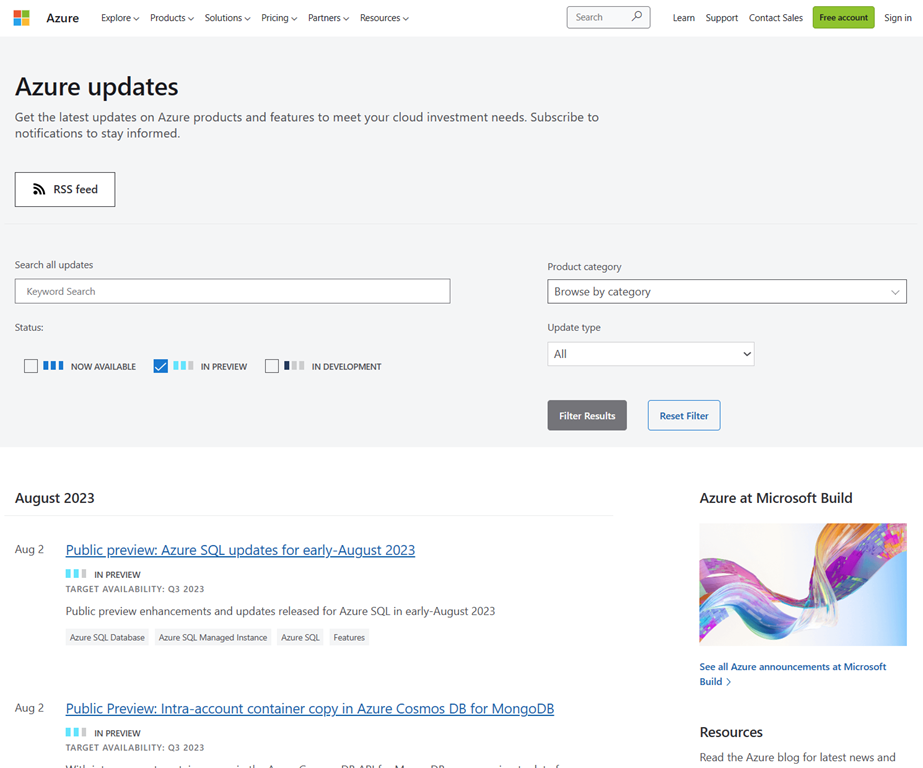
Get the latest updates on Azure products and features to meet your cloud investment needs. Subscribe to notifications to stay informed.
Note: Our Principal Azure Architect, Jay Thakkar, advises users to filter on the “in-preview” & skip the “in-dev” or “now-avail” updates then subscribe to the list via RSS feed to receive daily updates, which is available prominently on the site.
 Azure Architectures
(https://learn.microsoft.com/en-us/azure/architecture/browse/)
Find architecture diagrams and technology descriptions for reference architectures, real world examples of cloud architectures, and solution ideas for common workloads on Azure.
Select from over 800+ pre-created diagrams for various scenarios including:
- Ingest & store medical data in Azure
- Prevent IPv4 exhaustion in Azure
- WordPress on virtual machines, Azure, App Service, AKS
- Deploy Autodesk Maya on a virtual machine
- etc.
 Azure Icons (Official)
(https://learn.microsoft.
com/en-us/azure/architecture/
icons/)
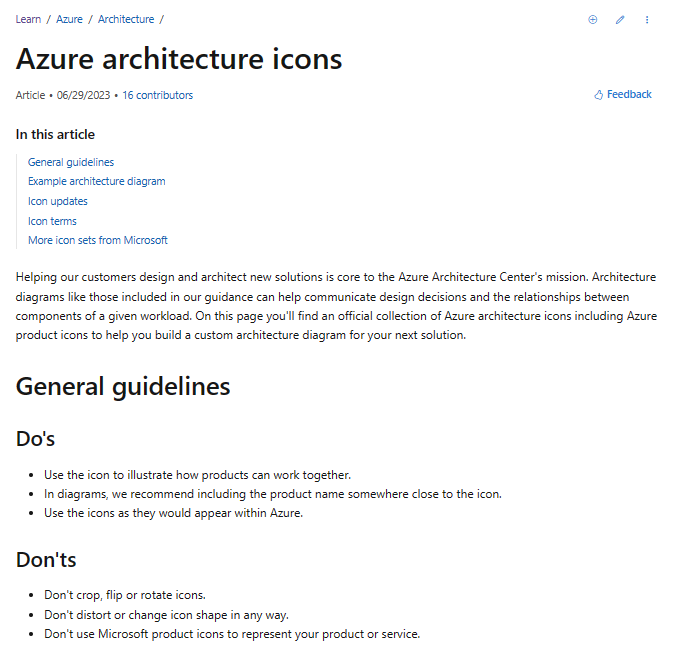
Helping our customers design and architect new solutions is core to the Azure Architecture Center’s mission. Architecture diagrams like those included in our guidance can help communicate design decisions and the relationships between components of a given workload.
On this page you’ll find an official collection of Azure architecture icons including Azure product icons to help you build a custom architecture diagram for your next solution.
Incidentally, we have icon sets for other Microsoft cloud solutions:
 Azure Icons (Unofficial)
https://code.benco.io/icon-collection/azure-icons/
This is a regularly updated set of icons that, according to Principal Azure Architect Jay Thakkar, scrapes all of the PNGs from Azure so you tend to find a lot of the missing icons/services in this collection. He uses this when something is missing from the official icon set.
 Azure Storage Explorer
https://azure.microsoft.
com/en-us/products/storage/
storage-explorer/
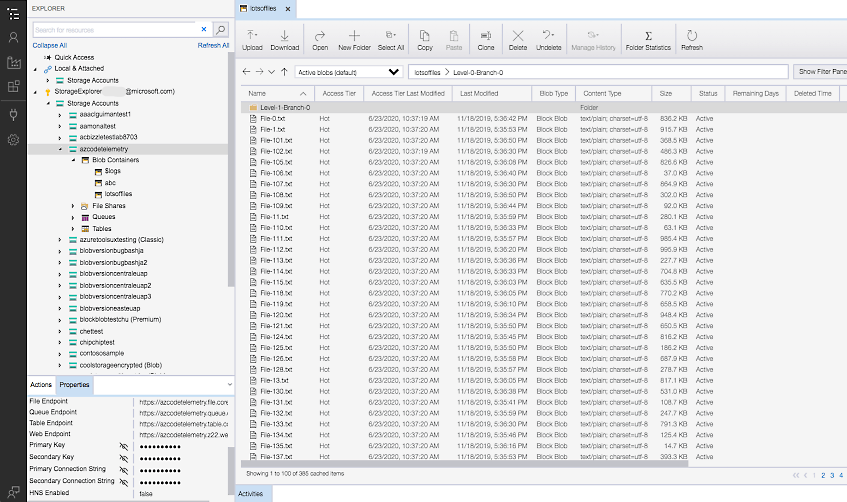
Azure Storage Explorer is a free tool that allows you to easily manage your Azure cloud storage resources from your desktop. You can upload, download, and manage Azure Storage blobs, files, queues, and tables, as well as Azure Data Lake Storage entities and Azure managed disks. You can also connect to individual resources using various authentication methods, such as connection strings, access keys, or Azure Active Directory. Azure Storage Explorer is available for Windows, macOS, and Linux operating systems.
 kurtsh
 Kurt Shintaku's Blog