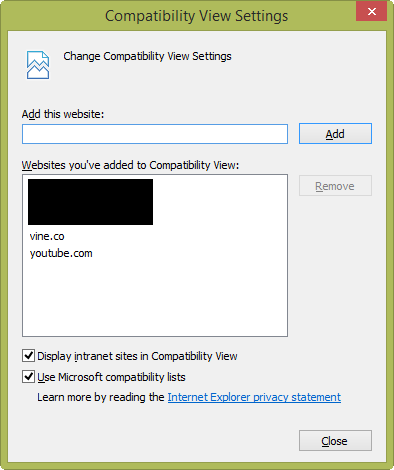
 I don’t know why our Internet Explorer team got rid of the “Compatibility Mode” icon in the toolbar of Internet Explorer 11/Windows 8.1. And this isn’t the time or the place to voice my displeasure about this inconvenience.
What I will explain however is how to quickly implement your own keyboard shortcut that will, in a single keystroke, TURN ON COMPATIBILITY MODE for the current website you’re visiting.
1) Install AutoHotKey which works on Windows XP, Vista, 7, 8, & 8.1. (See my previous post on AutoHotKey’s purpose)
2) Allow it to create the AutoHotkey.ahk script int your “My Documents” folder.
3) Ensure AutoHotKey is running & that it’s icon is in your SysTray. It should look like a green “H”. If not, run it.
4) Edit AutoHotKey.ahk with Notepad from your My Documents folder.
5) Comment out all other instructions by adding a semi-colon (;) at the beginning of each line. For example, I added the “;” to the beginning of the following lines:
;#z::Run http://www.autohotkey.com
;
;^!n::
;IfWinExist Untitled – Notepad
; WinActivate
;else
; Run Notepad
;return6) Add the following to the script.
;PROGRAM CTRL-ALT-Z TO TURN ON COMPATIBILITY MODE
;(EXECUTE THE KEYSTROKES: ALT-T, B, [ENTER], ALT-A, ALT-C)
^!z::
Send !t
Sleep 100
Send b{enter}
Sleep 100
Send !a
Sleep 100
Send !c
return7) Right click on the AutoHotkey icon in the Systray and select “Reload This Script”.
Now when ever you click CTRL-ALT-Z, the web site you’re on will be registered as a site to display in Compatibility Mode. There may be easier ways to do this but this is how I accomplished the task. Enjoy.
 kurtsh
 Kurt Shintaku's Blog