[This is part 2 of a post about NFC for Windows Phone & Windows 7/8.]
NFC is a really interesting and potentially useful technology that Windows Phone 8 & Windows 7/8 users can harness. In this post, I go over starting to use NFC specifically for Windows 7/8, because if you read to the end, you’ll understand that even with Windows Phone 8, you might still need to have a Windows desktop to write some NFC tags.
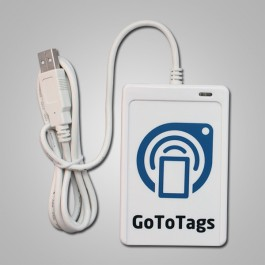 NFC FOR MY WINDOWS DESKTOP/LAPTOP
There’s lots of options for desktop/laptop users. This will become important to understand in just a second. Here are the places I went to for my hardware & software:
- Read/Write NFC hardware for Windows
http://www.buynfctags.com/ - NOTE: I specifically purchased the ACS ACR122U NFC USB Reader and Writer for $45 because it’s really cheap & it’s compatible with the software below.
- Software for Windows
http://support.gototags.com/hc/en-us/articles/200330196-GoToTags-Windows-NFC-App - NOTE: This is an app called “GoToTags Windows NFC App” and it’s completely free. It’s documentation can be a bit lacking however.
There is also a tool from a company called TagStand. I have no idea if it’s any good but they charge $30 for what appears to be built into the the GoToTags Windows NFC app… but the tools is command line which may make it useful for scripting so who knows.
- TagStand: NFC Writer for Windows
Introducing Beta software to read and write to NFC tags for Windows using ACR122U readers. (supports making Ultralight tags read-only (write-protection))
http://writer.tagstand.com/windows
A WORD ON LOCKING/READ-ONLY NFC TAGS
When an NFC tag is locked, the data cannot be modified. Locking a tag is a permanent action and cannot be undone. This is important because without locking a tag however, anyone can change it’s contents when you’re not looking. Imagine the embarrassment of someone changing one of your tags to, say, redirect people to your competitor’s web site. Or overwriting your business card’s tag with something other than your vCard as a prank.
The issue is, locking/Read-only NFC tags is not possible from Windows Phone 8 as the operating system’s libraries don’t support the feature. Therefore in order to create locked, unmodifiable NFC tags, you must do so from another device. This can be accomplished using an USB-connected NFC reader/writer for Windows.
SO… HOW DO I LOCK NFC TAGS USING WINDOWS?
What I did was really simple. I got a USB NFC Reader/Writer – the cheapest one I’ve found is the ACS ACR122U NFC USB Reader and Writer ($45) from GoToTags – and download the FREE GoToTags NFC Windows App.
Then I used my Windows Phone & an NFC writing app to write the NFC tag I wanted. I encoded an NFC tag with a vCard with my contact information in it which was derived by my contact card in Outlook on my Windows Phone. NFC Interactor & Nokia NFC Writer makes doing this very easy.
At this point however, the NFC tag can still be overwritten, so I took the NFC Tag I wrote and used my desktop to read it using the USB Reader I bought & the GoToTags software. The software immediately picked up and loaded the NFC tag’s contents (my vCard) into memory. By default, when you write/encode NFC tags using the GoToTags software, it writes a “read only” NFC tag (something Windows Phone can’t do), so I just simply rewrote what was loaded into memory, write back out to the NFC tag – but this time, it was written “read only”, meaning the tag can’t be changed.
And there you have it. You might ask, why I didn’t just write the vCard on to my NFC tag directly in the first place skipping the Windows Phone process. Well, the GoToTags software doesn’t connect into Outlook so pulling contact data from an Outlook record isn’t possible. Windows Phone’s NFC writing apps however makes that easy.
OTHER WINDOWS PHONE 8 APPS FOR NFC
- NFCsms – Create NFC tags that initiate pre-formatted SMS text messages for the device owner to send
http://www.windowsphone.com/en-us/store/app/nfcsms/55e57a87-d1fd-420a-8f3c-892c0b7da8af - NearSpeak – Store voice messages in NFC tags for others to hear
http://www.windowsphone.com/en-us/store/app/nearspeak/88d56abc-43b5-4be4-ad73-8704eed50157 - Desktop Mode – Initiate a display that shows time/date, weather, and next appt.
http://www.windowsphone.com/en-us/store/app/desktop-mode/49aec48a-2c0d-46d0-8642-ac5d078f087c
REFERENCES:
- The Mopius FAQ for NFC
http://www.mopius.com/faq/ - Documentation on NFC tags
http://www.nfc-phones.org/nfc-tags/
 kurtsh
 Kurt Shintaku's Blog