
The Samsung Series 9 has a large, revolutionary new multitouch ClickPad that supports gestures, multi-touch actions, etc. However it’s configuration for many people needs to be adjusted.
These are the changes I made to improve the ClickPad experience for myself.
————-
Q: Have you ever had to drag-and-drop a file, email or a folder using the ClickPad & found the cursor to be incredibly imprecise?
The following instructions will stabilize your control over the mouse using the ClickPad.
- Click Start-Control Panel-Mouse
- Click “Device Settings” tab
- Click the “Settings” button
- Click “SmartSense” & click the ‘gears’ icon
- Slide “SmartSense” all the way to the right
- Slide “Filter Activation Time” all the way to the left
- [OPTIONAL] Check “Restrict Tapping to zone”
[OPTIONAL] Shrink the zone in the Advanced Filters window to something smaller
(Note these optional settings don’t matter if you disable tapping/follow the instructions below for PROBLEM #2)
EXPLANATION:
Because there’s no discrete left-click button, the pad will often recognize a “left click” (a click of the bottom left part of the ClickPad) as mouse movement on the screen. It’s difficult to get any kind of precision when both your thumb clicks and the fingers are detected as “moving the mouse”. I was once dragging and dropping a large folder within Outlook to another location and accidentally dropped it in the wrong location because the mouse had moved when I “clicked”. Took me a while to figure out where it had gone.
WHY?
The issue is that Samsung Series 9’s ClickPad is configured by default to be a bit too sensitive for me. Any light brush movement on my part would cause the cursor to wiggle, making it inaccurate for many purposes and it doesn’t detect accidental touches very well through it’s default configuration. Turning up this functionality to max solves a lot of problems.
———————-
 Q: Have you ever been typing and seen the cursor just suddenly jump somewhere else?
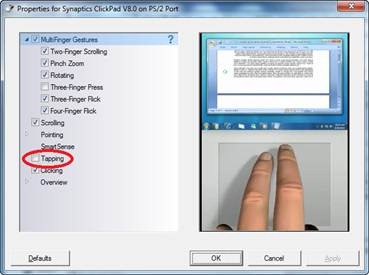
The following instructions will disable the ‘tap to click’ functionality eliminating any possibility that an accidental touch will move the cursor elsewhere. Very useful when you find that the cursor seems to randomly move to other locations in your emails or written documents based on accidentally touching the ClickPad.
- Click Start-Control Panel-Mouse
- Click “Device Settings” tab
- Click the “Settings” button
- Uncheck “Tapping” completely.
- Click OK

 Kurt Shintaku's Blog