 Stuff that annoys the heck out of me about Internet Explorer 9… and how to fix it:
—————————
Tired of Internet Explorer 9 doing a BING search on “MSW” when you type MSW into the URL line?
- Go to Tools (Alt-X)
- Select Internet Options
- Click “Advanced Tab”
- Find “Browsing” settings group & check the box for “Go to an intranet site for a single word entry in the Address bar”.
- Click OK
Wondering why whenever you try to go to LiveMeetings by clicking on the “JOIN” link in schedule requests, instead of going straight to the LiveMeeting client, IE9 keeps popping up the dialog bar below asking you:
“Do you want to open or save launch.rtc (733 bytes) from www112.livemeeting.com?”
- When you see the dialog bar appear, click the “Compatibility View” button next to the Address bar. (Looks like a ‘broken page’ icon) This adds livemeeting.com to the Compatibility View settings.
- Click the “Open” button in the dialog bar. From now on when you open copy/paste Live Meeting link in the browser it will directly open up this option to open Launch.rtc file rather than showing previous option

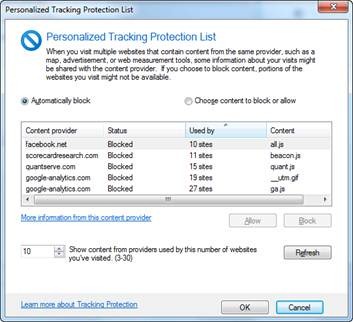 Wanna stop all those popup messages that keep bypassing our popup filter?
(or… Wanna stop Google from tracking you movement on the Internet?)
- Go to Tools (Alt-X)
- Click SAFETY then Tracking Protection menu options.
- Click on “Your Personalized List”.
- Click the ENABLE button at the bottom right hand corner.
- OPTIONAL: If you click on the SETTINGS button, you’ll see what advertising/tracking domains IE9 is now blocking for you, many of which are responsible for the popup windows that appear when you go to many web sites.
- OPTIONAL: To expand your Tracking Protection:
- Go to: https://easylist.adblockplus.org/en/.
Look for EasyPrivacy Tracking Protection List. - Click on “Add EasyPrivacy Tracking Protection list to Internet Explorer 9”.
- Approve the addition of the list.
 kurtsh
 Kurt Shintaku's Blog