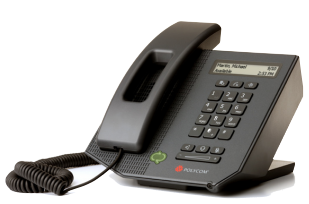
 This is the current object of my techno-lust. It’s the CX300. Why? Why would I go ga-ga over a stupid desk phone? Well clearly you’ve never used one in tandem with a Microsoft Unified Communications infrastructure.
- FANTASTIC audio quality.
The speakers on this phone are good enough to play high def music through. It’s head-over-heels better than our Nortel phones or my $200 speakerphone at home. And since the connection is VOIP/Digital, I get CD-quality audio if I’m talking to another UC-enabled user who’s using Office Communicator. The audio is as if the person was standing right next to me. - DIAL PAD. Nuff said.
Finally! I own a CX200 – Polycom’s predecessor to the CX300. It’s excellent in every way – except there’s no dial pad. I have to dial the phone using Office Communicator and my mouse/keyboard. BUZZZZ. With the CX300, I can initiate a call from Office Communicator then if I need to enter in digits after the calls been made (PIN info, concall details, etc.) I can do so directly on the phone – which is what is intuitive to me as a user of phones for 35 years. - PLUG-AND-PLAY. Done.
I plugged this thing in, and it worked. It did this on Windows Vista and it did this on Windows 7 – both 32-bit and 64-bit versions. No driver install, no configuration, no nothing. Brilliant. - I CAN WALK AROUND. Untethered.
I can’t stress how important it is to be able to use the phone ONLY WHEN I WANT TO. I don’t have a headset off my ear, I just have to reach over and pick up the phone when I want to make a call or answer a call. And I get my all-too-familiar dial tone when I pick it up. Glorious.
This phone is basically about $130 and it has nothing but a USB 2.0-cable off of it. It plugs into your desktop/laptop and immediately becomes the conduit by which one can make & receive calls using Office Communicator as the “intelligence” behind it.
The following is a review that was posted to the Office Communicator Team blog. I don’t particularly care for the formatting of their blog so I’m reposting their entire review here.
Device Highlight: Polycom® CX300
While most of the time we focus on Office Communicator from a Software perspective, it’s easy to forget that really good phone experiences come from pairing Office Communicator with great devices!
For this post we’re going to take a look at a device that the Office Communicator team worked hard on to get just right, the Polycom CX300.
This device is my preferred device at work, as it has some really great acoustics from both the headset and the speakerphone. It provides me with that much needed hardware interaction that I’ve grown up with that I just can’t seem to get with a headset.
While I use this device day to day, I’m finding some neat tips & tricks that I wanted to share with you. For those of you who have this devices already, these tips will improve your experience. For those of you who don’t, these tips will provide an overview of the great user experience.
- Quick Calling
This device behaves just like a regular phone, so pick up the handset and dial a number. It just works! Also if you wish to verify your number before placing your call, just dial the phone number you want to call, review it in the display, and pick up the handset (or press the speaker button). Your call will start.- Interaction with Office Communicator
As this device was designed to work with Office Communicator, it has some really nice features to keep you connected. The first and most prominent of which is the big presence light on the front of the device. This light is your presence so you can at a glance know what your presence is.
E
ven further as this device is your primary device for Office Communicator, when you click the toast on your desktop the call is picked up on the speaker phone of the device. You could pick-up the handset to answer the call if you wanted too as well.
- Voicemail
One thing that I find really convenient about this device is the interaction with voicemail. The device has a voicemail indicator right on the 1 key that lights up when you have voicemail. Then when you want to call your voicemail you can just press and hold the 1 key to call!- Rejecting a Call
Everyone gets those calls that you just can’t answer right now, whether you’re in a meeting or trying to concentrate on finishing up a last minute presentation. When you need to reject a call fast, just hit the backspace key.- Multiple Calls
You’re on a call with someone and someone else calls you. What do you do? You can accept the call from your desktop by clicking on the “toast”, or just press the Hold key on the device to switch to the new call! This button will put your current call on hold, and automatically accept the incoming call for you.- Advanced Device Settings
One of the features that not many people know about is that the device has settings that you can modify. Although most people will never have to change a setting, you may want to configure your own personal preferences.To get to the settings, unplug your device from your desktop and plug it back in again. When the device lights up, press the 5 key to enter the settings. From there follow the onscreen directions.
Settings you can change:
- Rate at which volume is increased or decreased using the volume buttons on the device
- Whether you wish to remember the previous volume level of your last call, or to reset to the default volume level.
- Size of the text on the display
For more information:
 kurtsh
 Kurt Shintaku's Blog